How to activate our Product

Our product needs to be activate from our accounts manager whenever it is purchased from us. Below are the detail steps on how to activate our product.

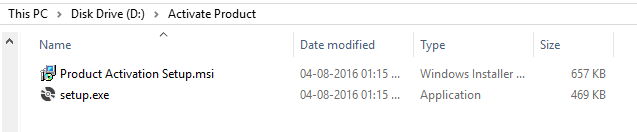
Step 1. We will start from the product activation setup file as shown in below image.
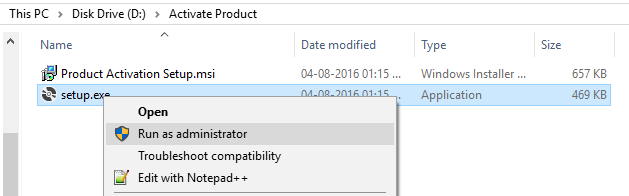
Step 2. Right click on the ‘setup.exe’ as per image below, drag to ‘Run as administrator’ and click on it.
Step 3. Now you will see screen as below. This is product activation setup window, click ‘Next’ to proceed further.
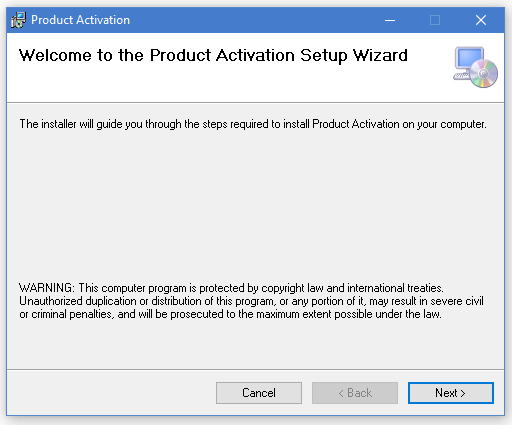
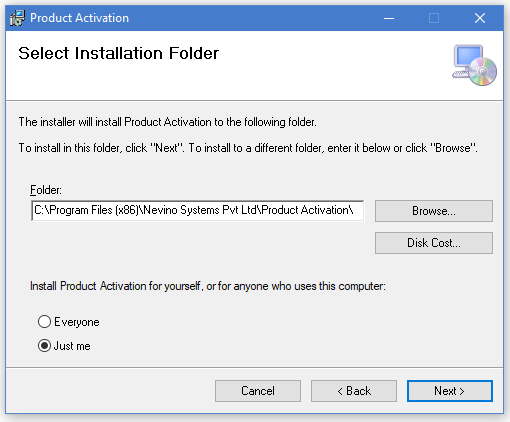
Step 4. On next window you can see the path where ‘Product Activation’ software will install and if you want to change the path click on browse else click on ‘Next’.
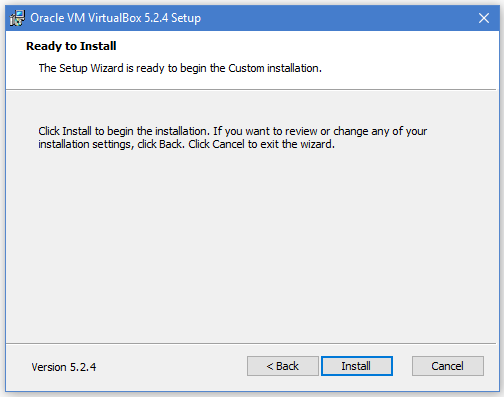
Step 5. Now the setup is ready to be installed after gathering the required information. Click on ‘Next’ to start the installation.
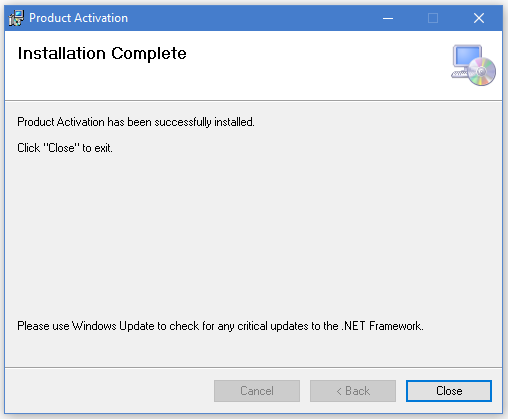
Step 6. After completing the installation process a window as below will appear of ‘Installation Complete’. Now the setup is installed and you can click on ‘Close’.
Step 7. Click on ‘Start’ you will see ‘Product Activation’ icon as shown in image below. Click on this icon.
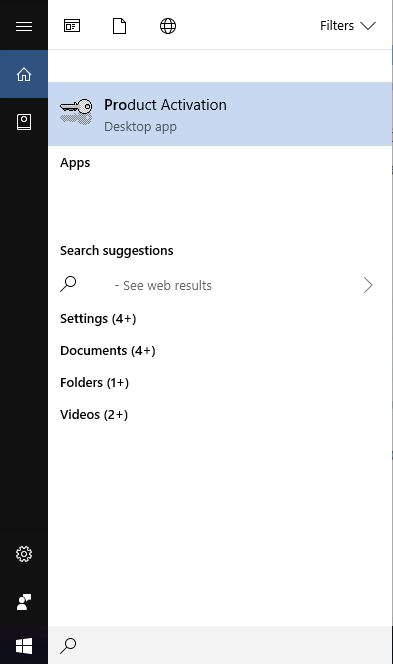
Step 8. The main window of ‘Product Activation’ software will now appears as shown in image below.
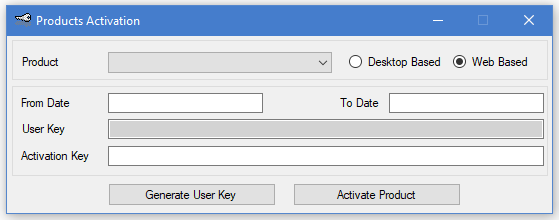
Step 9. Select the product that you have purchased by selecting the drop down menu.
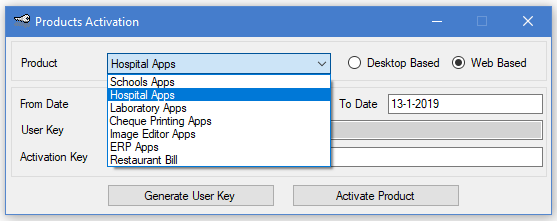
Step 10. For example, we select Hospital Apps then dates will also be shown as per image below.
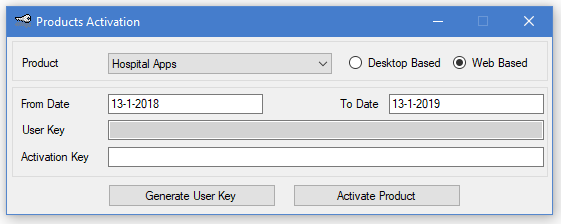
Step 11. Now click on ‘Generate User Key’ to generate the key. A key will be generated in the User Key blank text box as shown in below image.
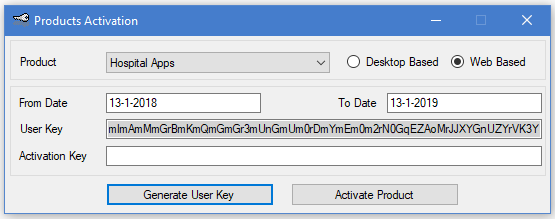
Step 12. Copy that entire key and send it to our accounts manager so that on the basis of that key software key can be generated. When you receive new key from our accounts manager, paste that key in the ‘Activation Key’ text box and click on Activate Product. Now your product is activated.

* The Content stated above is for informational purpose only. Expert Software Team is not responsible if any part of content found meaningless in any manner or condition.
How to install VM Virtual Box

My friends asked me many times ‘How to install VM Virtual Box?’. So, here are all the details about installing virtual machine in your computer. Please follow below steps to know more.

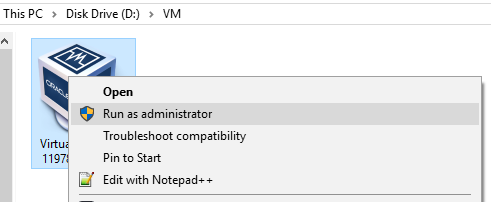
Step 1. When you have downloaded the setup file of virtual box right click on the file and then click on ‘Run as administrator’ as shown in below image. Also explained in our previous blog about how to download virtual box.

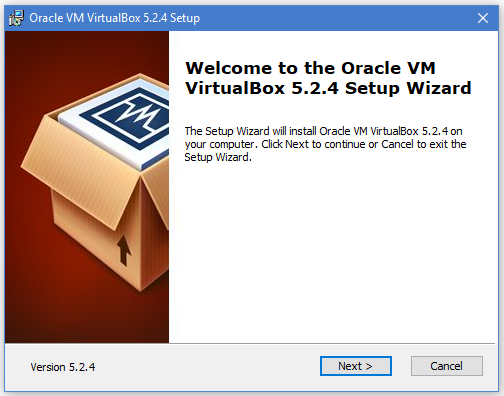
Step 2. Click on next when the window as below will appear on screen.

Step 3. On the click of ‘Next’ a new window appears now again click on ‘Next’.

vir

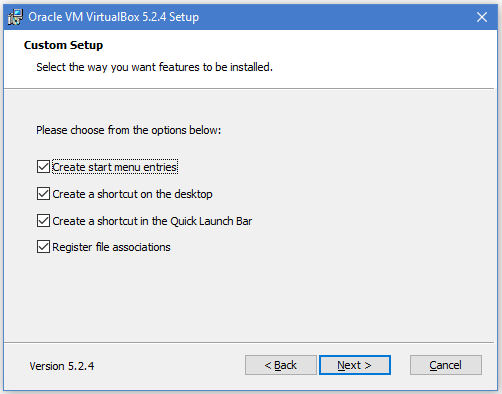
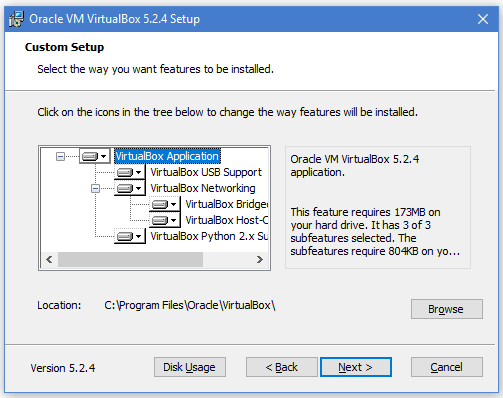
Step 4. On below window choose your preferred options and click on ‘Next’.

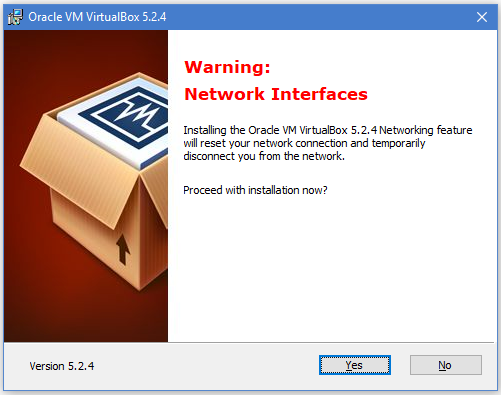
Step 5. Next window will ask you about proceeding with installation so click on ‘Yes’ as shown in below image.

Step 6. This is the final window click on ‘Install’ button as shown in below image which will start the installation process of virtual box.

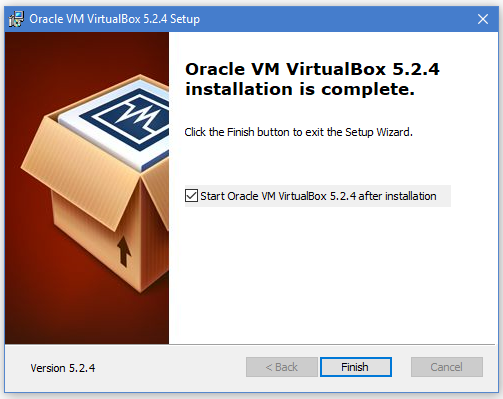
Step 7. When the installation completes a new window as below will appear which shows virtual box is installed on your computer.

* The Content stated above is for informational purpose only. Expert Software Team is not responsible if any part of content found meaningless in any manner or condition.
How to download VM Virtual Box

In this blog we will learn that how we can download VM Virtual Box. What is Virtual Box? Oracle VM Virtual Box is software in which you can install any operating system. Let’s make it easy to understand for example, you have Windows 10 operating system installed on your laptop and when you install vm virtual box you can install Ubuntu operating system of Linux version in your computer which will run inside windows 10. Here VM means Virtual Machine and it will be explained in detail in coming topics. Now let’s start with download steps.

Step 1. Click on the following link to reach virtual box website download page www.virtualbox.org/wiki/Downloads

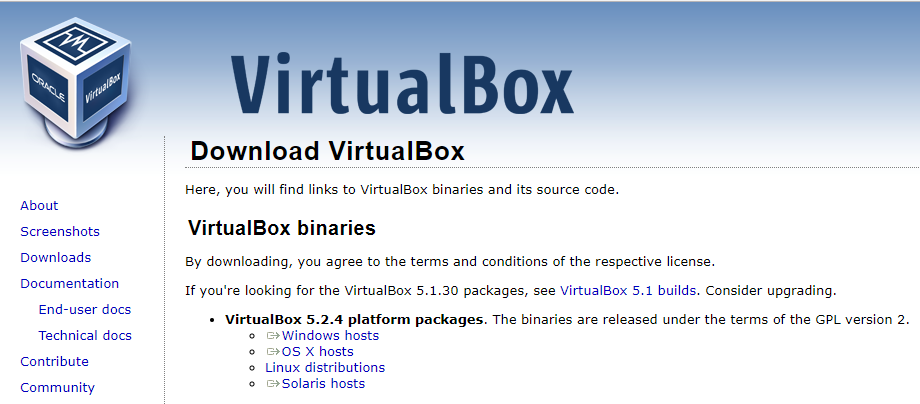
Step 2. You will find the web page as below.

Step 3. Now choose your preferred platform package from given four packages. For example, we have Windows 10 installed on our computer so we click on ‘Windows hosts’ which will in return start the downloading of virtual box setup file.

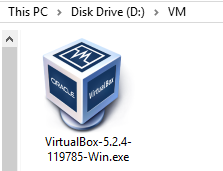
Step 4. When the download completes the file will look like as shown below.

Step 5. Now the file is ready to install the Virtual Box on your computer. Please follow the given link to know How to install Virtual Box.

* The Content stated above is for informational purpose only. Expert Software Team is not responsible if any part of content found meaningless in any manner or condition.