Day: November 30, 2017

  • How to edit New Test Category in Nevino Lab Software

    When we have added new test category in nevino lab software then there may be need to edit its name in future as per requirement. So to do that we will now learn about how we can edit new test category in nevino lab software.

    Click Here To Buy Nevino Lab Software

    Step 1. We start with main window of Nevino Lab Software where we will click on ‘Category’ as shown in image below.
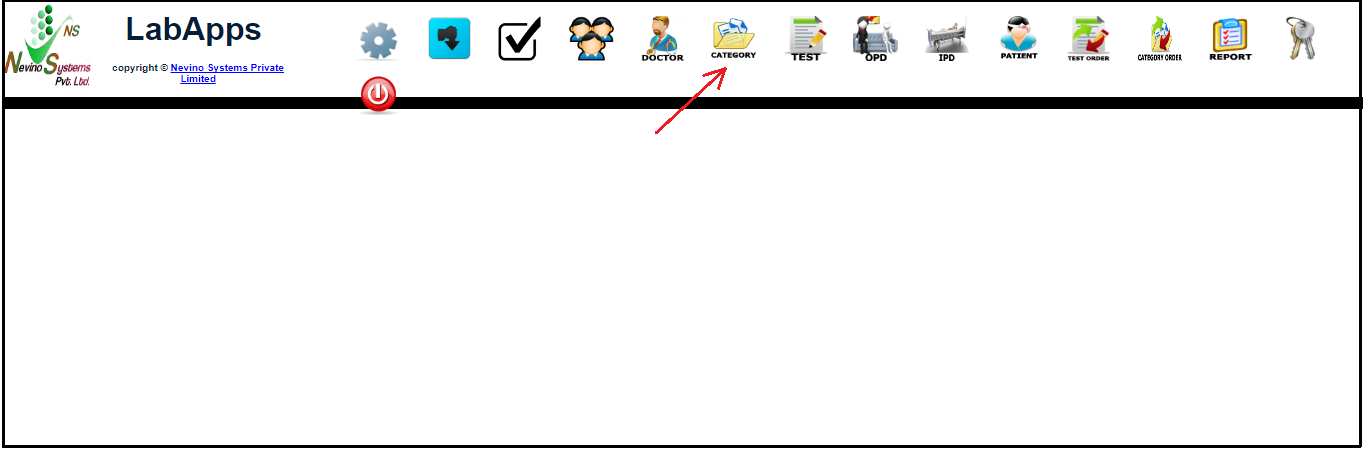
    lab main dashboard

    Step 2. Then a new window will appear as shown in image below.
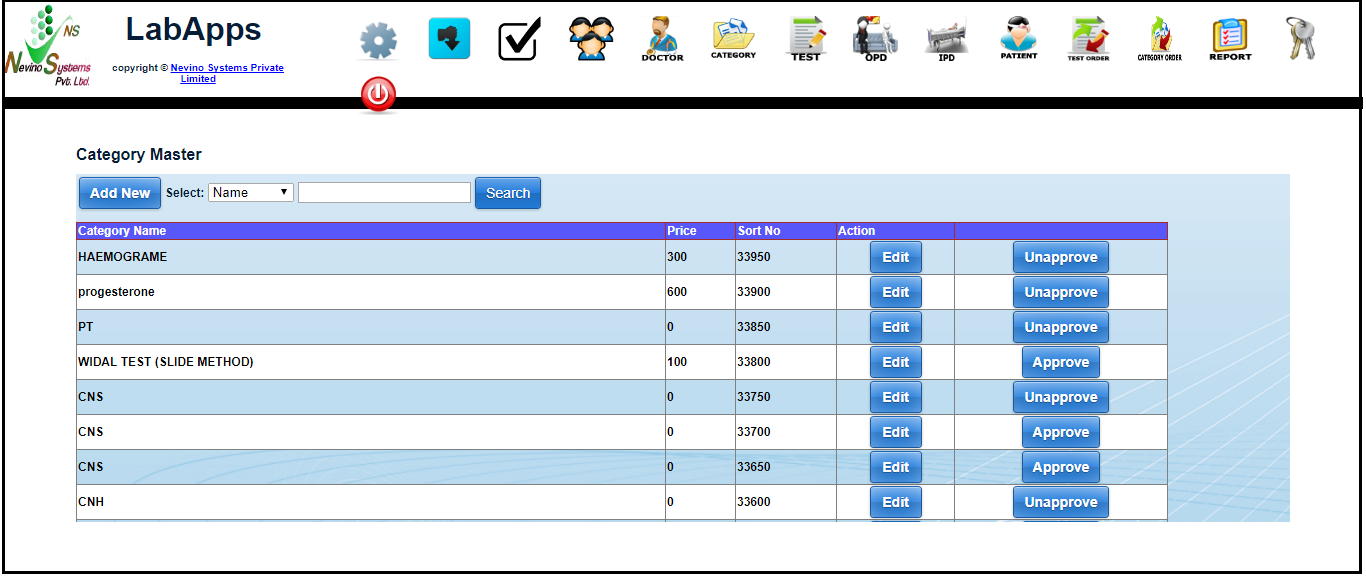
    category window

    Step 3. Now enter the test name in blank box of ‘Search’ button and then click on this button.
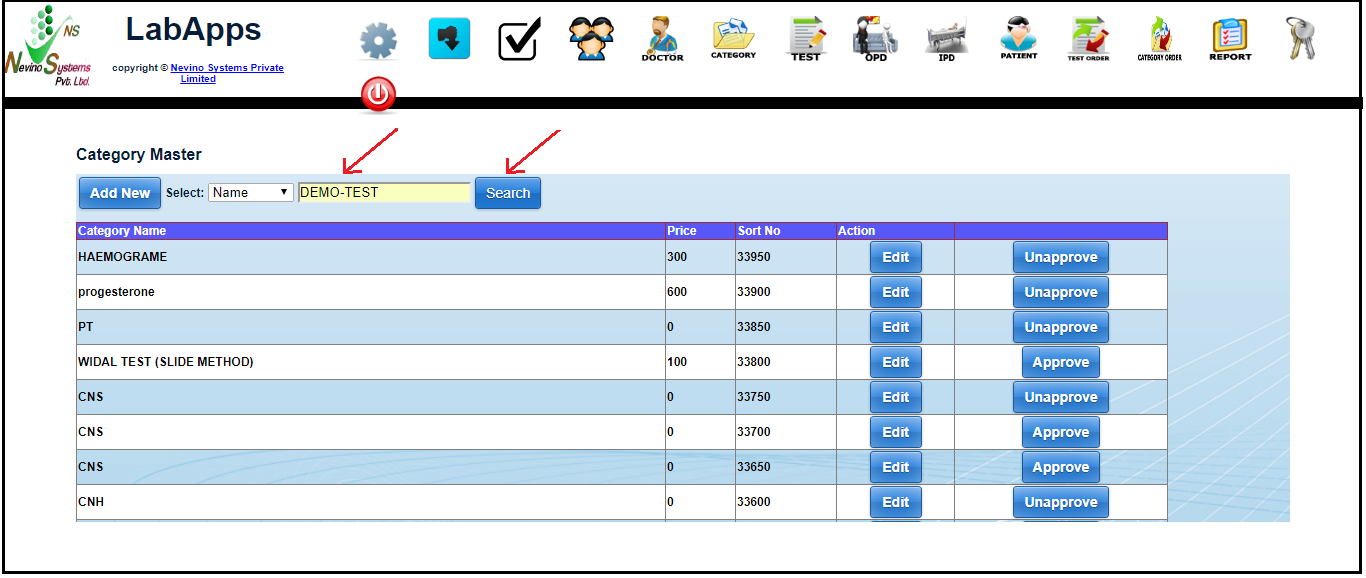
    search category

    Step 4. A window as below will appear where we will click on ‘Edit’ button as indicated in image below.
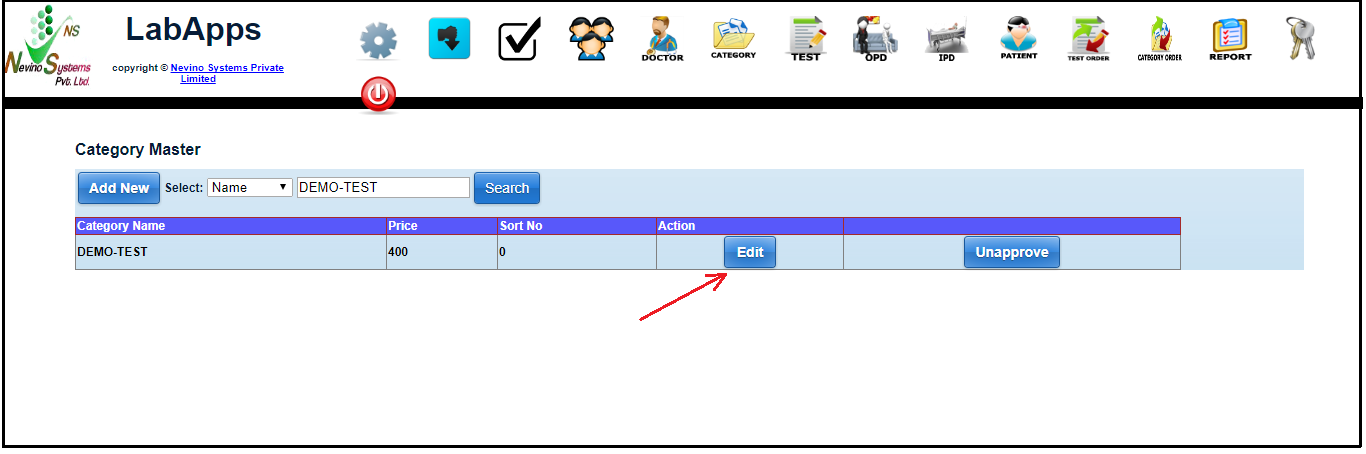
    category edit button

    Step 5. On the click of ‘Edit’ button a window displayed as below will appear where you can edit any information as per requirement and again click on ‘save’ button to save the newly entered data. In this way you can edit new test category.
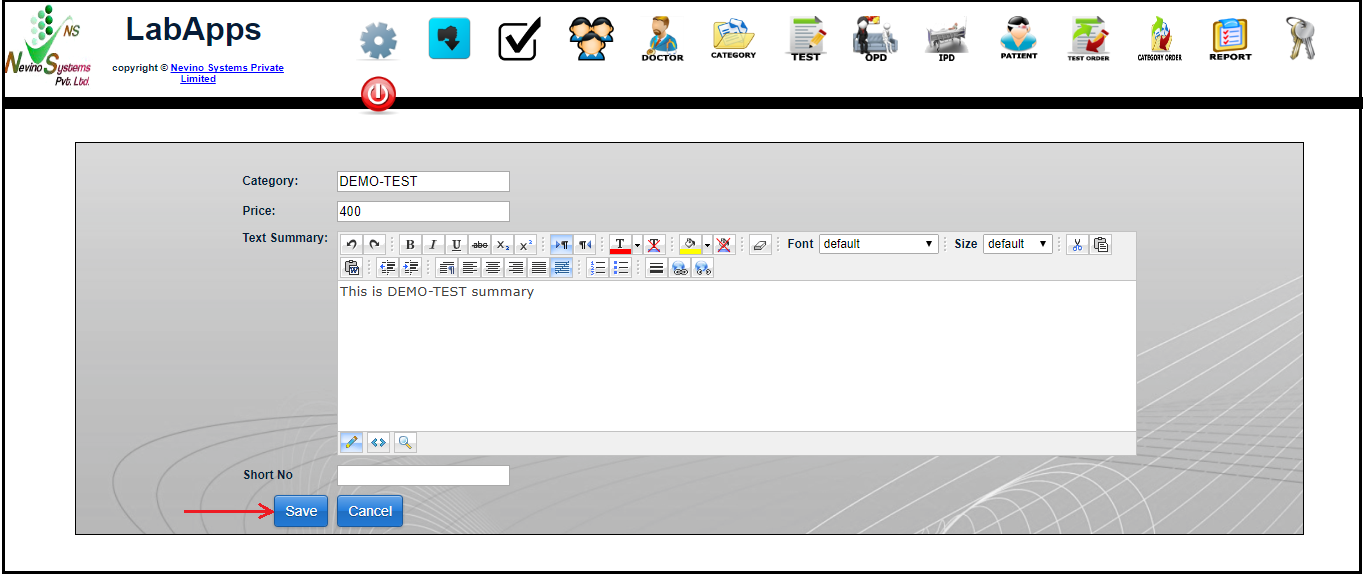
    category save buttton

    Click Here To Buy Nevino Lab Software

  • How to add New Test Category in Nevino Lab Software

    We can add any new test category in nevino lab software whenever there is need to add new test as per requirement of Lab. So now we learn that how to add new test category in nevino lab software.

    Click Here To Buy Nevino Lab Software

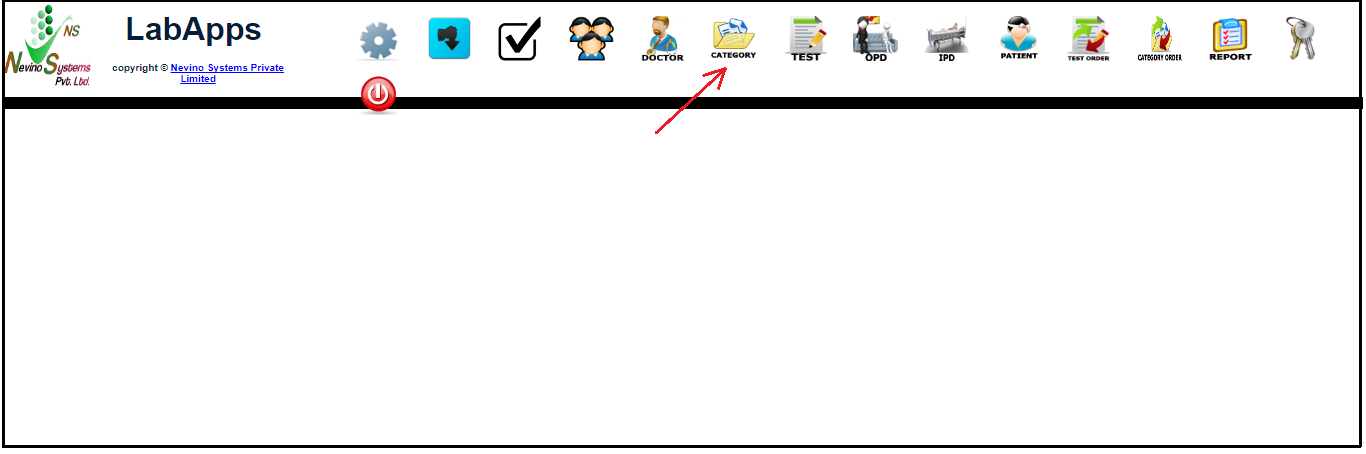
    Step 1. On the Nevino Lab Software main window click on ‘Category’ as indicated in the image below.
    lab main dashboard

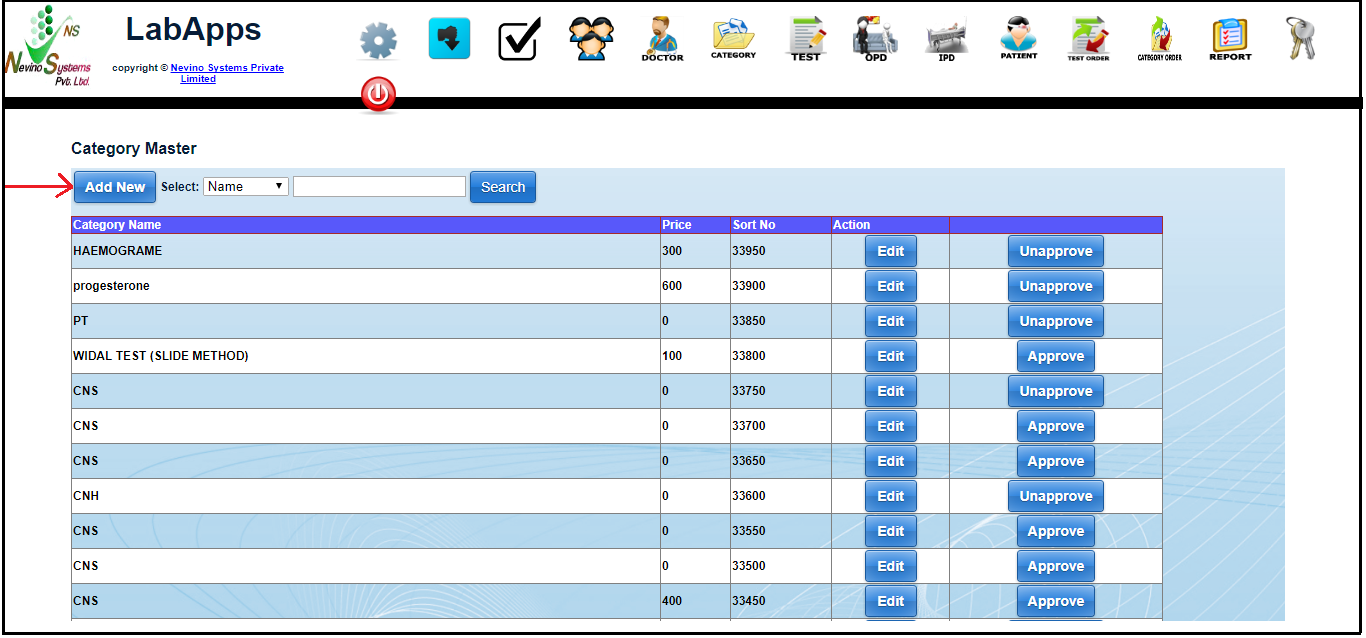
    Step 2. Then a new window will open where you have to click on ‘Add New’ as indicated in below image.
    add category button

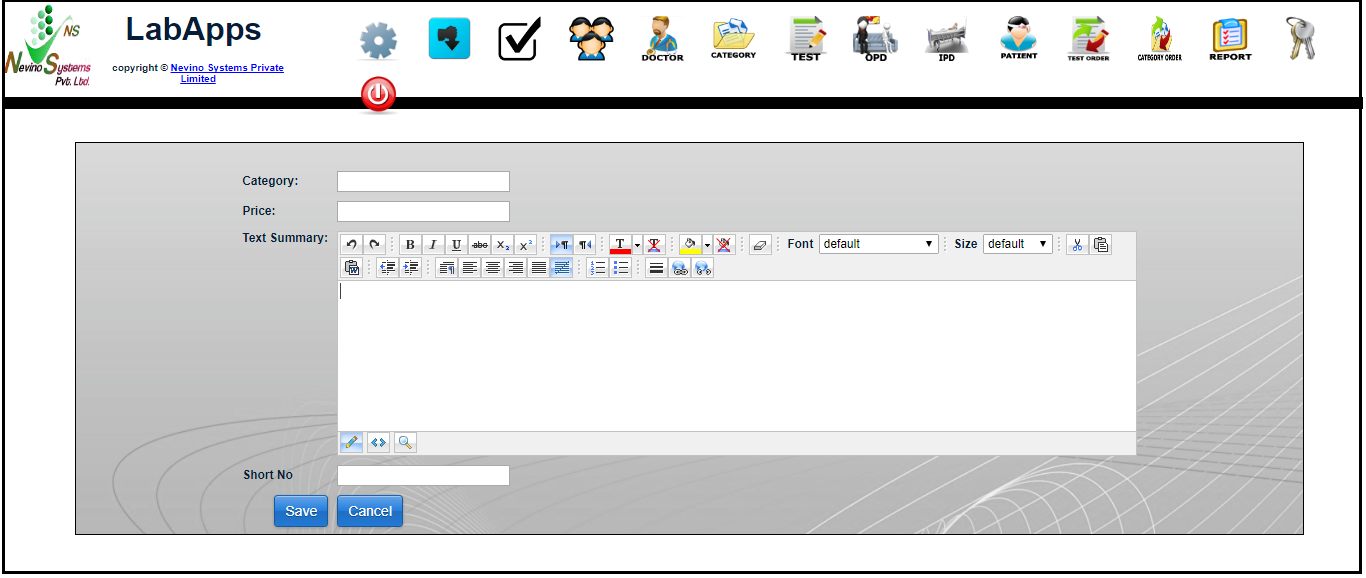
    Step 3. On the click of ‘Add New’ button a new window will open as shown in image below.
    add category window

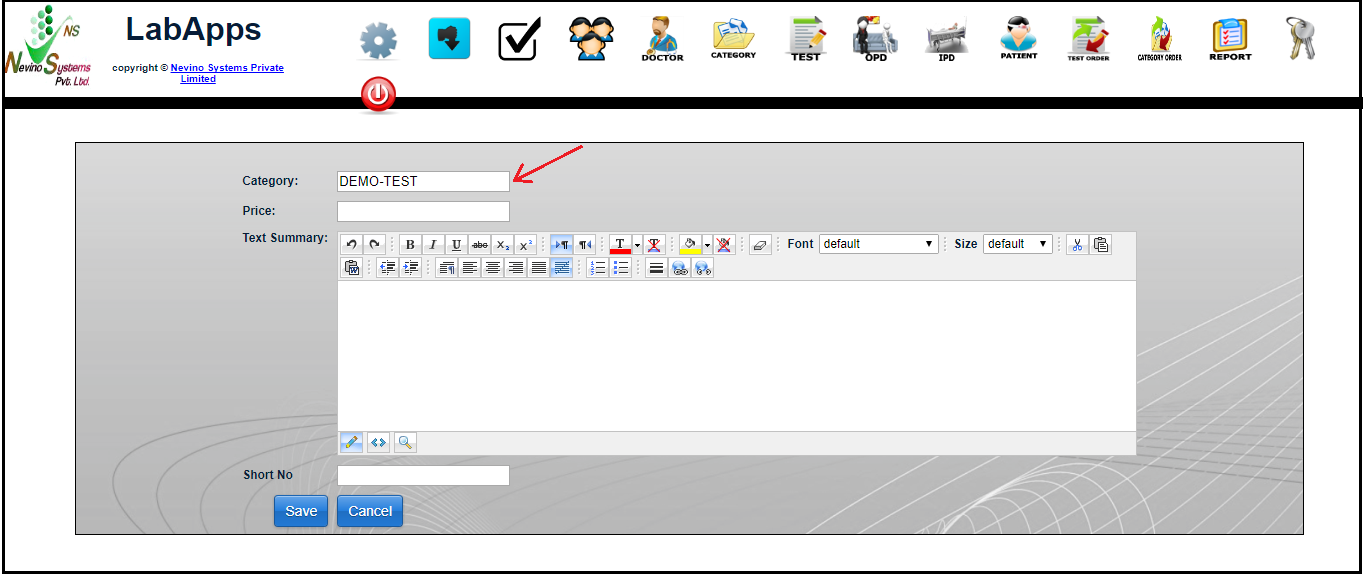
    Step 4. First we will enter the ‘Category’ for example we will add category name as ‘DEMO-TEST’ as shown in image below.
    add category name

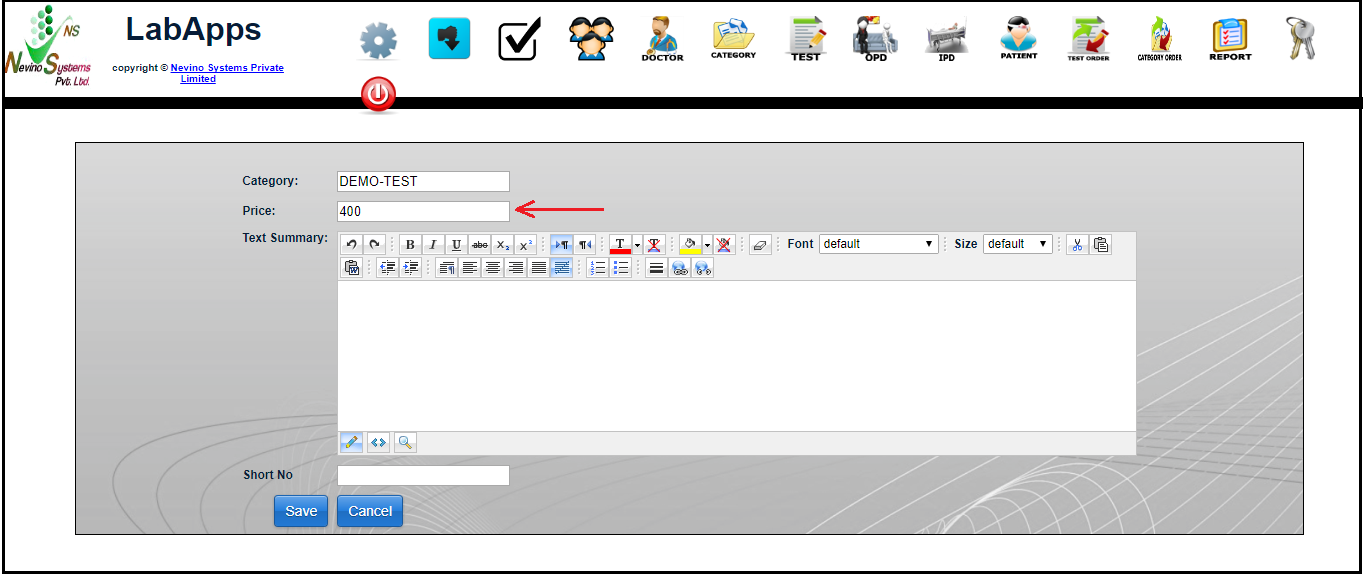
    Step 5. Next we will add the price of test so for example we will add price as ‘400’ as per below image.
    price of test

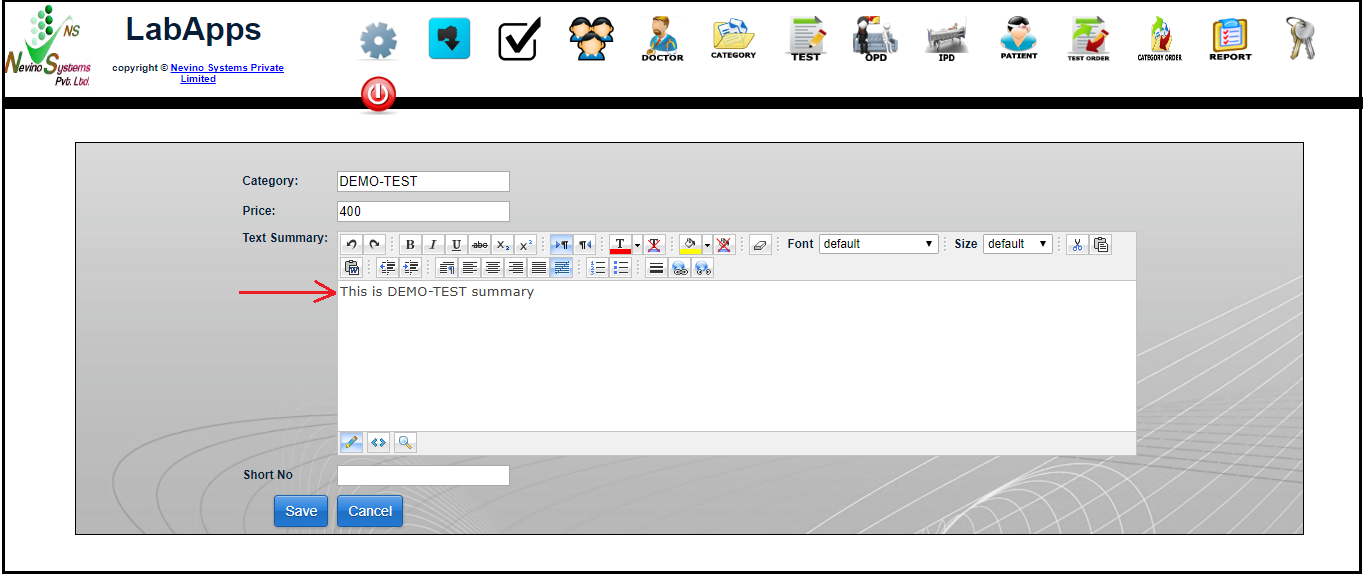
    Step 6. Now we will enter the summary for test as shown in below image. For example we will add ‘This is DEMO-TEST summary’.
    category summery

    Step 7. When summary is entered click on ‘Save’ button as indicated in the image below.
    category save button

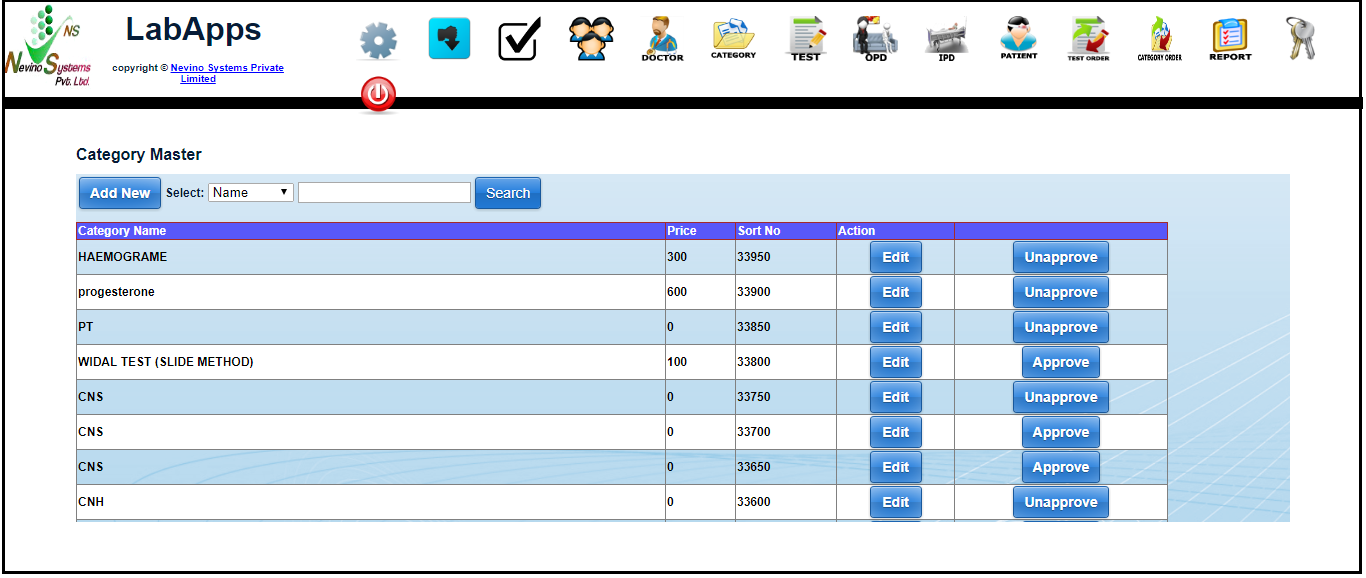
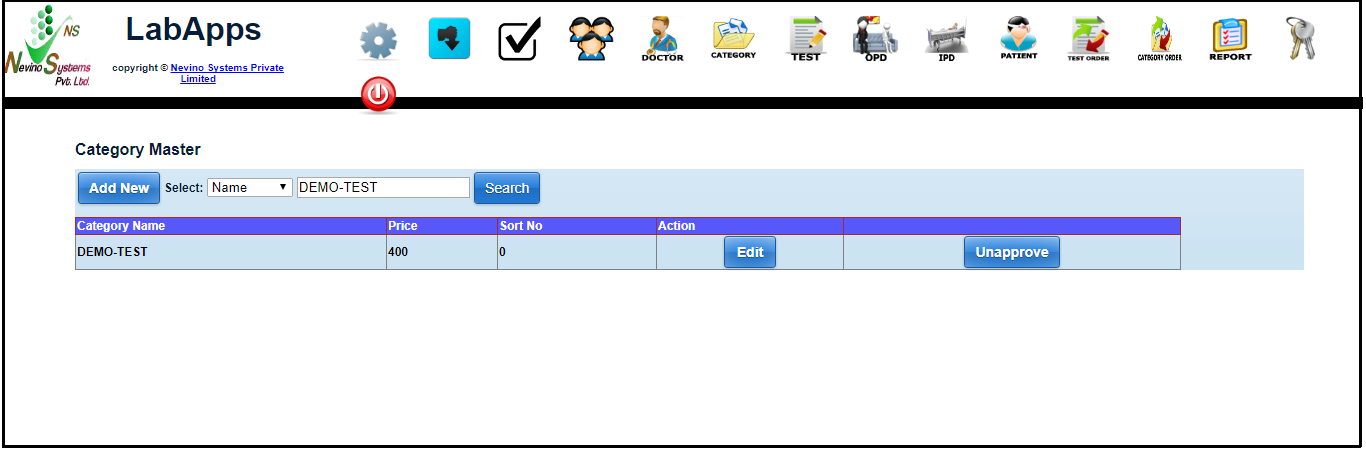
    Step 8. On the click of ‘Save’ button all the entered data will be saved and a new window will open as shown in below image.

    category window

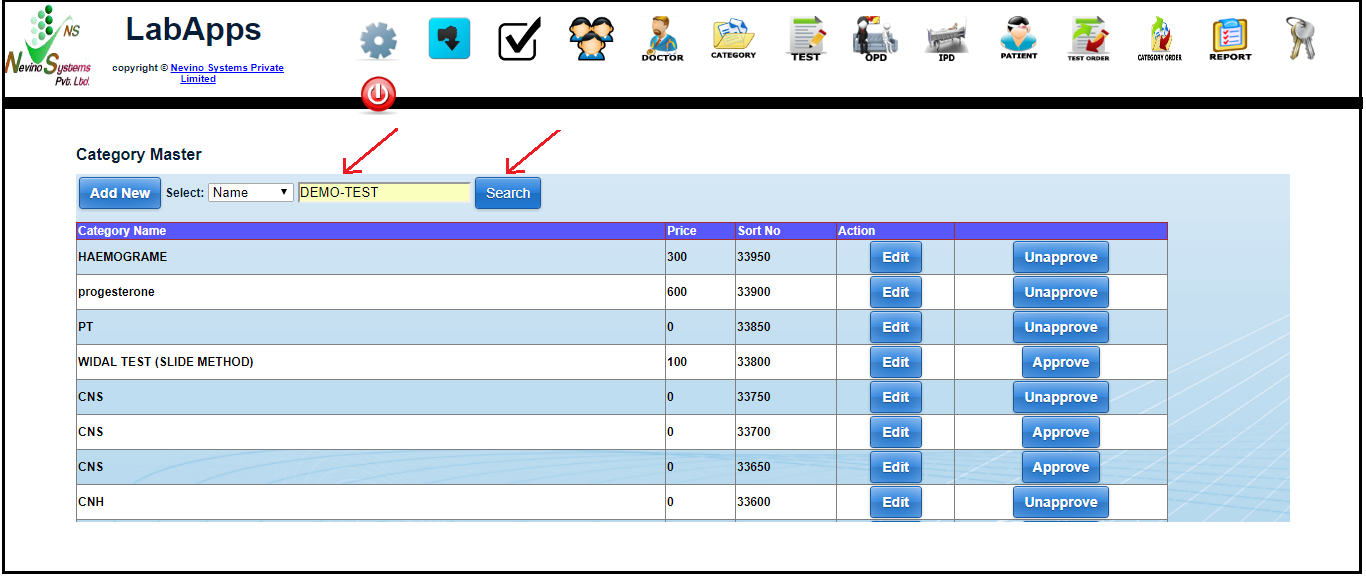
    Step 9. If we want to see that whether our new test category is saved then we will enter its name in ‘Search’ box and click on Search button as shown in below image.
    category name search

    Step 10. On the click of search button the name of new test category will be displayed as shown in below image.
    category name displayed

    Click Here To Buy Nevino Lab Software

  • How to generate Daily Test Collection report in Nevino Lab Software

    To see the number of tests conducted on daily basis we will see the daily test collection report. So now we learn how we can generate the daily test collection report in nevino lab software.

    Click Here To Buy Nevino Lab Software

    How to generate Monthly Test Collection report in Nevino Lab Software<< Already gone through this page >>How to add New Test Category in Nevino Lab Software

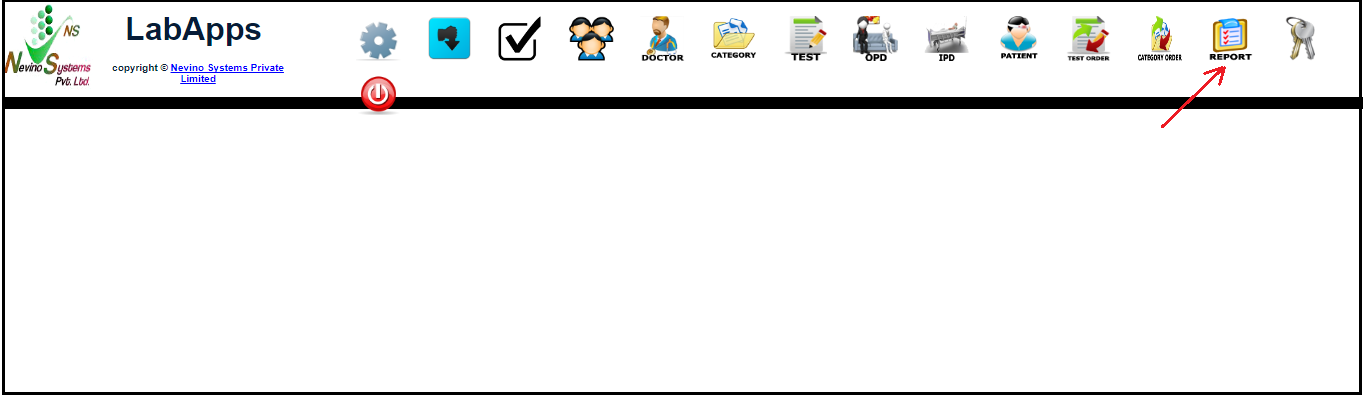
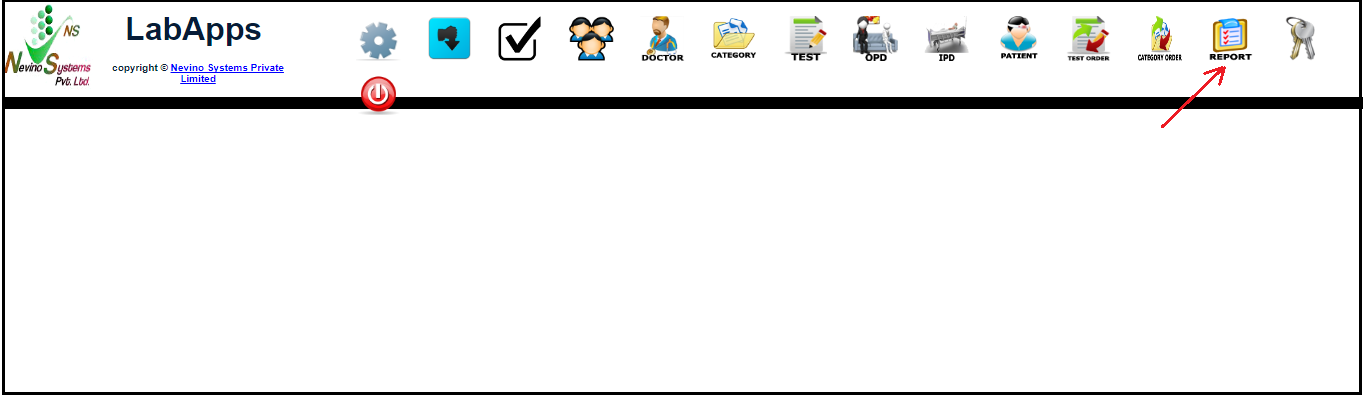
    Step 1. From the main window of Nevino Lab Software click on ‘Report’ as shown in image below.
    lab main window

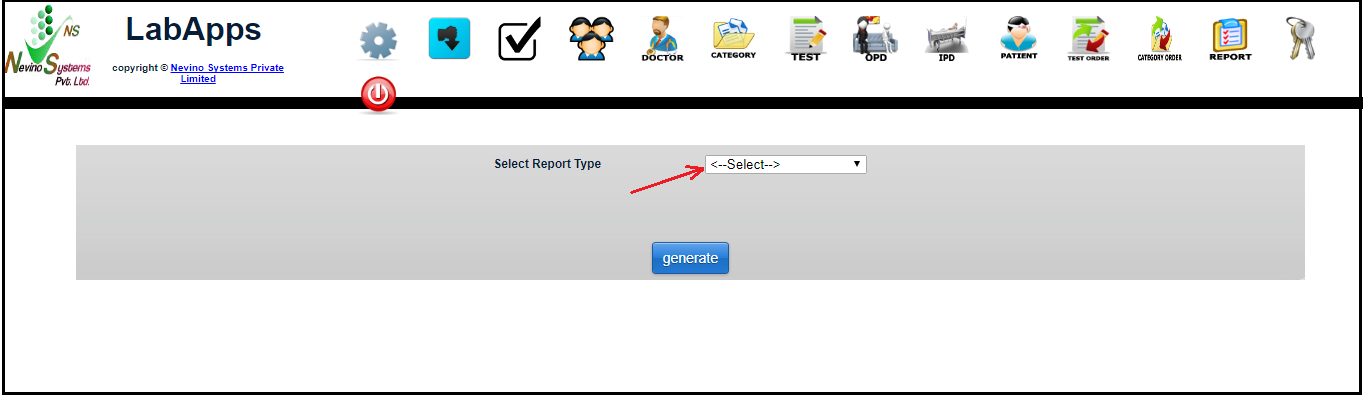
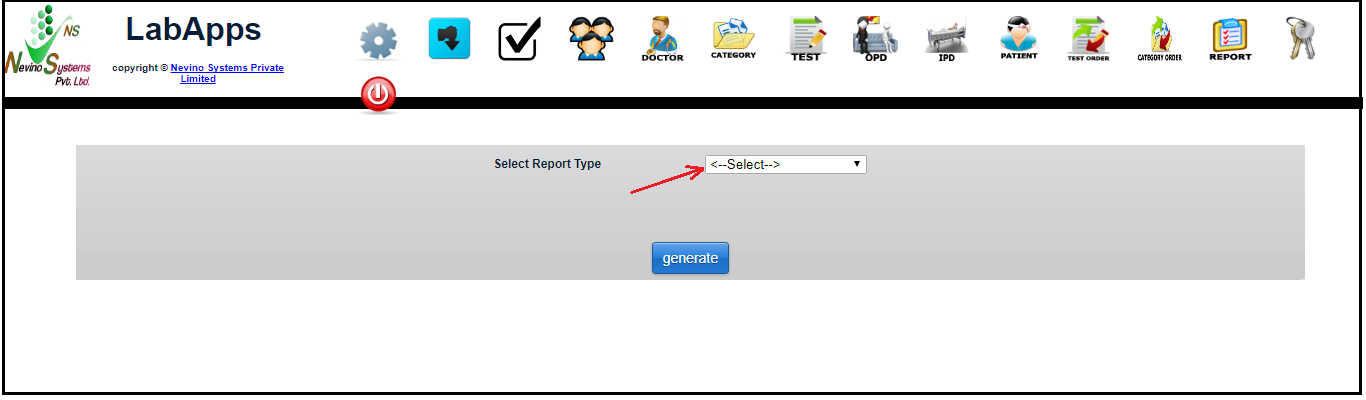
    Step 2. Now click on ‘Select’ as indicated in the image below.
    select report

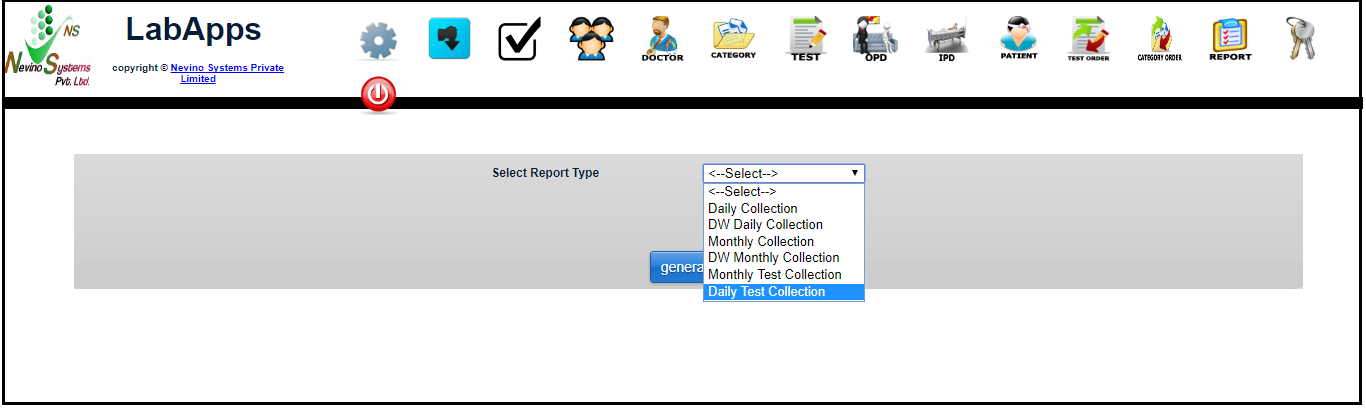
    Step 3. Select ‘Daily Test Collection’ report as shown in image below.
    test collection window

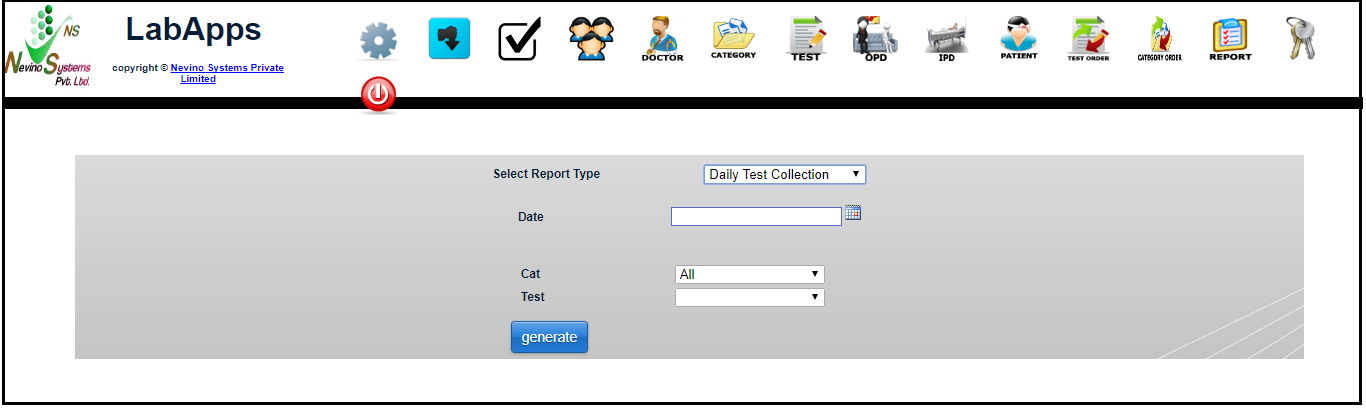
    Step 4. When ‘Daily Test Collection’ is selected a window as below will appear.
    select daily test collection

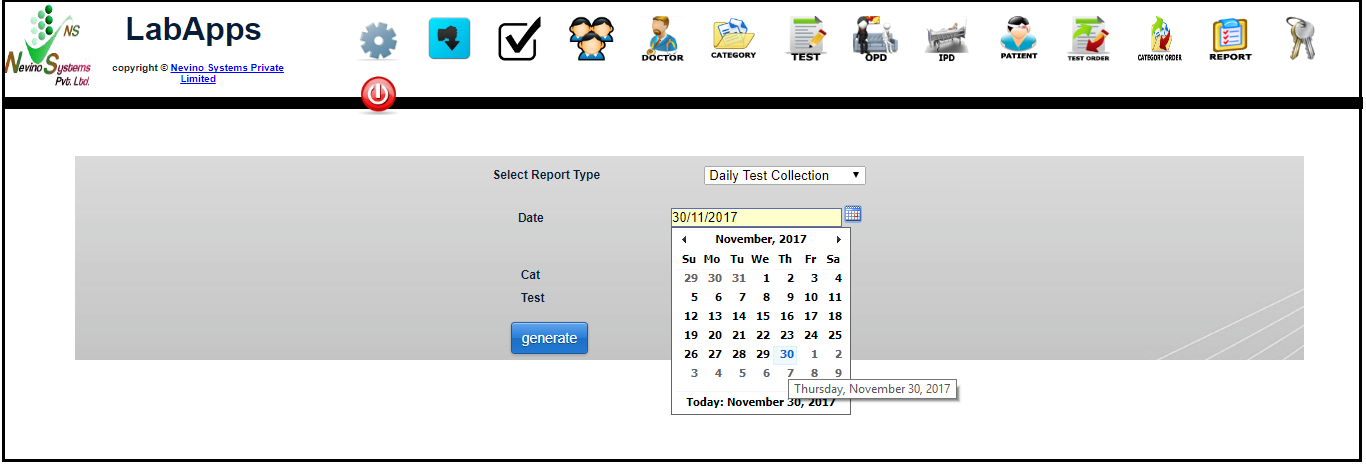
    Step 5. Select the date by clicking on the ‘calendar’ icon as indicated below.
    select date

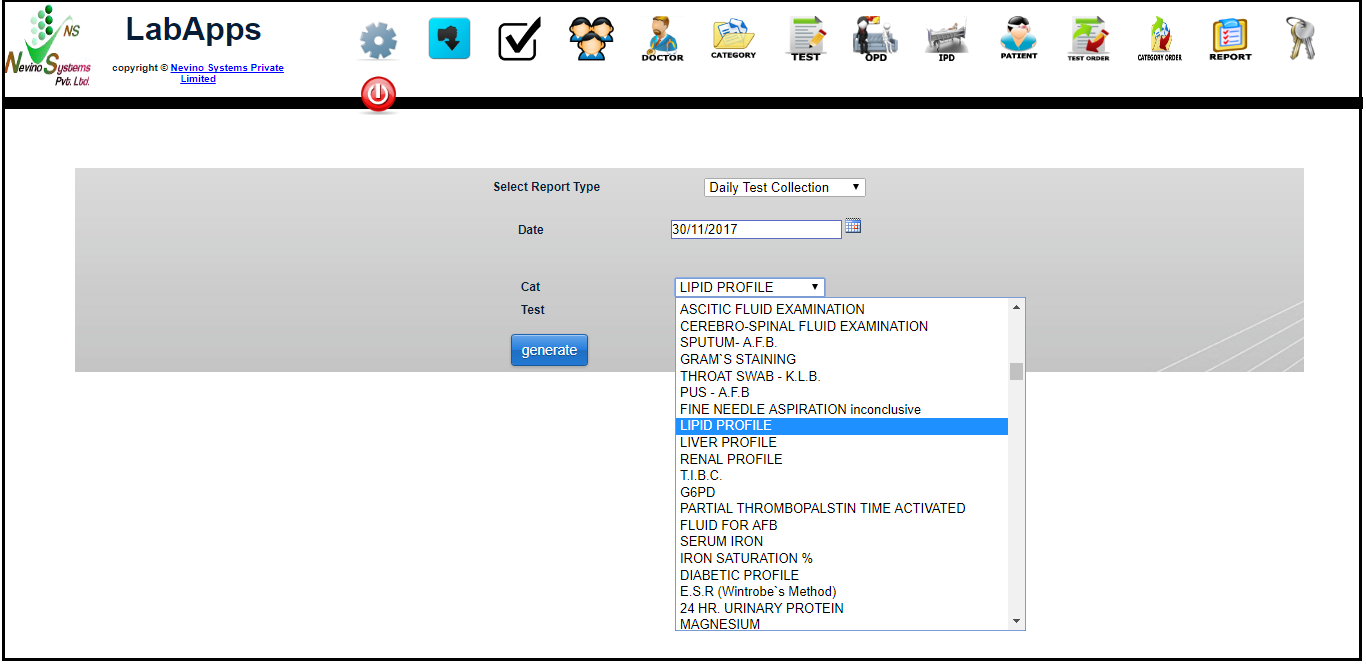
    Step 6. Now select the category of test. For example we will select ‘Lipid Profile’ as shown below.
    select category
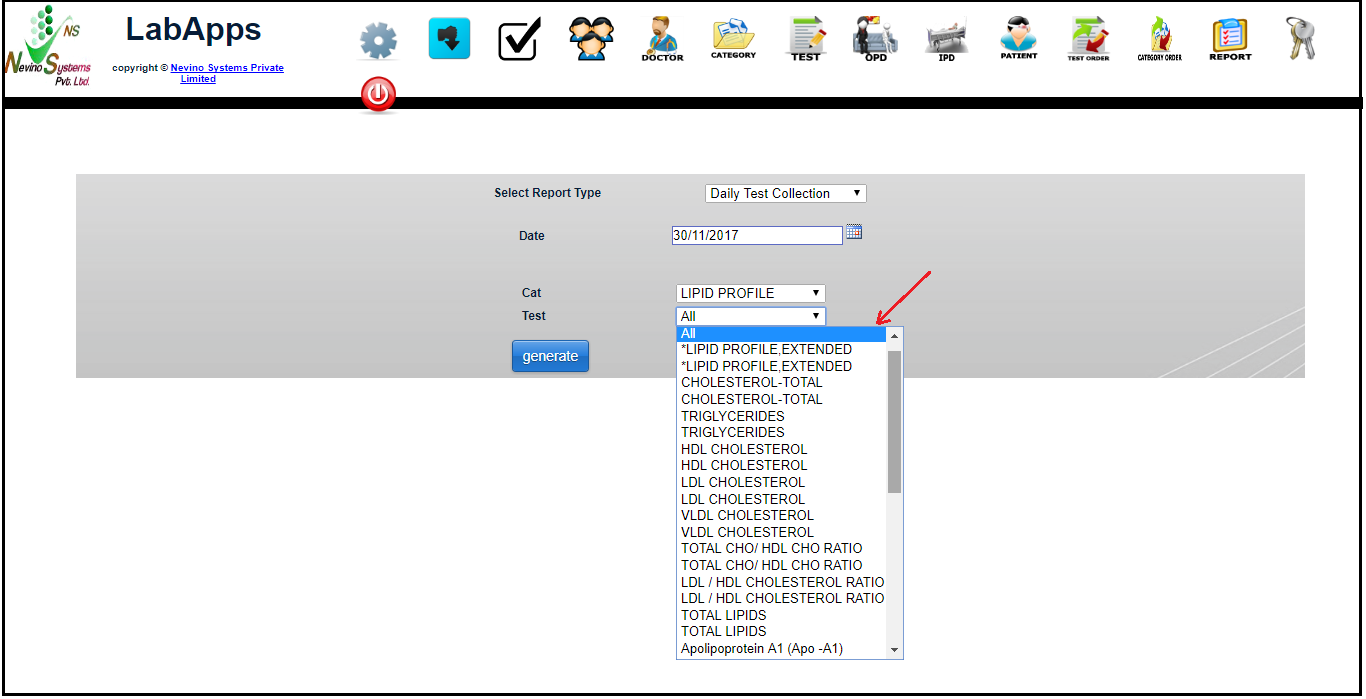
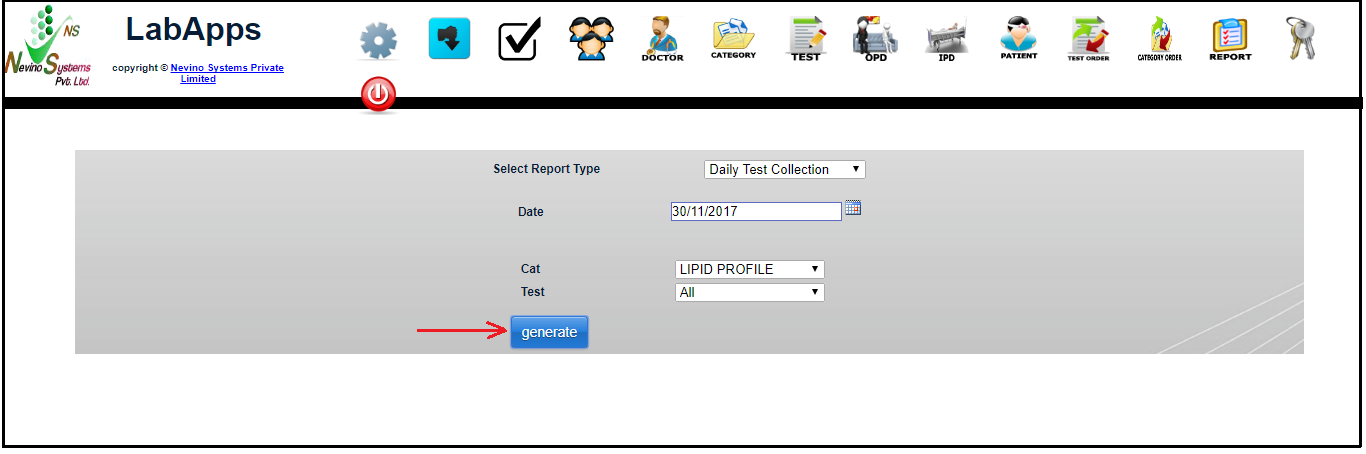
    Step 7. Next we will select the ‘Test’ as ‘All’ as we want to see all the tests as shown below.

    Step 8. Now click on ‘Generate’ button as per below image.
    generate button

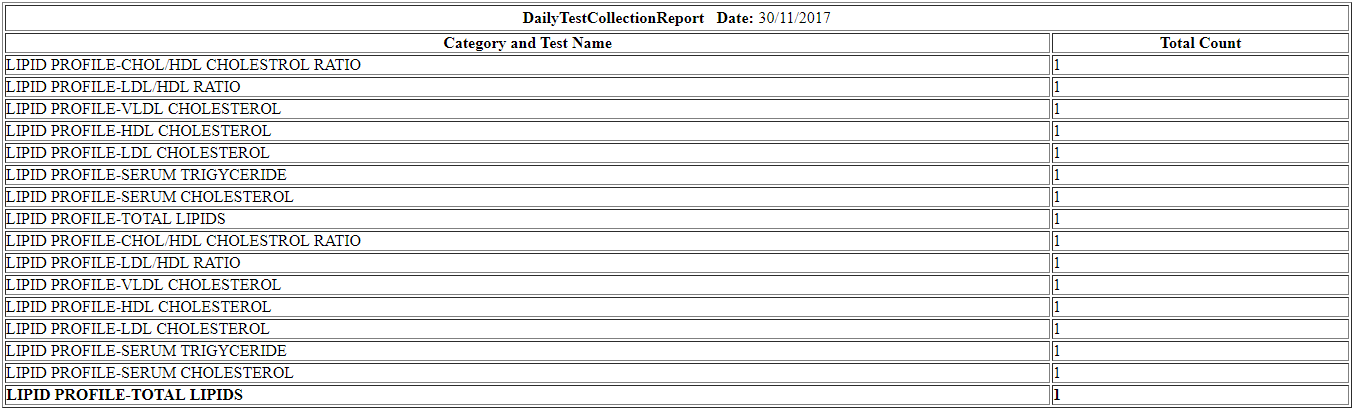
    Step 9. When ‘Generate’ button is clicked then report is displayed on new window as per below screen.
    daily test collection report

    Click Here To Buy Nevino Lab Software

  • How to generate Monthly Test Collection report in Nevino Lab Software

    Now we will generate report to know how many times every test was conducted in the past month. So we will learn how to generate monthly test collection report in nevino lab software.

    Click Here To Buy Nevino Lab Software

    How to generate Monthly Test Collection report in Nevino Lab Software<< Already gone through this page >>How to generate Daily Test Collection report in Nevino Lab Software

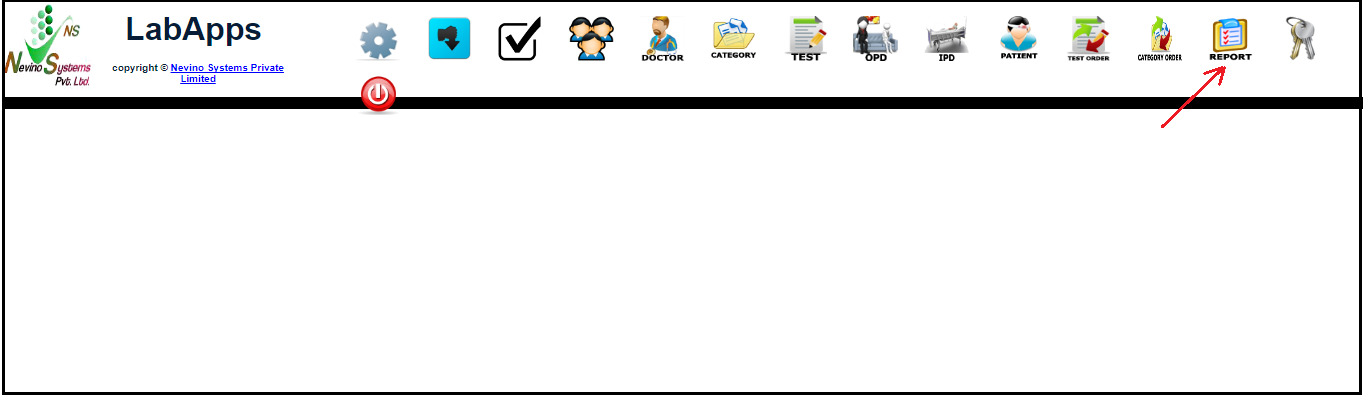
    Step 1. We start with the main window of Nevino Lab Software where we will click on ‘Report’ as indicated below.
    ;ab main window

    Step 2. Now click on ‘Select’ as shown in below image.
    select report

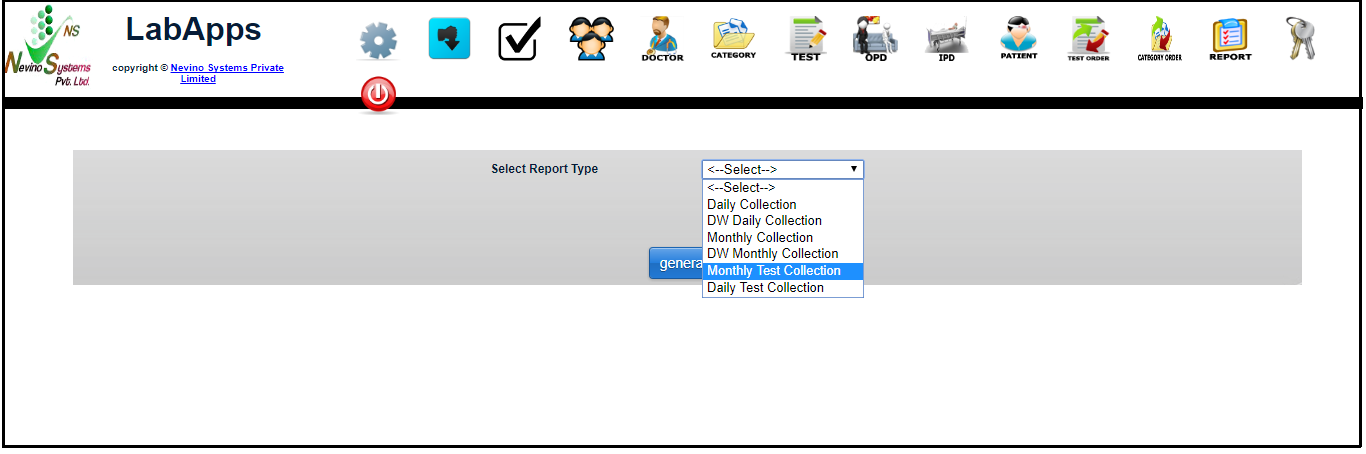
    Step 3. As we want to see monthly collection report so we will click on ‘Monthly Test Collection’ as per below image.
    monthly test window

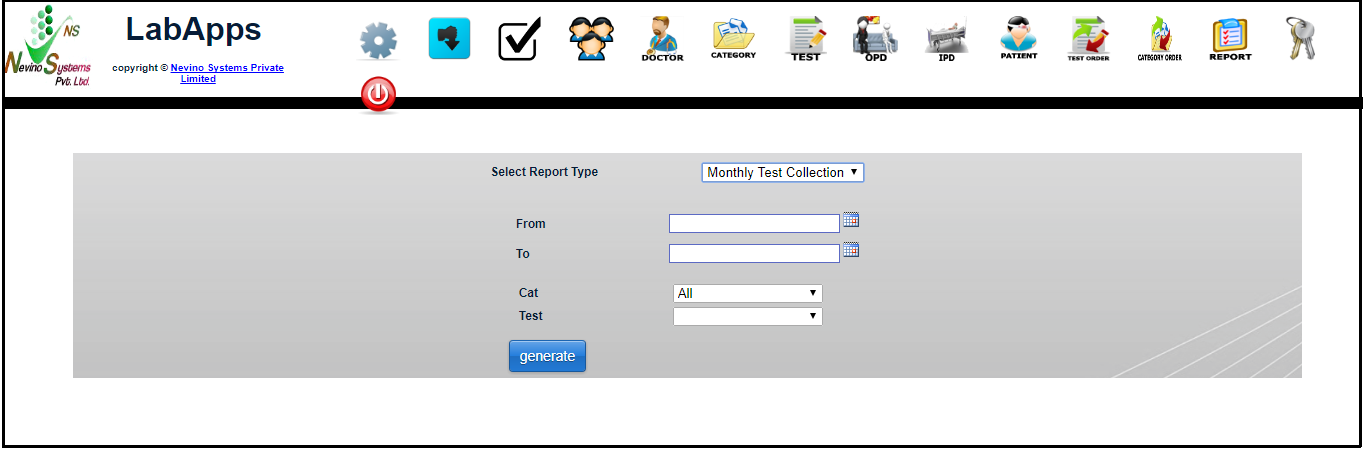
    Step 4. When ‘Monthly Collection’ is selected a new window will open as below.
    select monnthly test report

    Step 5. Select the start date by clicking on ‘From’ as shown in image below.
    select from date

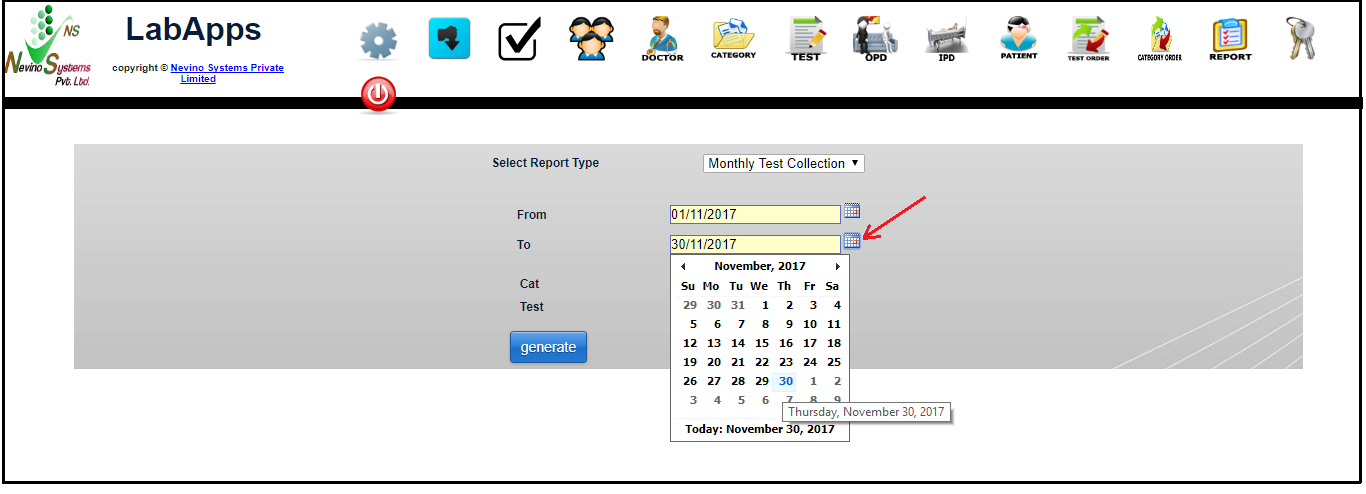
    Step 6. Now select the end date by clicking on ‘To’ as per below image.
    select to date

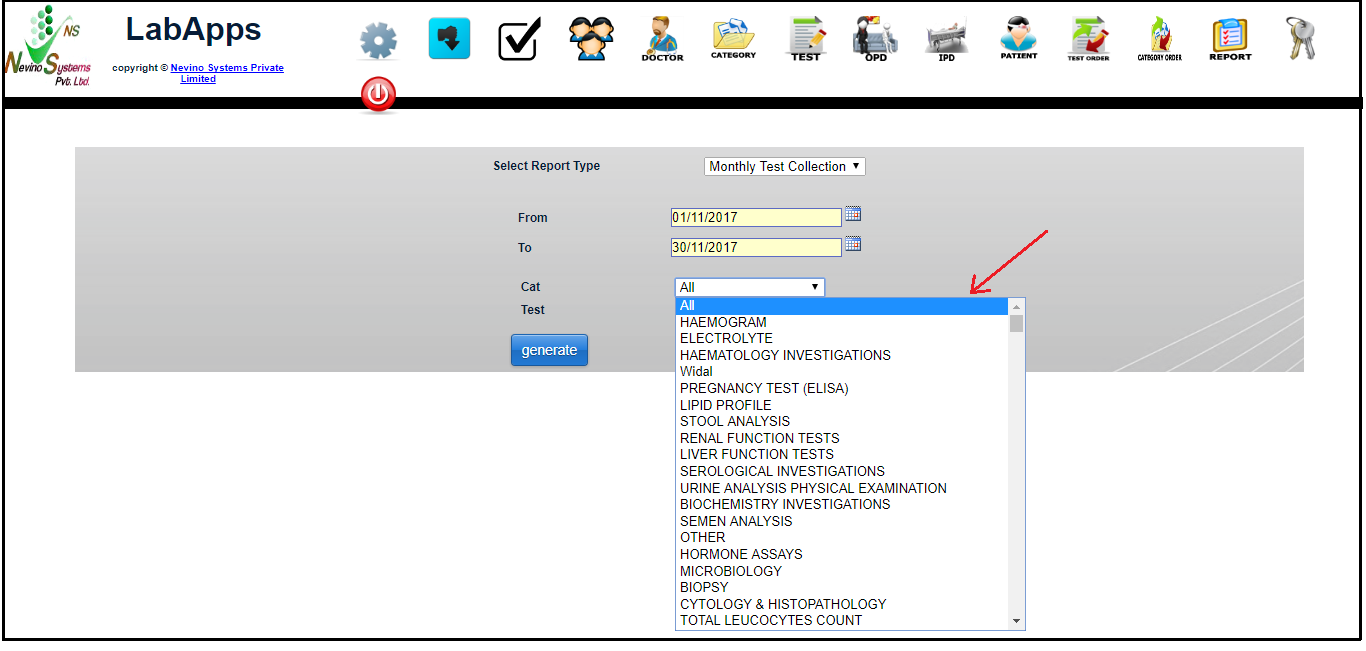
    Step 7. Next we select the category of test. For example we want to see all the tests so we select ‘All’ from the drop down list as shown below.
    select test category

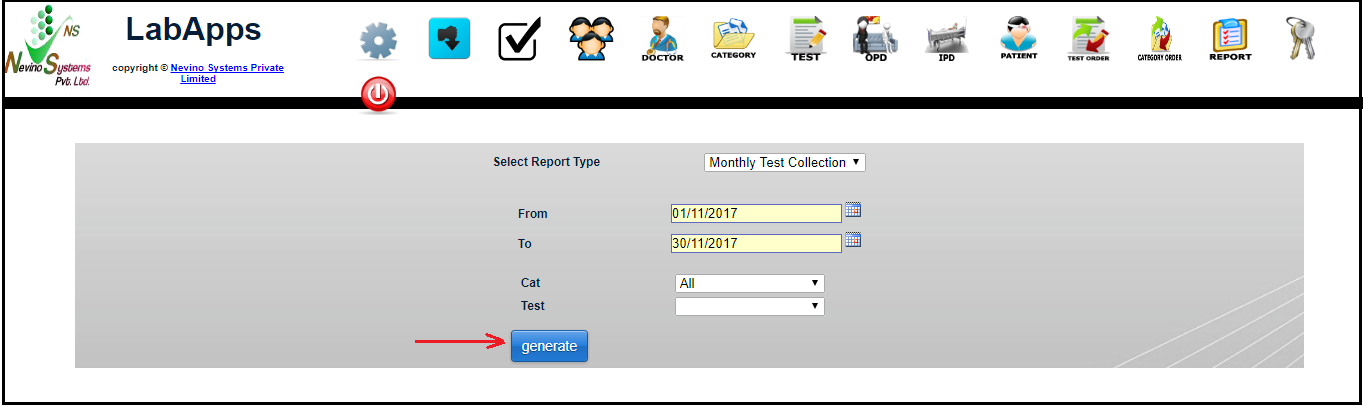
    Step 8. After selecting the category click on ‘Generate’ button as indicated in the image below.
    generate button

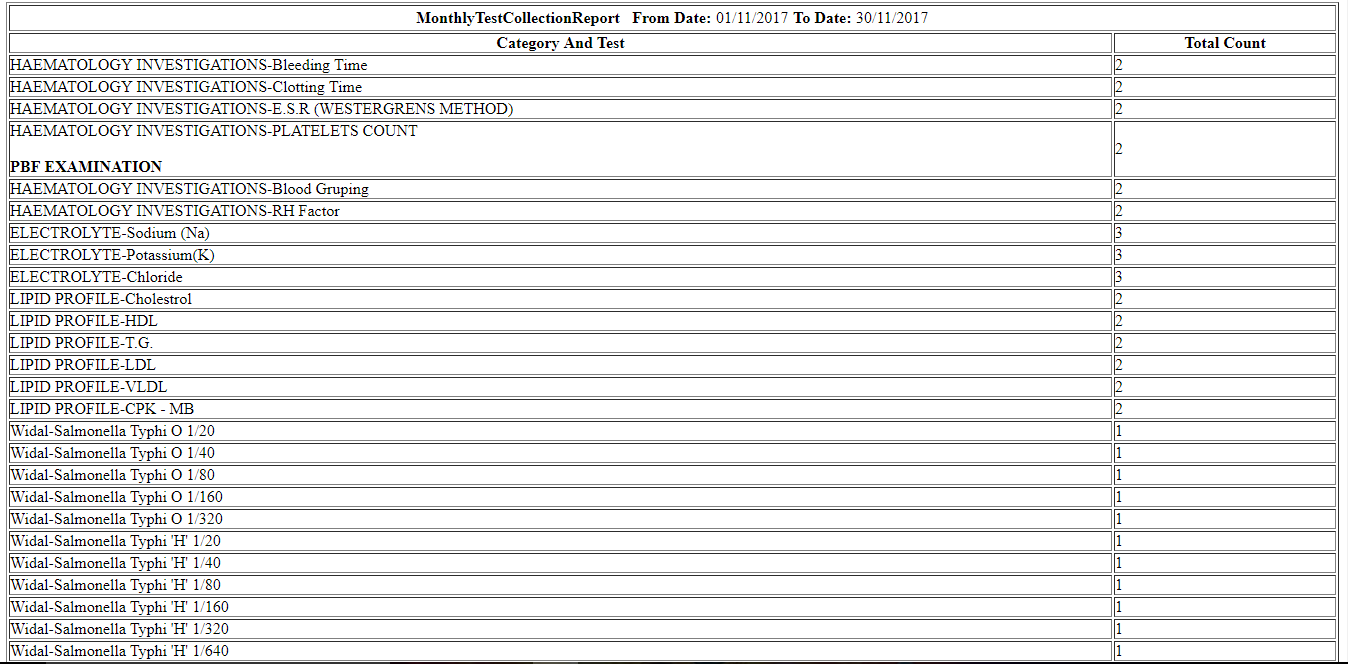
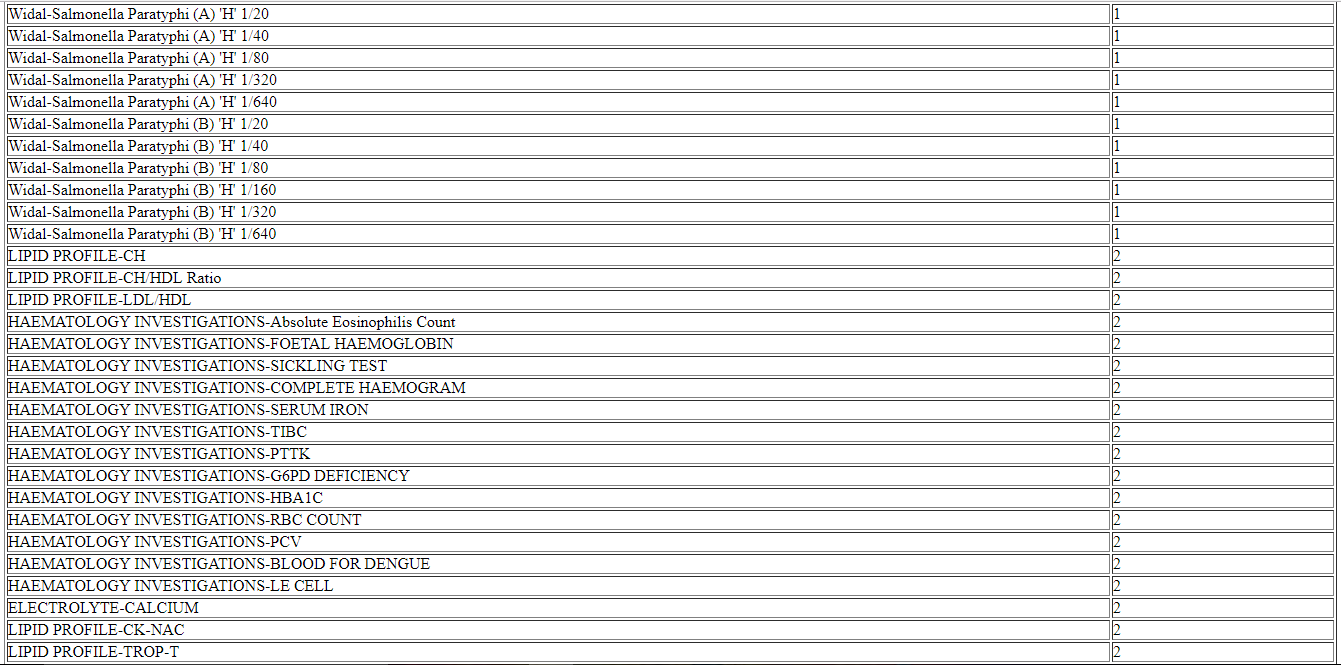
    Step 9. On click of generate button report as below will appear in new window.
    select monthly test report

    select monthly report2

    select monthly report

  • How to generate Doctor Wise Monthly collection report

    Nevino Lab Software provides the feature to see the monthly collection report doctor wise. So in this blog we will learn that how we can generate doctor wise monthly collection report.

    Click Here To Buy Nevino Lab Software

    How to generate Monthly Collection report in Nevino Lab Software<< Already gone through this page >>How to generate Monthly Test Collection report in Nevino Lab Software

    Step 1. We start with the main window of Nevino Lab Software, click on ‘Report’ as shown in image below.
    lab window

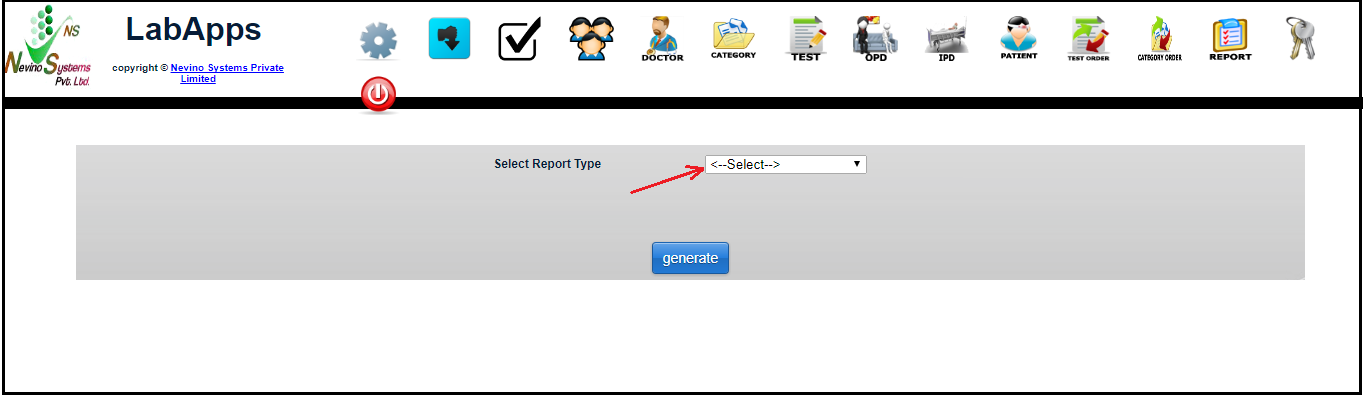
    Step 2. As shown in below image click on ‘Select’ to select the report type.
    select report type

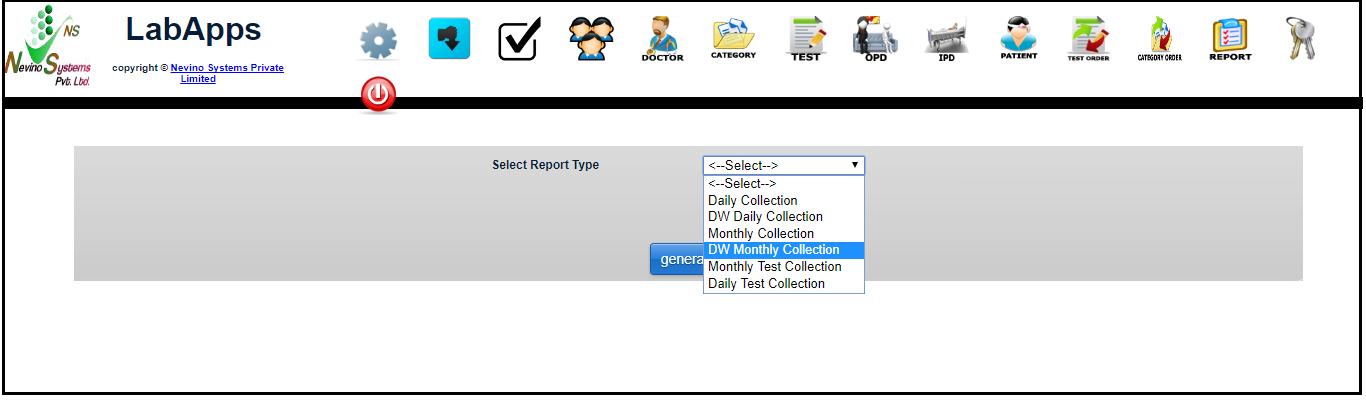
    Step 3. As we want to see Doctor Wise monthly collection report so click on ‘DW Monthly Collection’.
    select report

    Step 4. On the click of ‘DW Monthly Collection’ a window as below will appear.
    dw monthly collection

    Step 5. To select the start date click on ‘From’ as indicated below and select the date.
    select start date

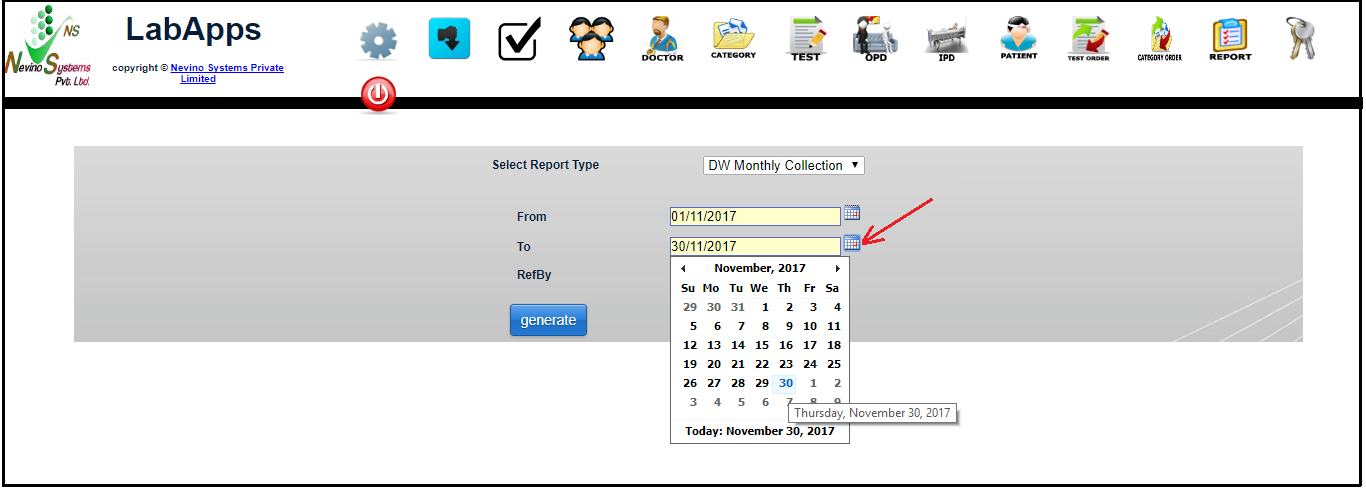
    Step 6. To select the end date click on ‘To’ as indicated in image below and select the date.
    select end date

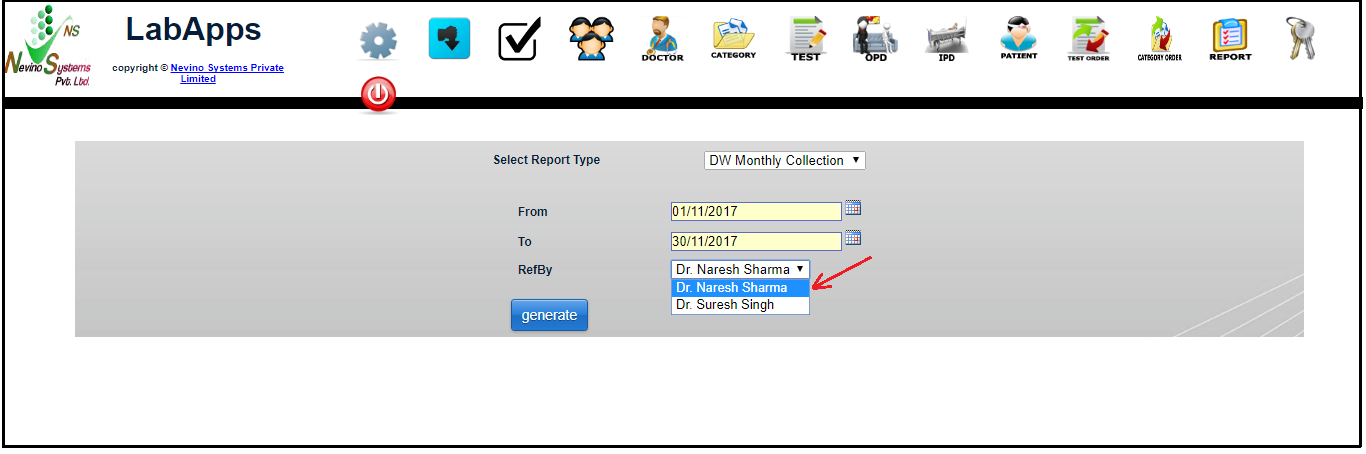
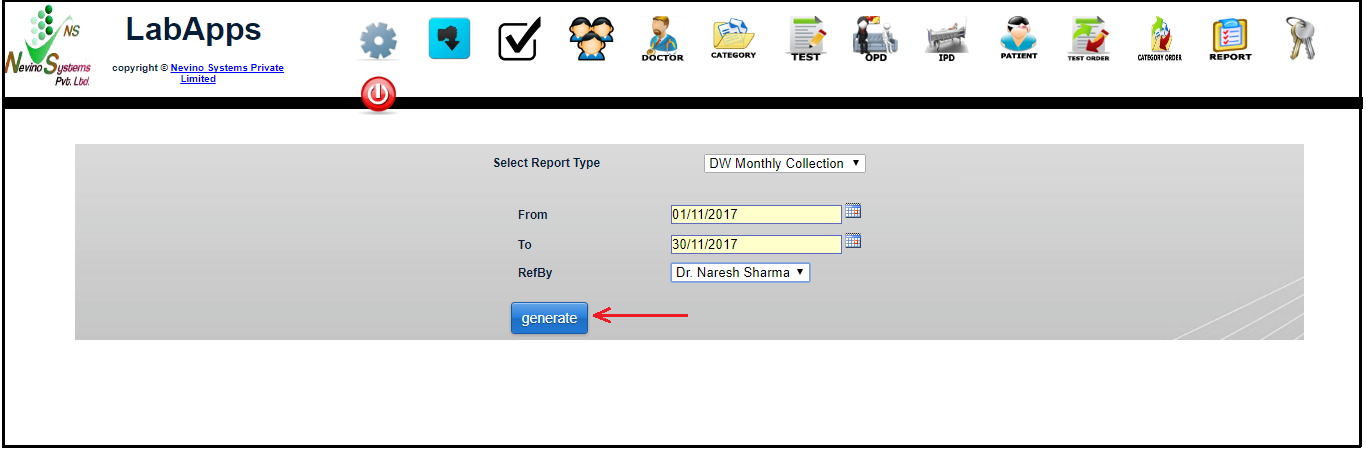
    Step 7. Now we select the doctor’s name in ‘RefBy’ option as shown in image below. First we will select Dr.Naresh Sharma.
    select doctor name

    Step 8. Now we will click on ‘Generate’ button as indicated in image below.
    generate button

    Step 9. On the click of ‘Generate’ button report will be generated in new window as shown below.
    doctor wise report

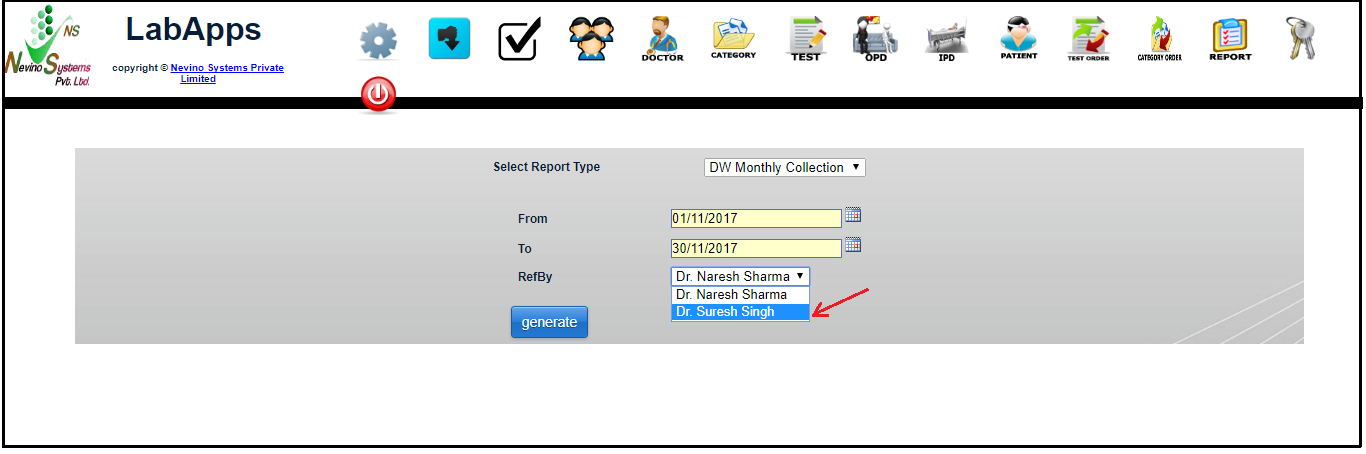
    Step 10. Now if we want to see the report for other doctor we will select the name of that doctor. For example we will select the doctor name of ‘Dr. Suresh Singh’ as shown below.
    select other doctor

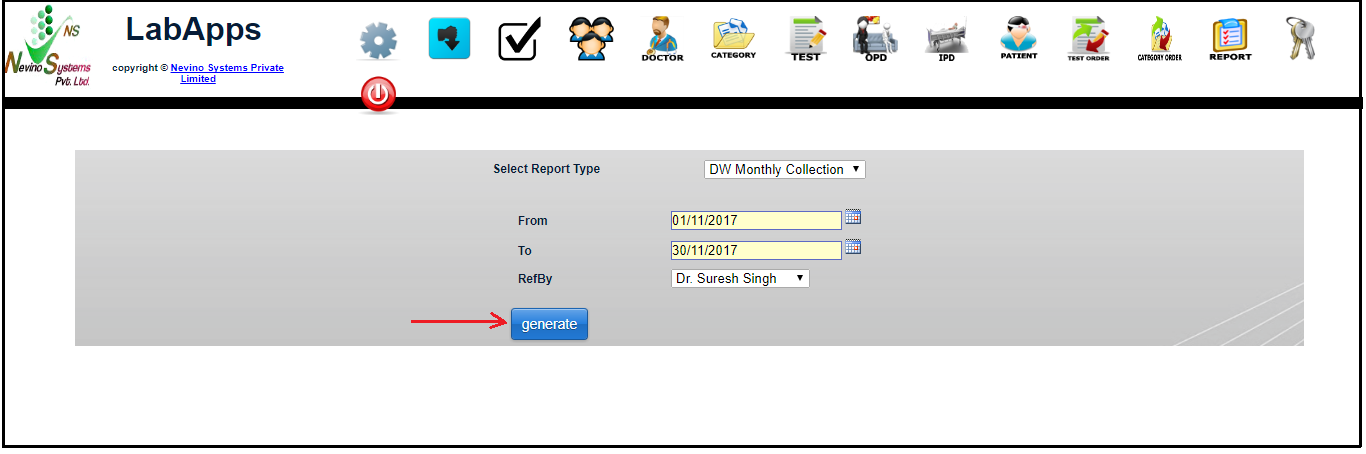
    Step 11. Now we again click on ‘Generate’ button.
    click generate button

    Step 12. The report which will be displayed will be of Dr. Suresh Singh as shown in image below.
    doctor wise report

    • Click Here To Buy Nevino Lab Software