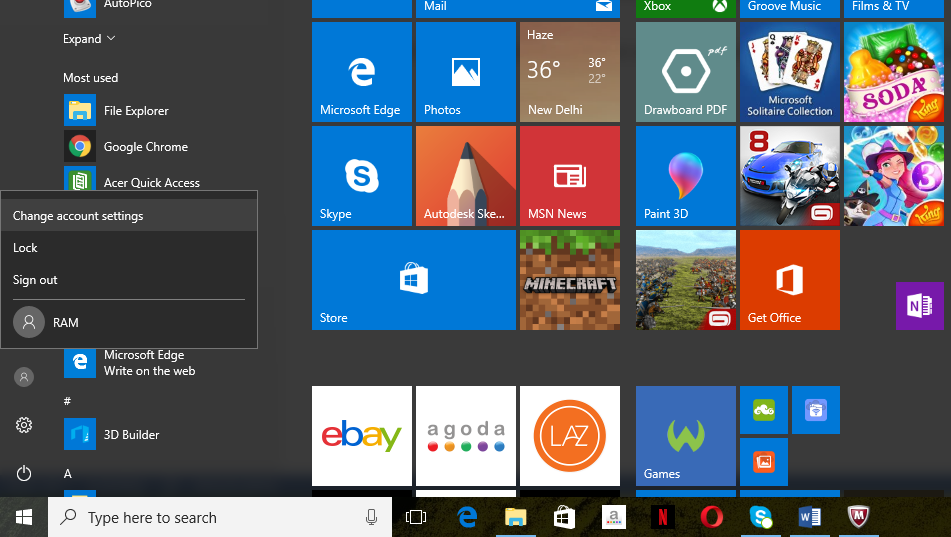
Step 1. Go to start button, click on user account name and then on change account settings.
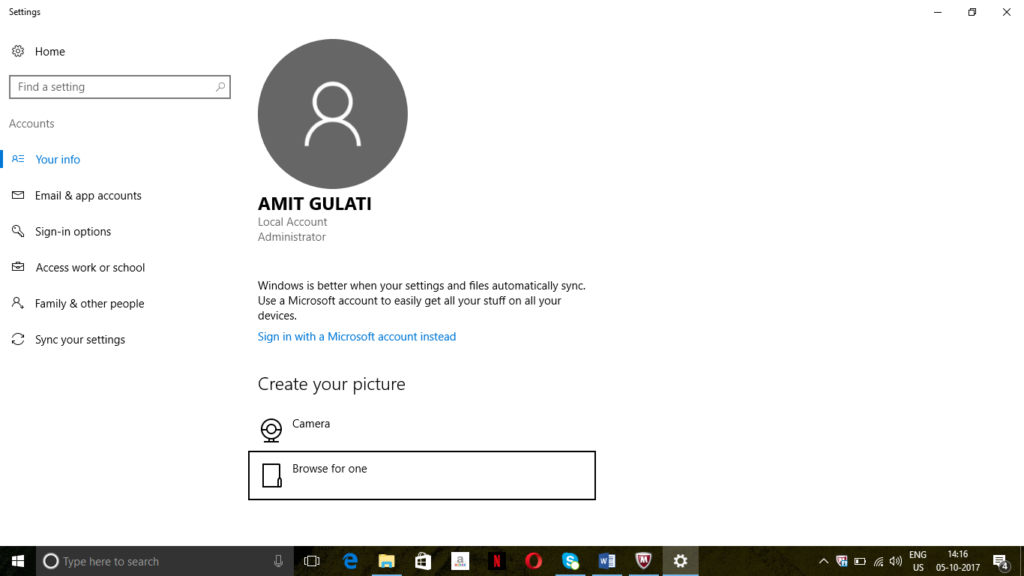
Step 2. A user account screen will appear as below.
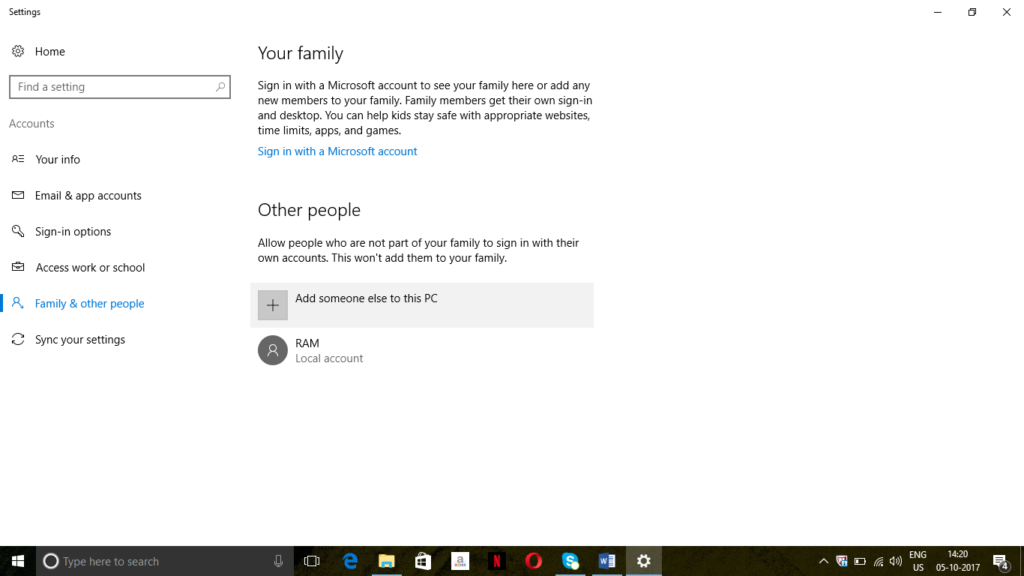
Step 3. Click on ‘Family & other people’ and then on ‘Add someone else to this pc’ as below.
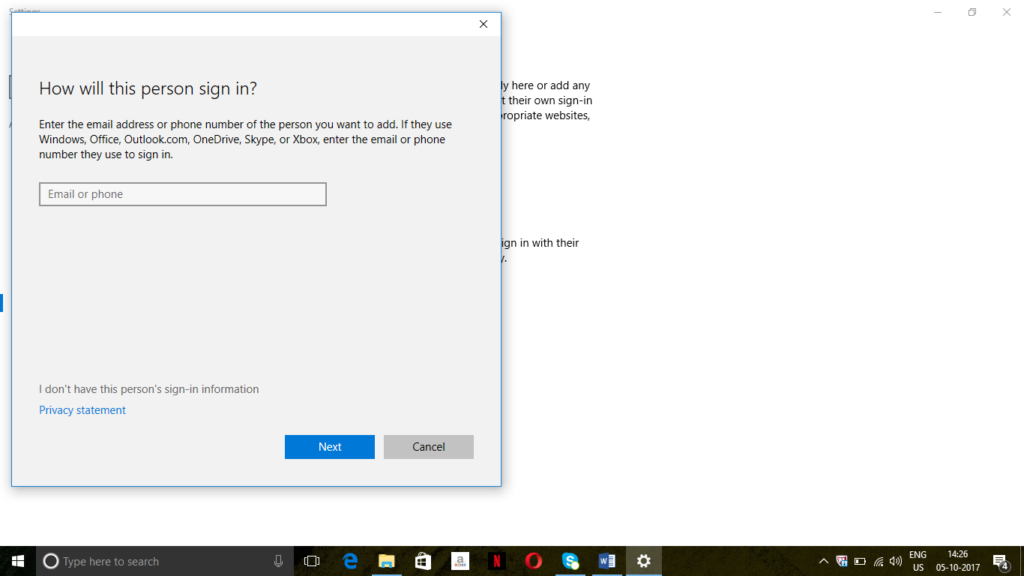
Step 4. A screen will appear as below. Click on ‘I don’t have this person’s sign-in information’
if you don’t have e-mail id or phone number.
Step 5. A new screen will appear as below where you need to click on ‘Add a user without
a Microsoft account’ if you don’t have account with Microsoft.

Step 6. When screen as below appears enter the user name and password with hint as required.
Later on click ‘Next’.


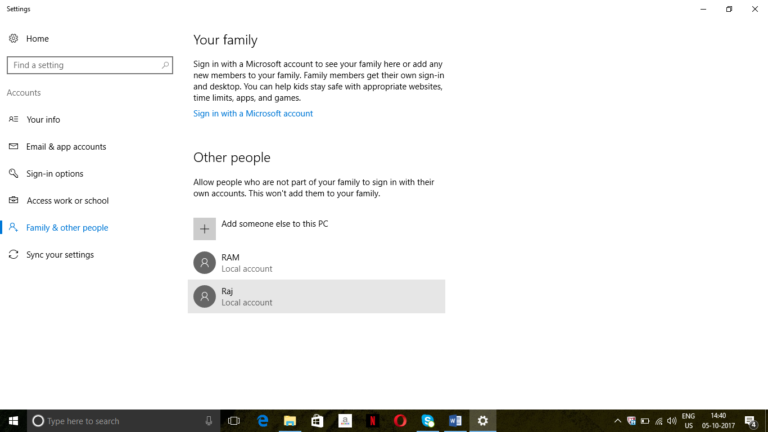
Step 7. Another screen will appear with new user account created as below.