Day: November 22, 2017

  • How to make Booking for Patient’s medical test

    We can also make booking for patient’s medical test as per requirement of the lab. So please follow below steps to know how to make booking for patient’s medical test.

    Click Here To Buy Nevino Lab Software

    How to add patient in Nevino Lab Software<< Already gone through this page >>How to add medical test results in nevino lab software

    Step 1. On the main window of Nevino Lab Software click on booking as shown in below image.
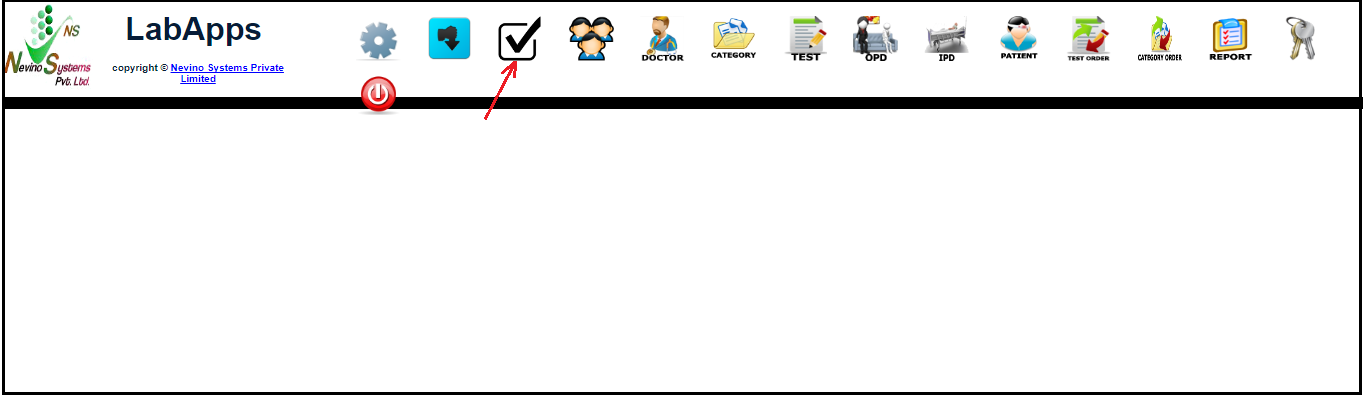
    nevino lab booking icon

    Step 2. The window as below will appear where you have to click on ‘Add New’ button.
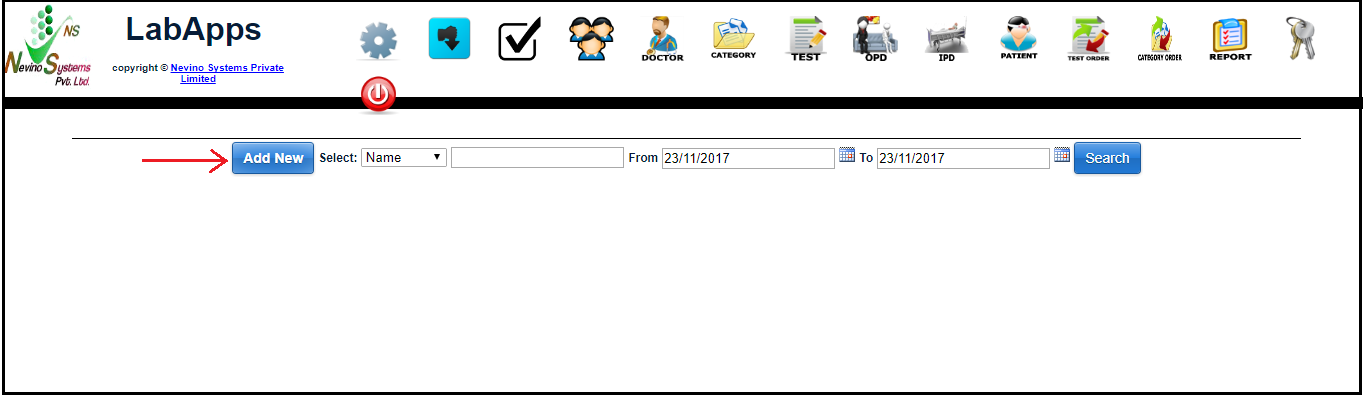
    nevino lab booking add button

    Step 3. On the click of ‘Add New’ button a new screen will be displayed as per below screen shot.
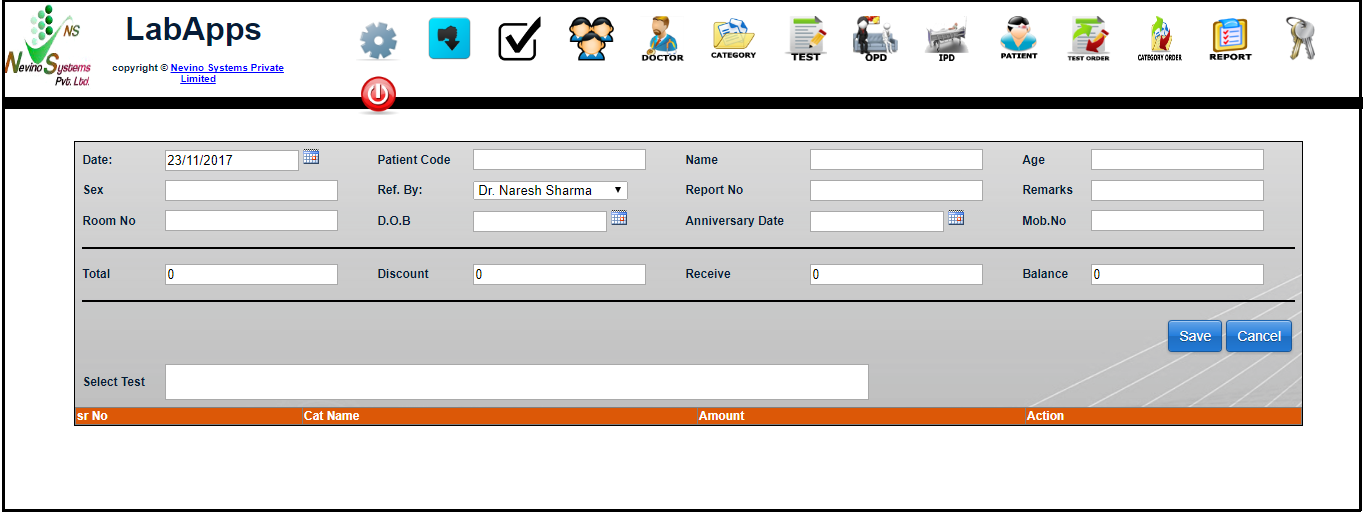
    nevino lab add booking window

    Step 4. Now we will enter the name of the patient as shown below.
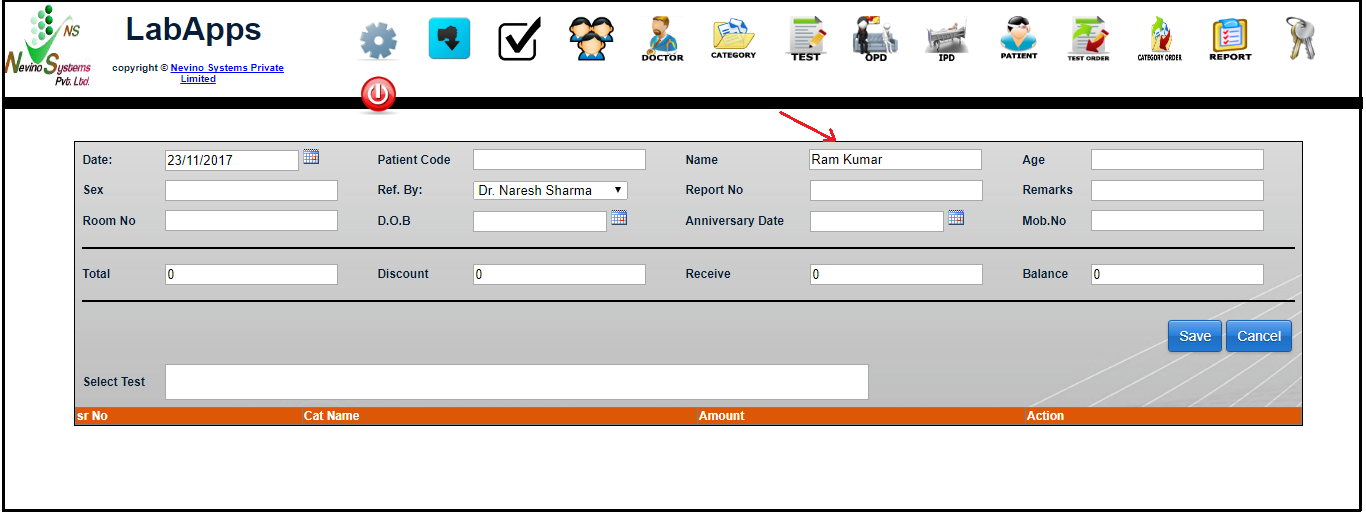
    nevino enter patient name

    Step 5. Next box is for age of the patient and we will enter it as shown in image below.
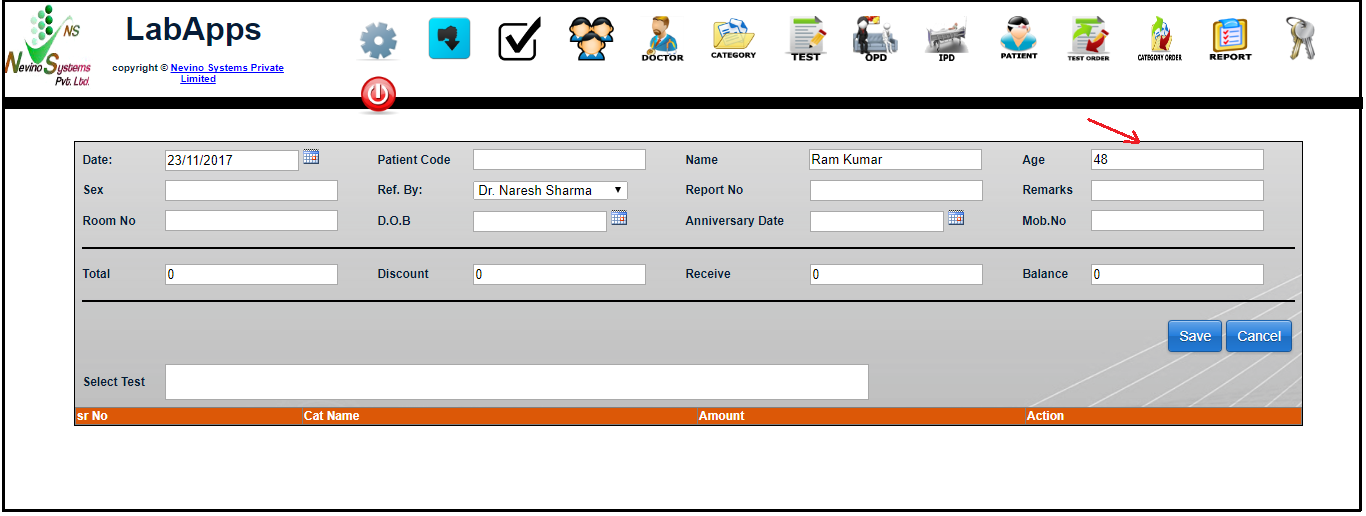
    nevino enter patient age

    Step 6. In the next column we will enter the gender of the patient as shown in image below.
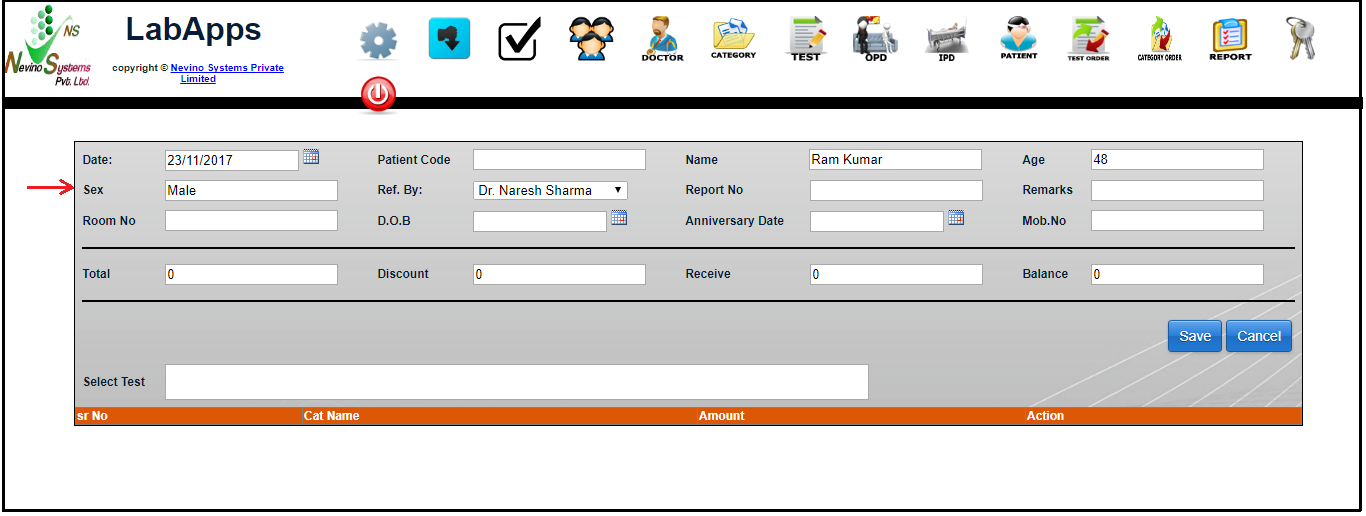
    nevino enter patient gender

    Step 7. Now we will select the test for which patient is looking for. For example patient want two test Lipid Profile and Urinary Creatinine so we select them one by one. First select Lipid profile by typing its name as shown in below image.
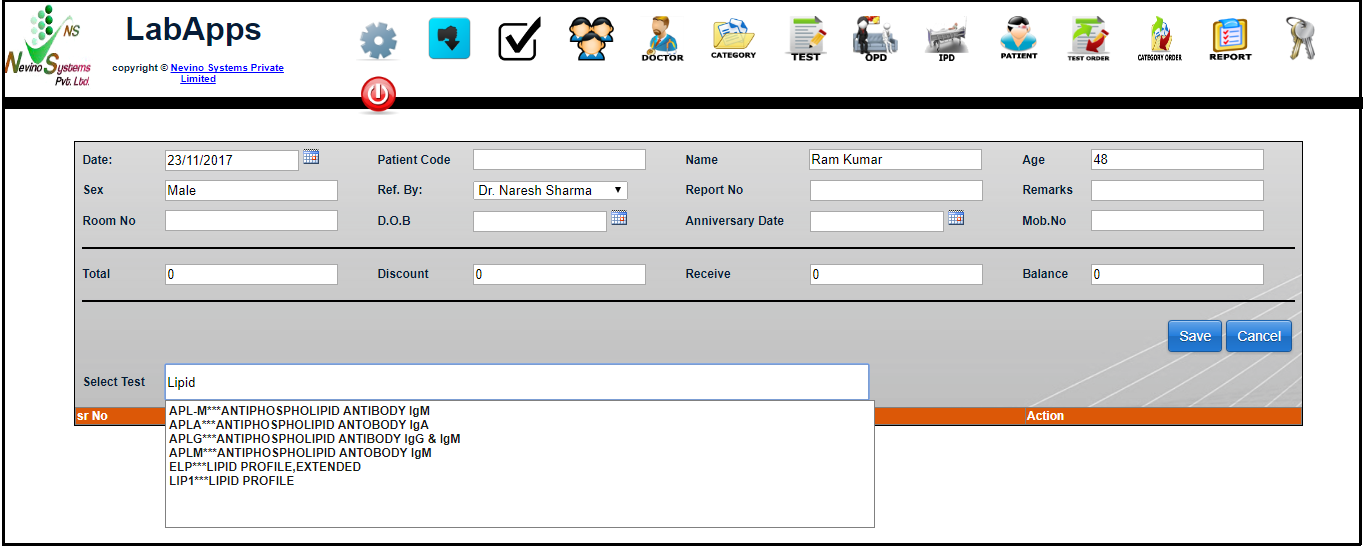
    nevino select patient test

    Step 8. Here you can see the Lipid test appearing at last in the drop down list, select it from there and it will be shown as in below image.
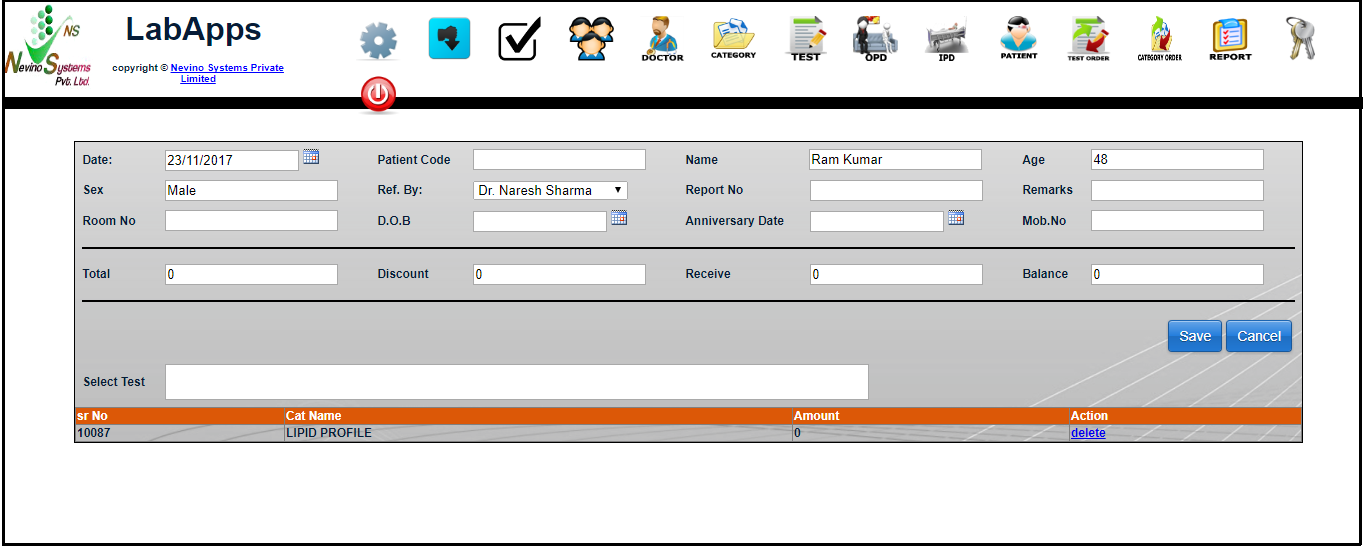
    nevino patient test selected

    Step 9. Now type name of the second test Urinary Creatinine as shown below.
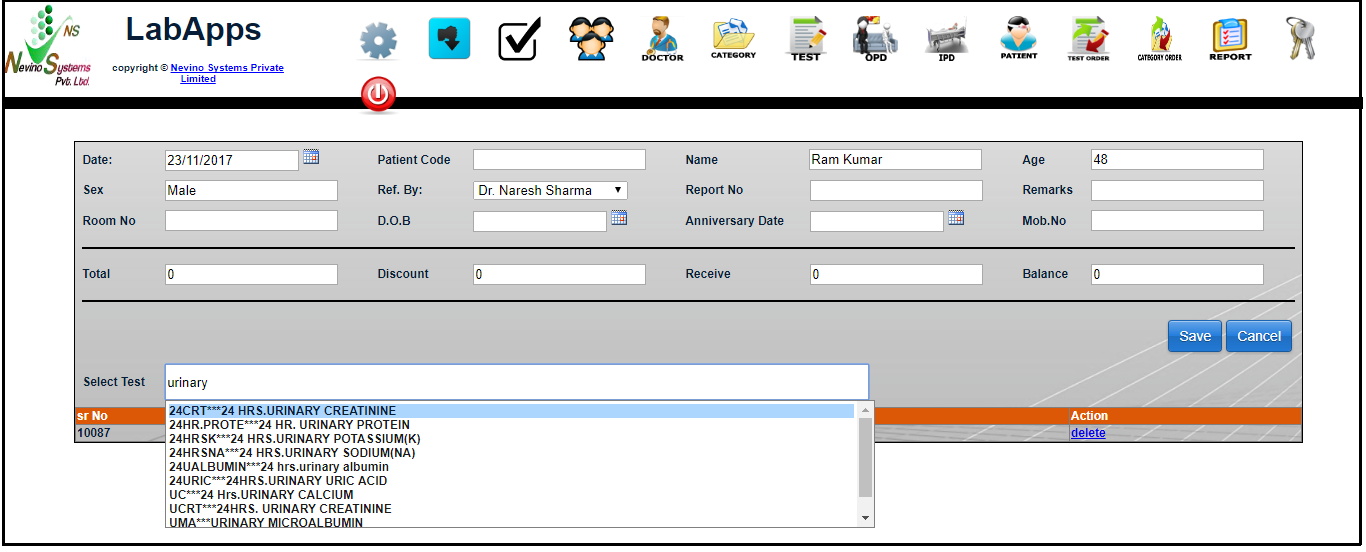
    select patient test nevino

    Step 10. Select it from the drop down list and then it will be added in the test’s list for patient as per image below.
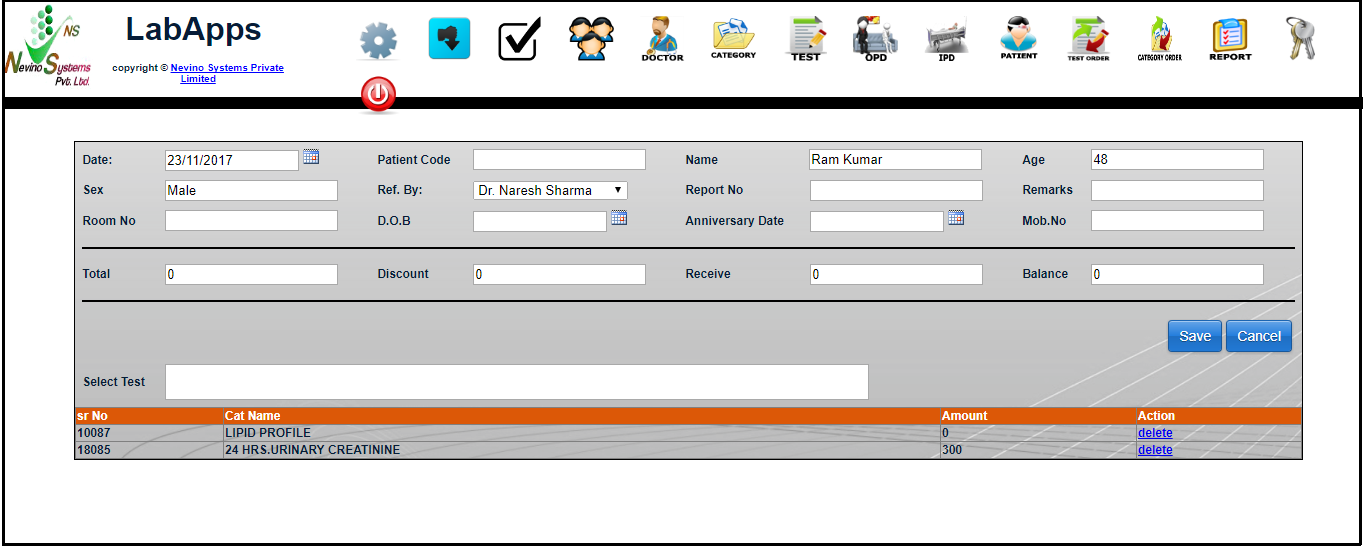
    nevino patient test selected

    Step 11. In case, if you have selected the wrong test then you can click on ‘delete’ option appearing on the right side of test name as indicated in below image.
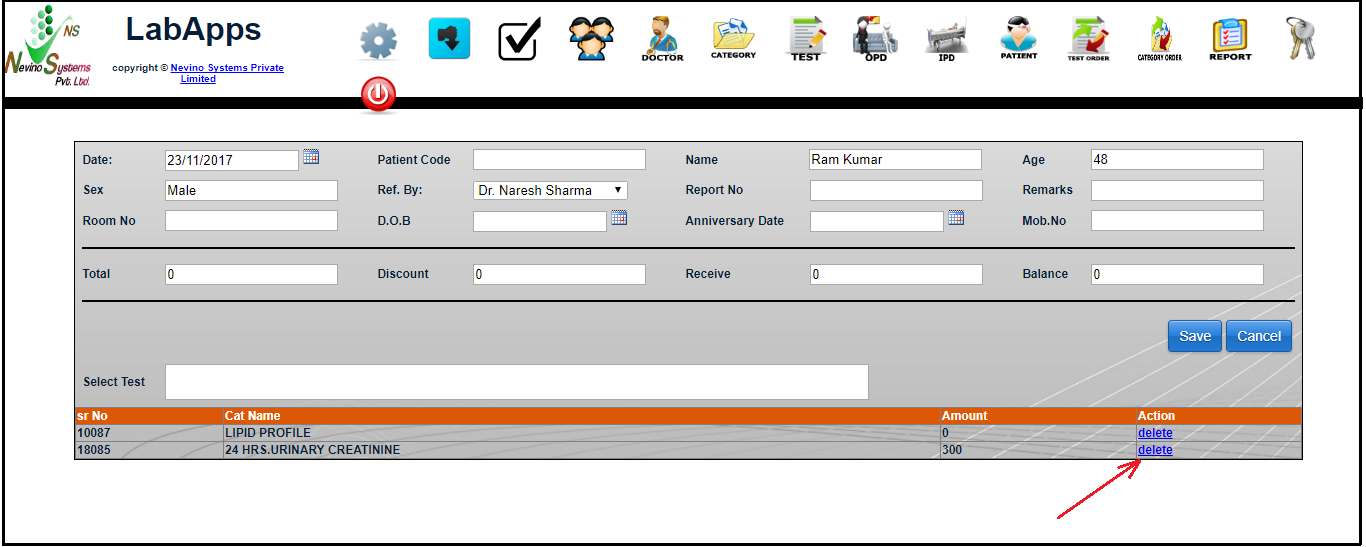
    nevino patient test delete

    Step 12. Our next step is to save the data and for that we will click on ‘Save’ button as shown in image below.
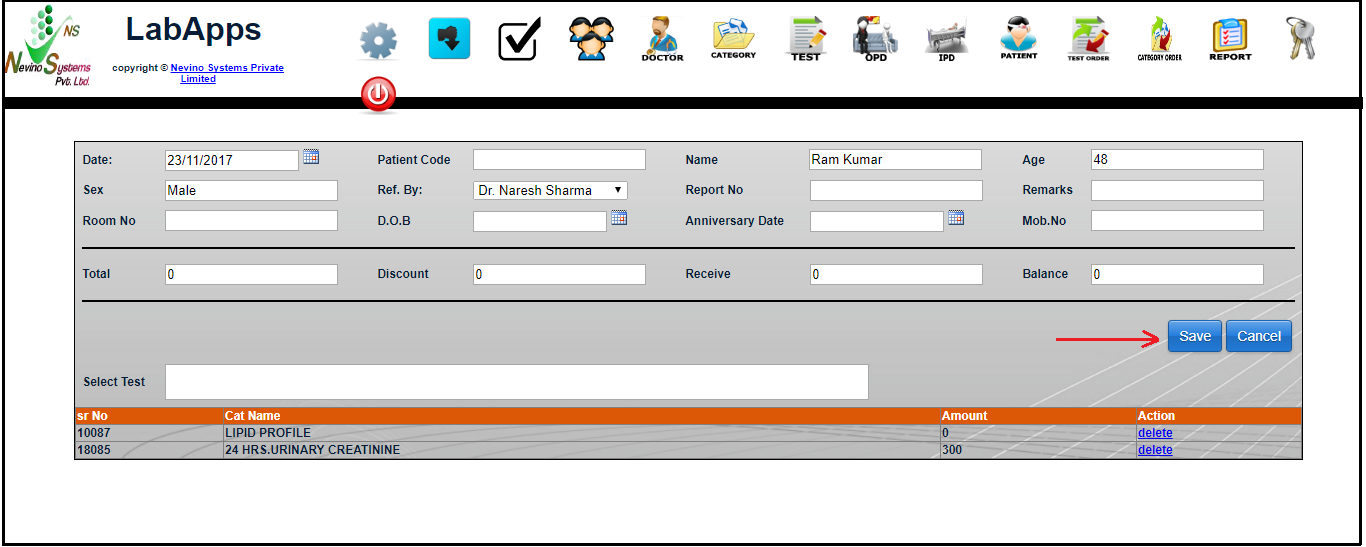
    nevino patient save button

    Step 13. On the click of ‘Save’ button data will be saved and a new window will open as shown in image below.
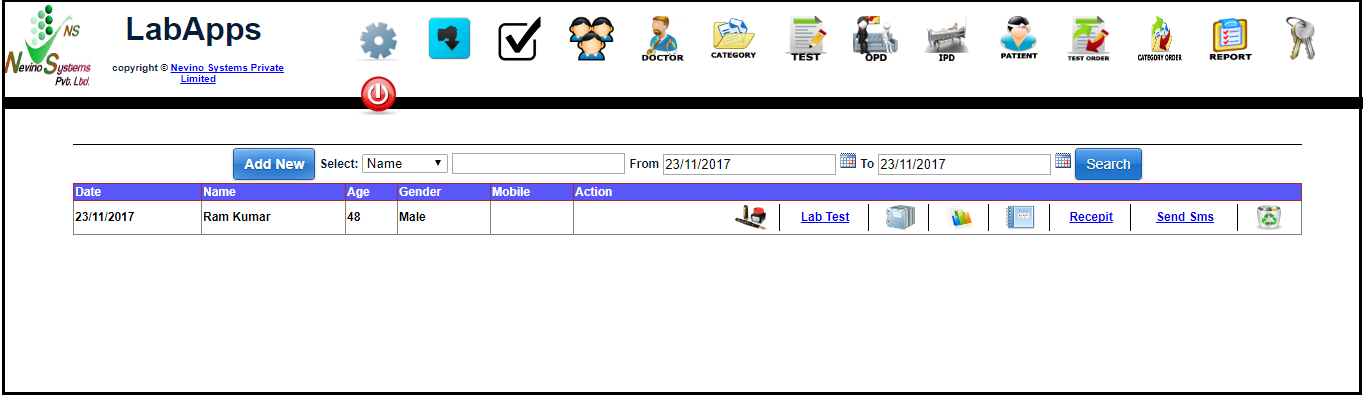
    nevino patient details added

    Click Here To Buy Nevino Lab Software

  • How to add Patient in Nevino Lab Software

    Every medical test report contains the Patient’s name so it is important that we must know how we can add patient’s name in nevino lab software.

    Click Here To Buy Nevino Lab Software

    How to edit Doctor’s details in Nevino Lab Software<< Already gone through this page >>How to make Booking for Patient’s medical test

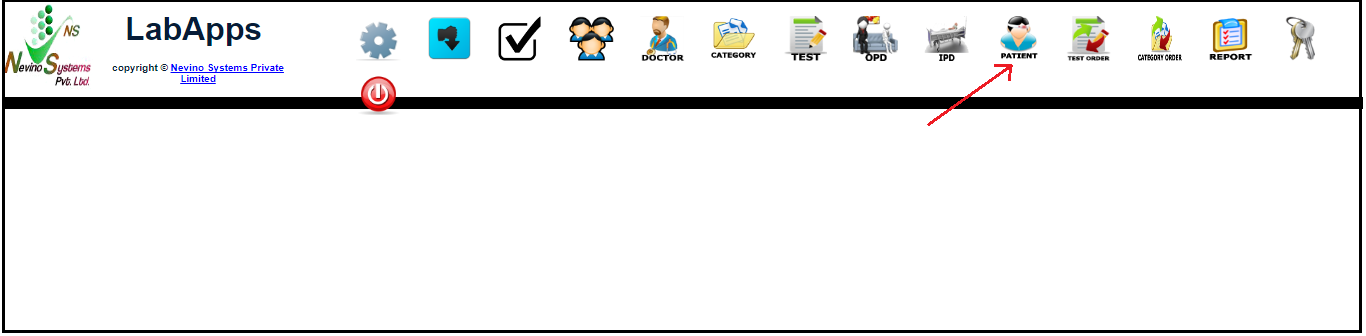
    Step 1. In Nevino Lab Software click on ‘Patient’ icon as indicated in image below.
    nevino lab main menu

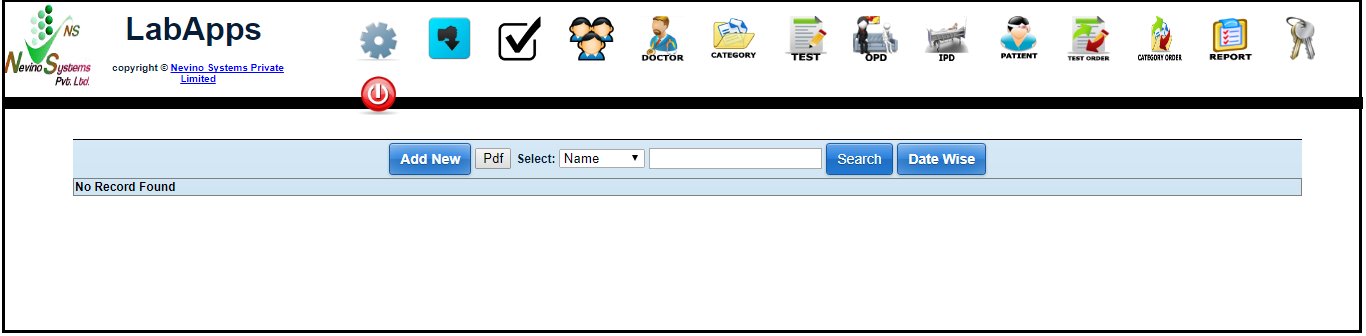
    Step 2. A window shown as below will appear by clicking on ‘Patient’ icon.
    nevino patient main window

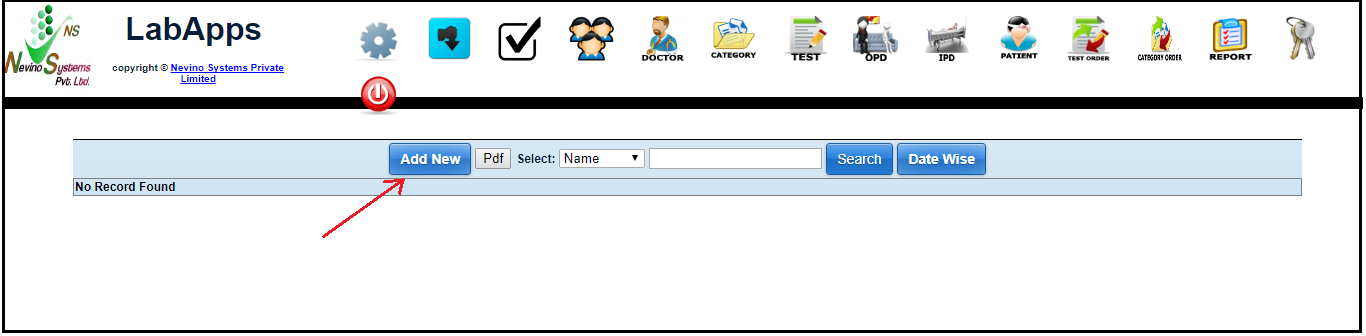
    Step 3. Now click on ‘Add New’ button as indicated in below screen shot.
    nevino patient add button

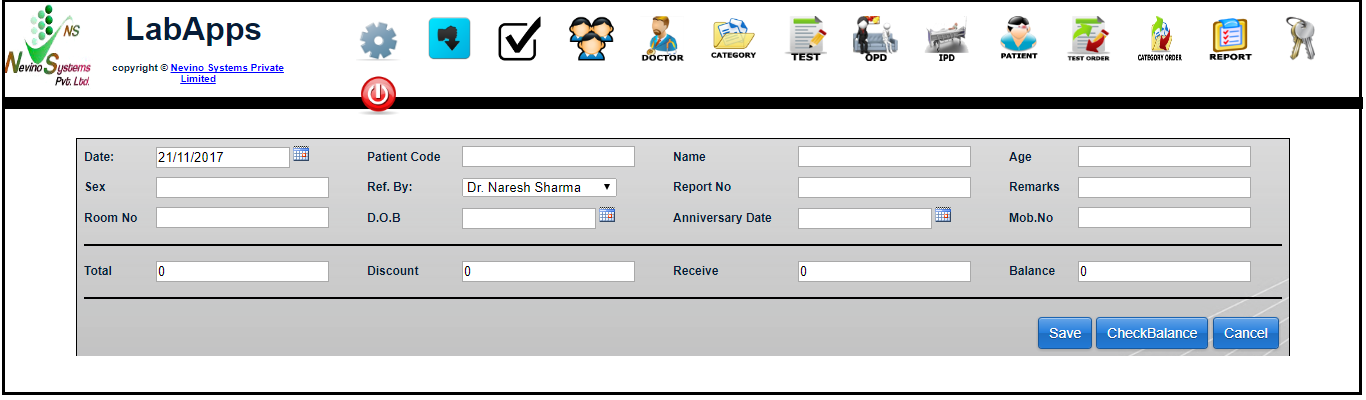
    Step 4. A new screen will appear as below where we can add the details of patient.
    nevino patient detail

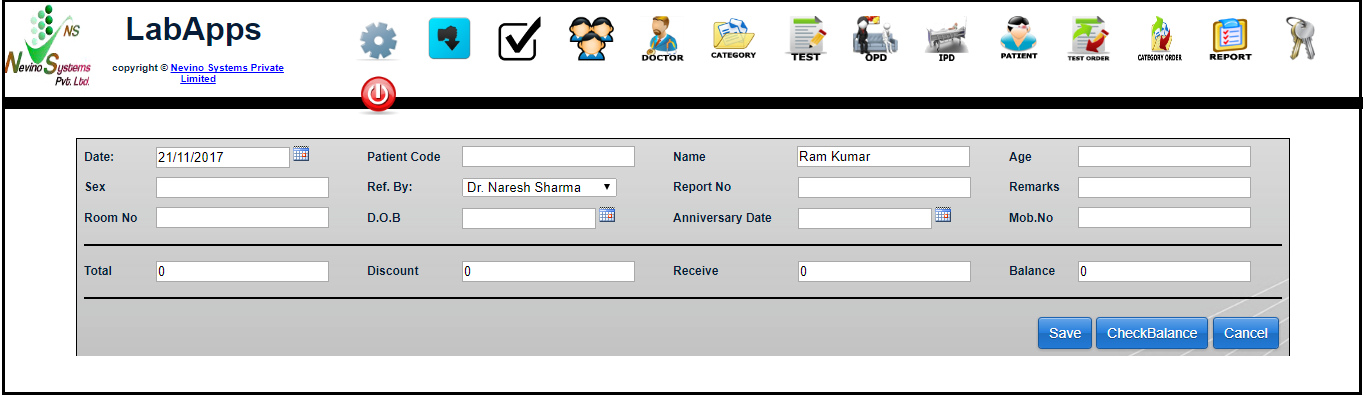
    Step 5. We start with ‘Name’. Enter the patient name for example ‘Ram Kumar’ in the blank box provided in front of Name as shown in image below.
    nevino patient name

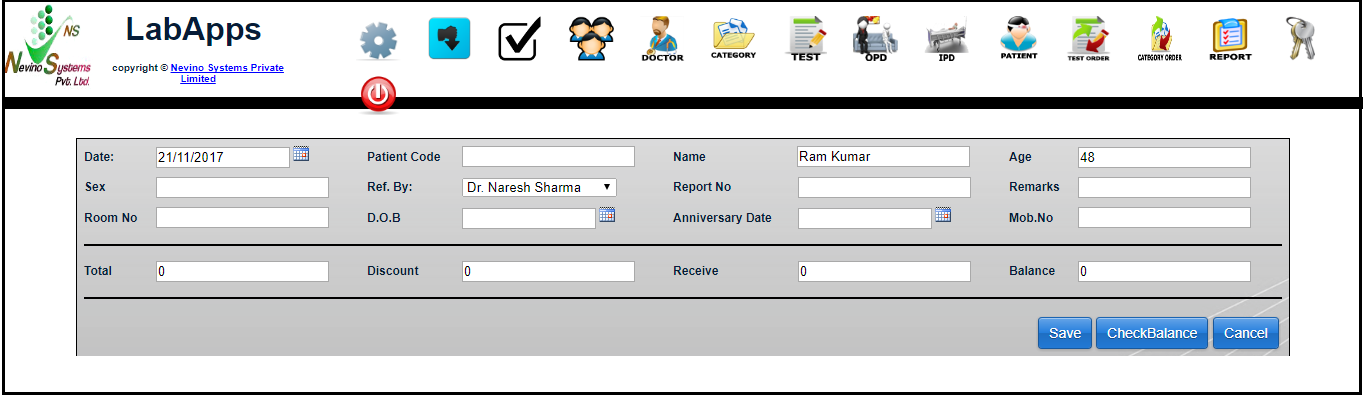
    Step 6. Next we will enter the patient’s age as per below image.
    nevino patient age

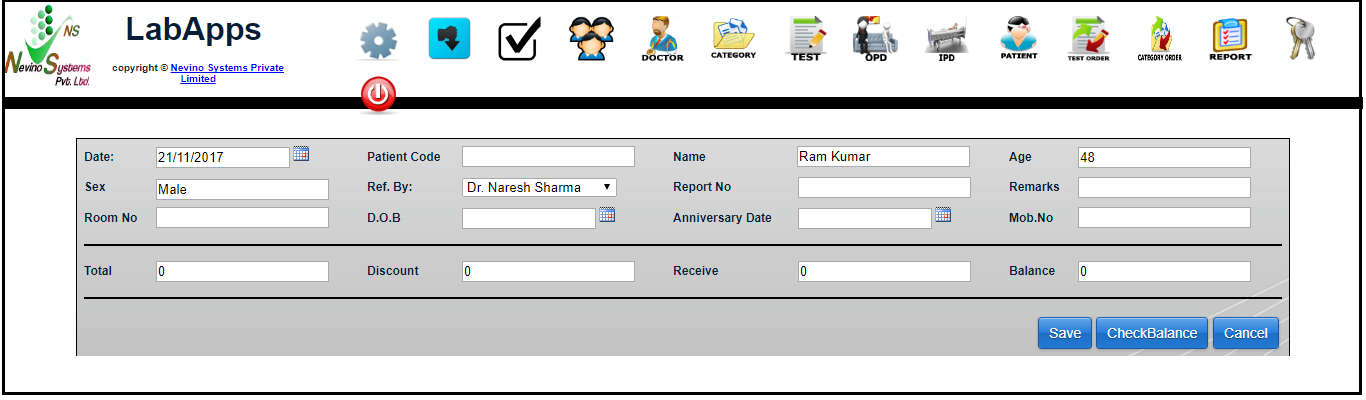
    Step 7. Next we will enter the ‘Gender’ of the patient as shown in image below.In ‘Ref. By:’ Doctor’s name is displayed from whom patient is referred.
    nevino patient gender

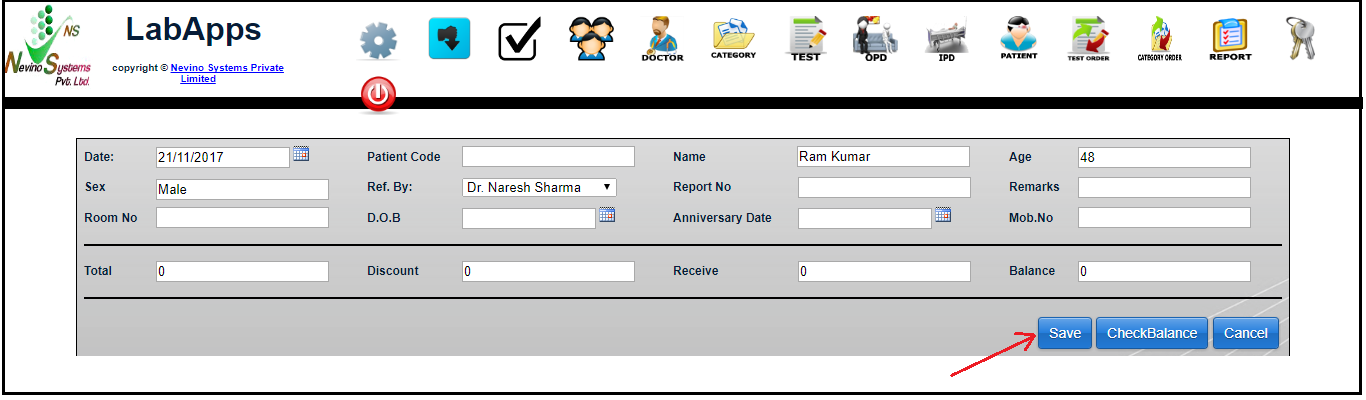
    Step 8. As per requirement we can add other details also and after that we will click on ‘Save’ button as indicated in below image.
    nevino patient save button

    Step 9. On the click of ‘Save’ button details of patient will be saved and will be displayed on new window as per below image.
    nevino patient name added

    Click Here To Buy Nevino Lab Software

  • How to edit Doctor’s details in Nevino Lab Software

    When we have added Doctor’s details in nevino lab software, it might be possible that in future there could be change in details so for that we can use ‘Edit’ option. So now we learn how to edit doctor’s details in nevino lab software.

    Click Here To Buy Nevino Lab Software

    How to add doctor name in Nevino lab software<< Already gone through this page >>How to add patient in Nevino Lab Software

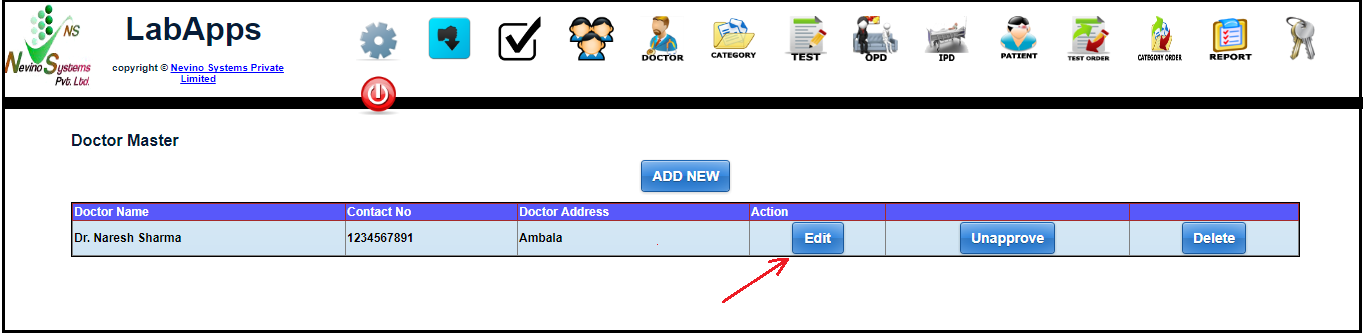
    Step 1. On the Doctor Master window click on ‘Edit’ button as shown below.
    nevino doctor edit button

    Step 2. On click of edit button a window as below will appear where you can change any detail and again click on ‘save’ button after change in details.
    nevino doctor edit window

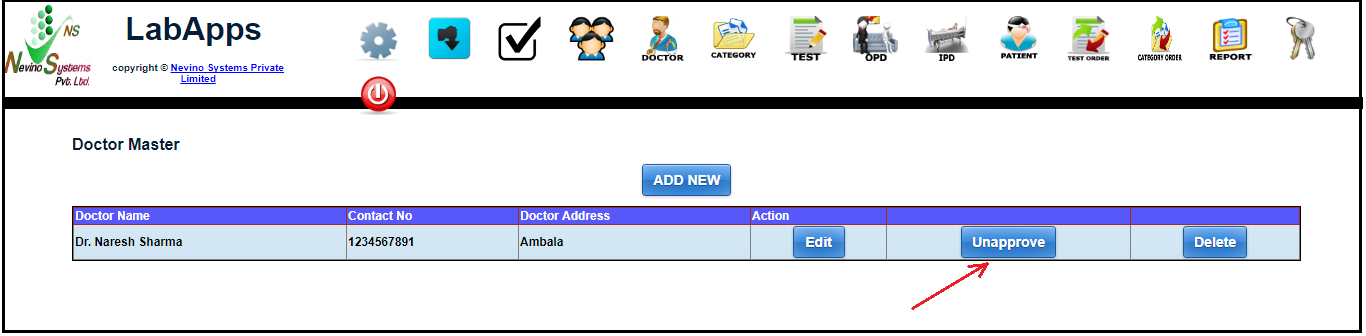
    Step 3. Again the window as below will appear where we can see ‘Unapprove’ button which is use to ‘Approve’ or ‘Unapprove’ the doctor. Here ‘Approve’ means Doctor’s name will be listed with patients name and ‘Unapprove’ means Doctor’s name will not be listed with patients name.
    doctor approve button

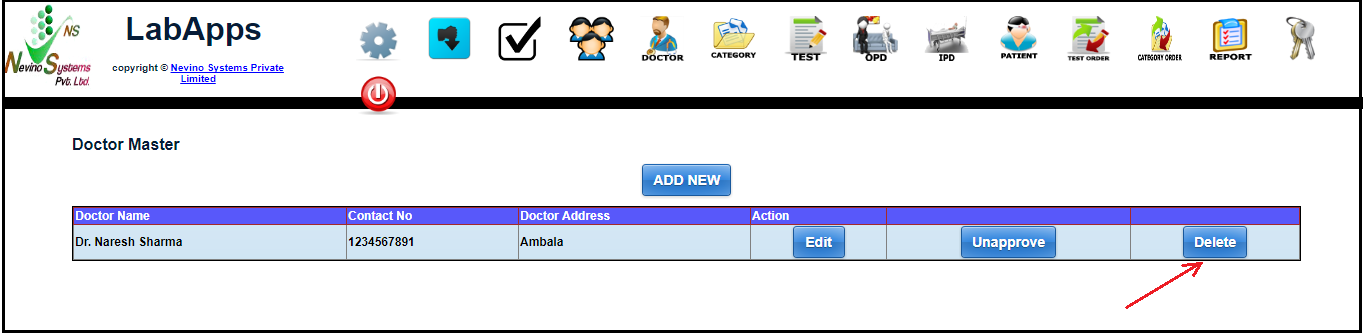
    Step 4. If we want to delete the record of doctor we can click on ‘Delete’ button as shown below.
    nevino doctor delete button

    Step 5. When the delete button clicked the row will be deleted and window will appear as below.
    nevino doctor record deleted

    Click Here To Buy Nevino Lab Software

  • How to add Doctor Name in Nevino Lab Software

    Doctor name is very important for any medical report so that it will be easy for all to check under which doctor’s supervision patient is going through the medical test. So now we learn how to add Doctor Name in Nevino Lab Software.

    Click Here To Buy Nevino Lab Software

    How to login in Nevino lab software<< Already gone through this page >>How to edit Doctor’s details in Nevino Lab Software

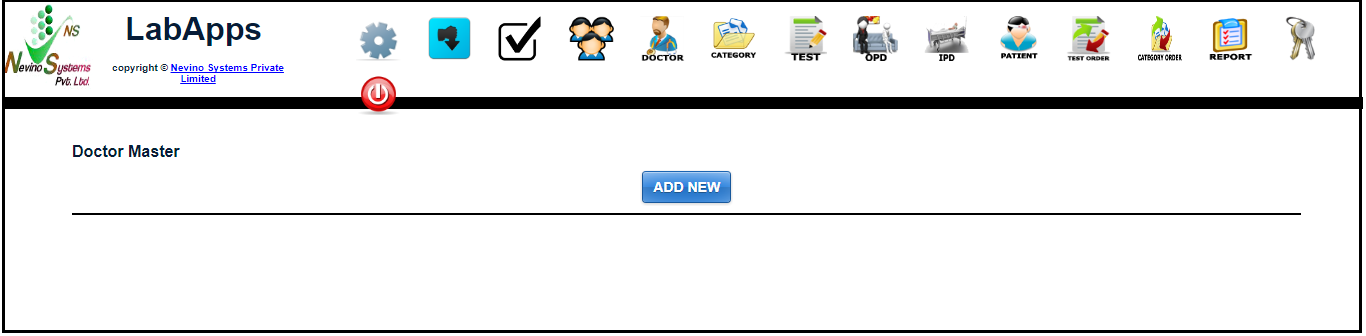
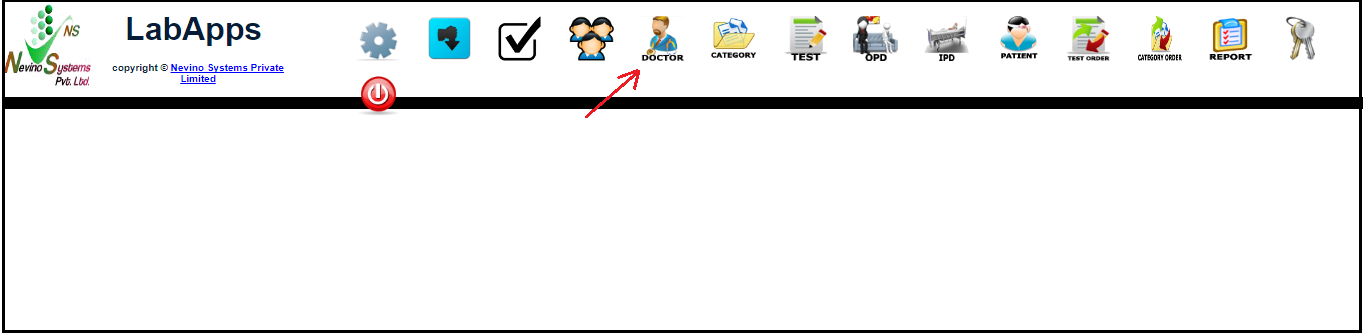
    Step 1. When you have login to the nevino lab software click on the ‘doctor’ icon as show in screen shot below.
    nevino lab main dashboard

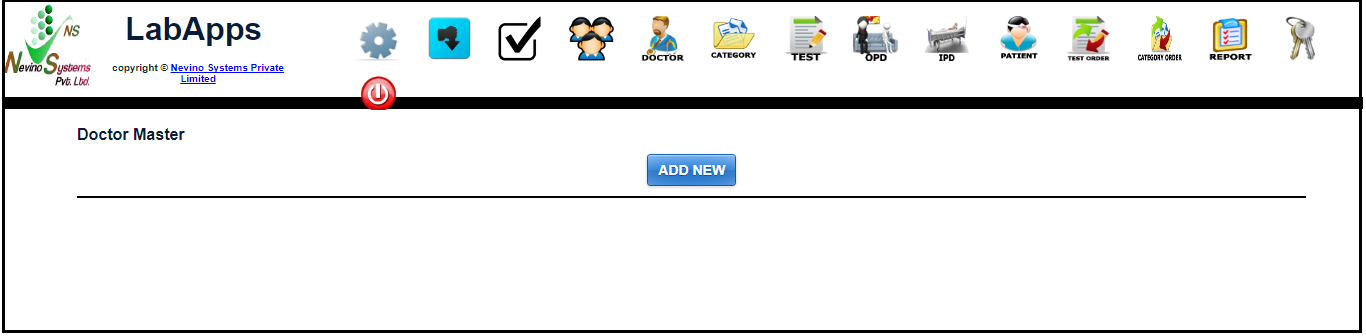
    Step 2. A new window will be open as shown below.
    nevino doctor master

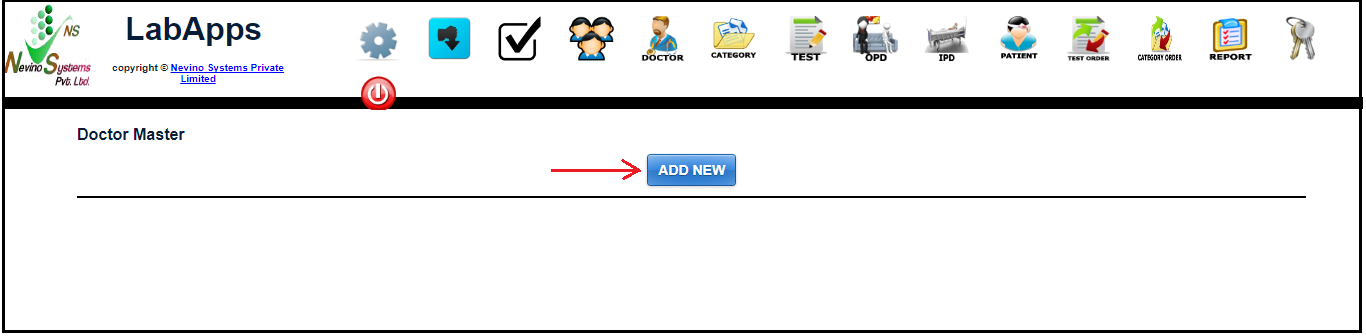
    Step 3. Now we will click on ‘Add New’ button as per image below.
    nevino doctor add button

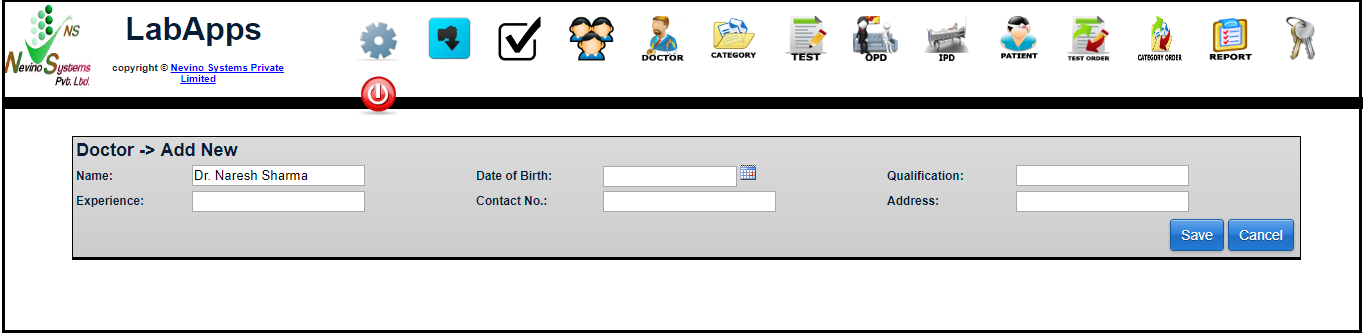
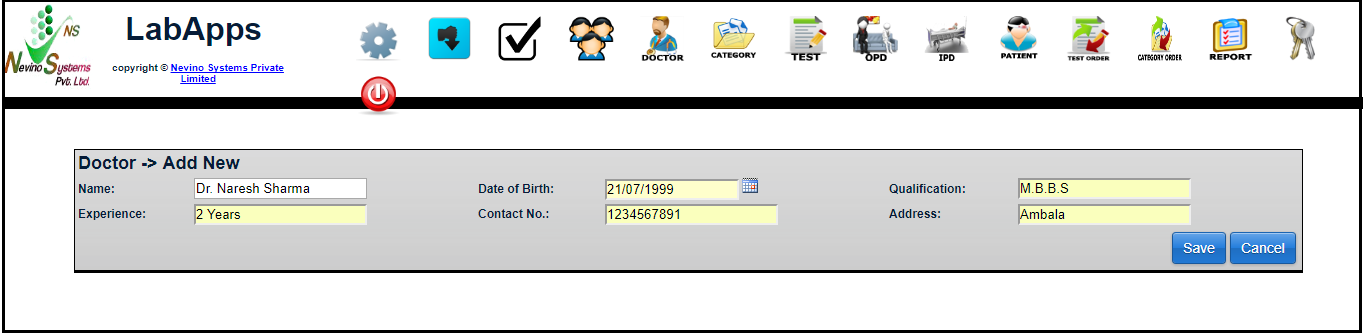
    Step 4. A new window will open as shown below where first we will enter the Doctor’s name as shown below.
    nevino doctor add name

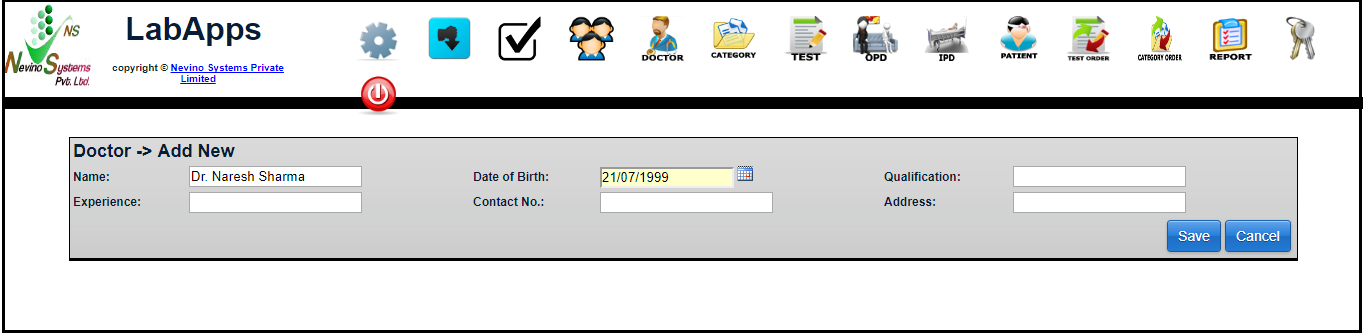
    Step 5. In next box we will enter the ‘Date of Birth’ as shown in image below.
    nevino doctor date of birth

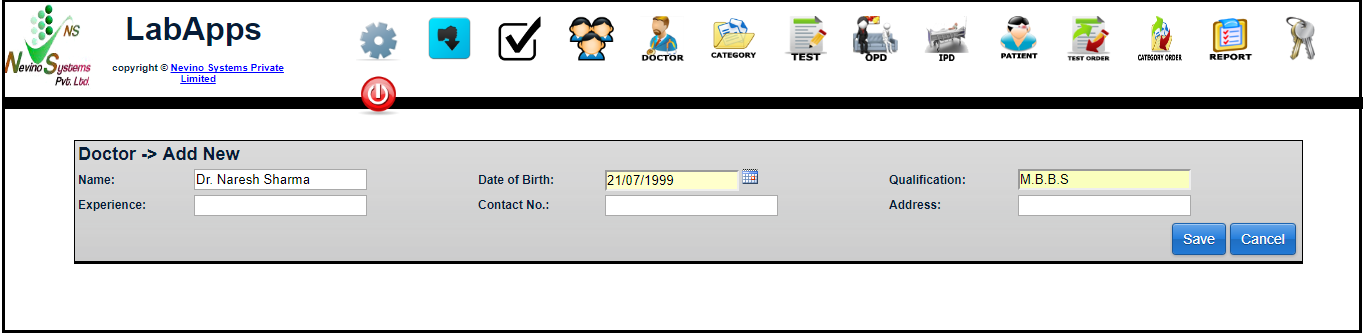
    Step 6. Now we will enter the Qualification for example as ‘MBBS’ as shown in image below.
    nevino doctor qualification

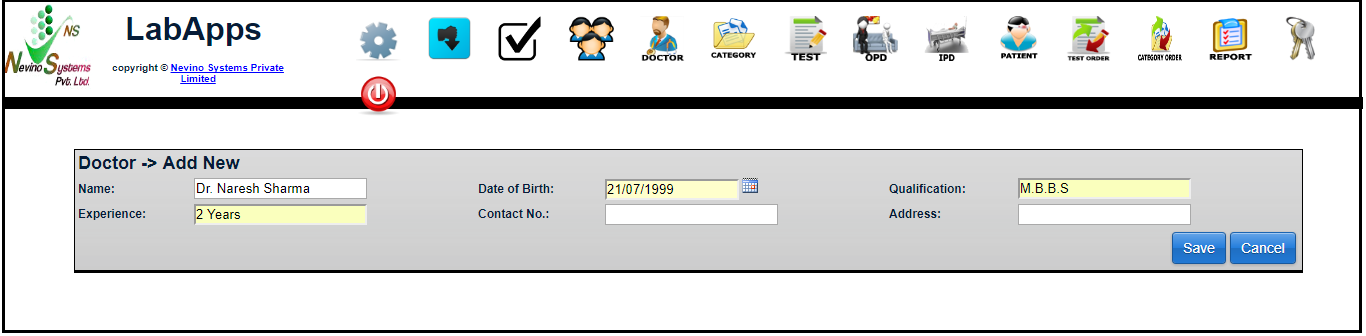
    Step 7. Next box is for Experience and for example we will enter 2 years.
    nevino doctor experience

    Step 8. Now we have next box is for Contact Number and for example we will add number as 1234567891.
    nevino doctor contact number

    Step 9. Now the last box left is for Address and for example we will enter address as ‘Ambala’.
    nevino doctor address

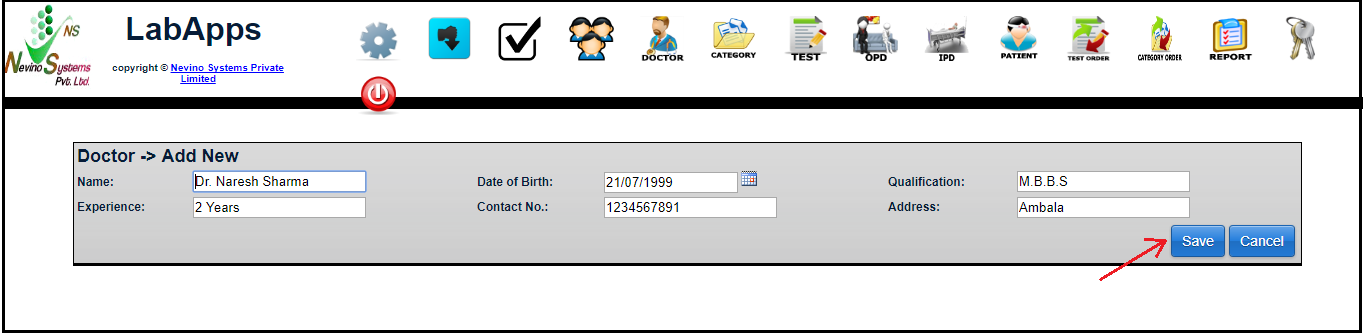
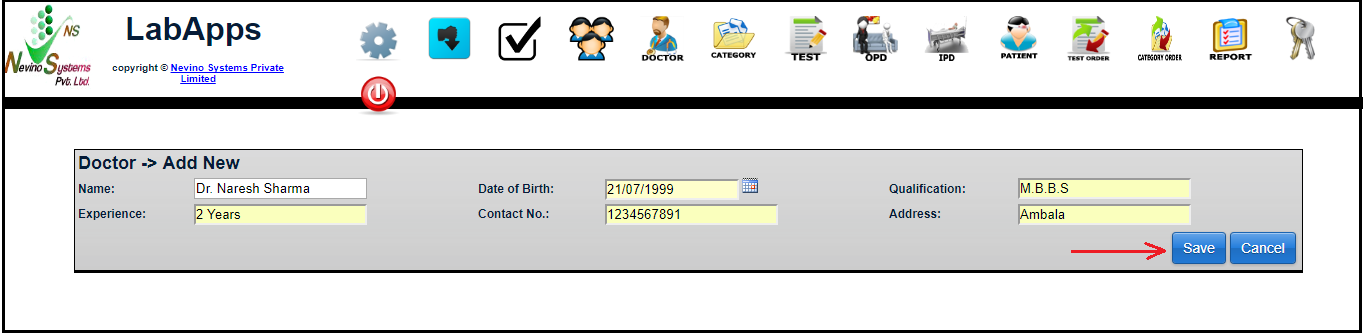
    Step 10. To save the entered data click on ‘Save’ button as shown in image below.
    nevino doctor save button

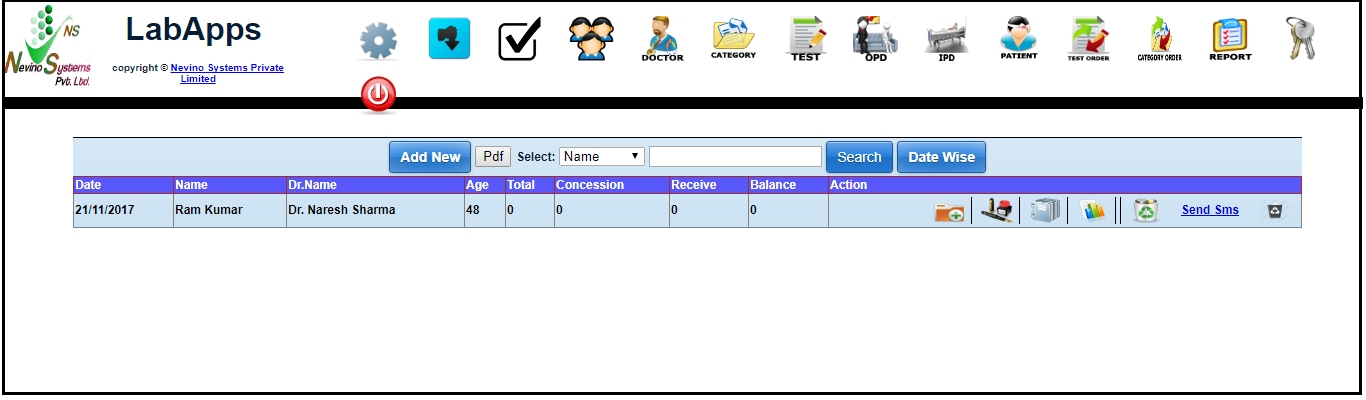
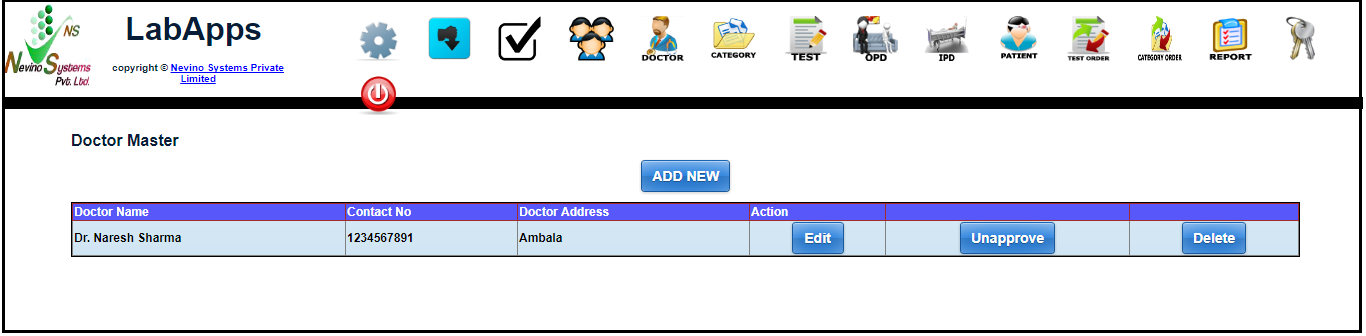
    Step 11. When save button clicked data will be saved and shown as below in image.
    nevino doctor

    Click Here To Buy Nevino Lab Software

  • How to Login in Nevino Lab Software

    Nevino Lab Software is a specially designed software to meet the requirements of Diagnostic Lab like generating Reports of tests. Here we start with how to login in Nevino Lab Software.

    Click Here To Buy Nevino Lab Software

    How to add doctor name in nevino lab software<< Already gone through this page >>

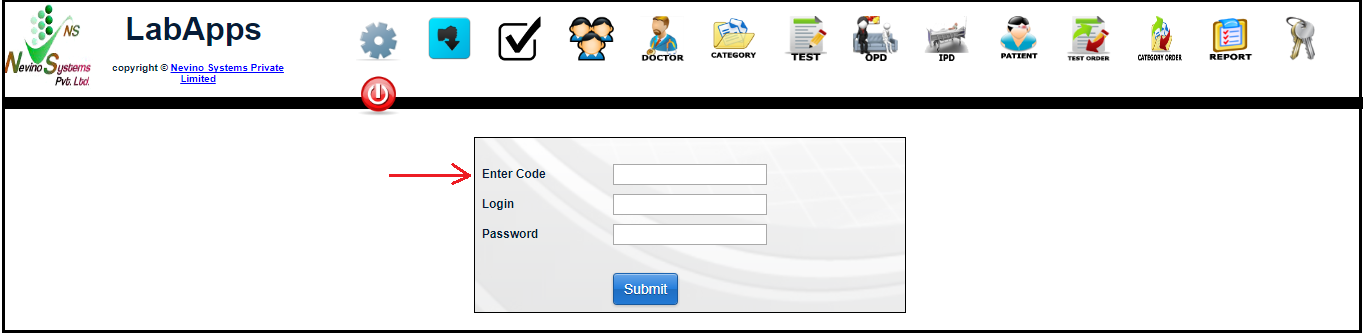
    Step 1. When the Nevino Lab Software is installed on your computer by our technical team it will look as per screen shot below.

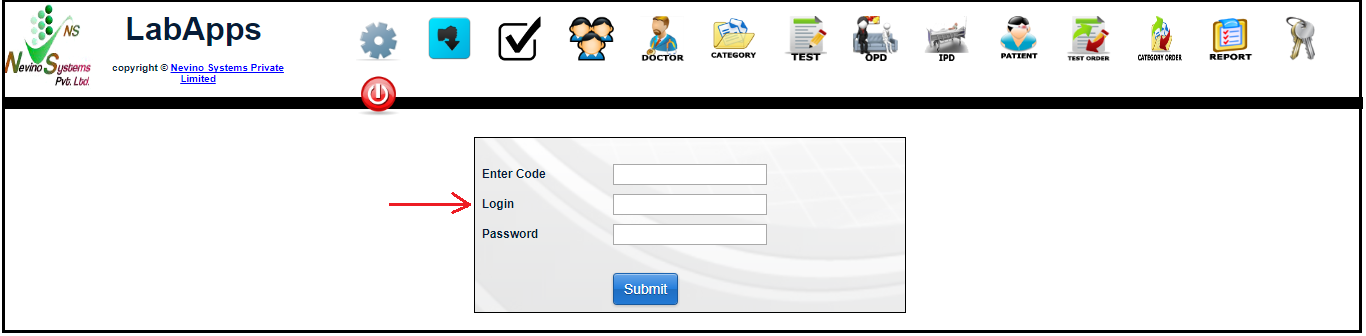
    Step 2. First we will enter the code as indicated in the below screen shot.

    Step 3. Next we will enter the Login id as indicated in the screen shot below.

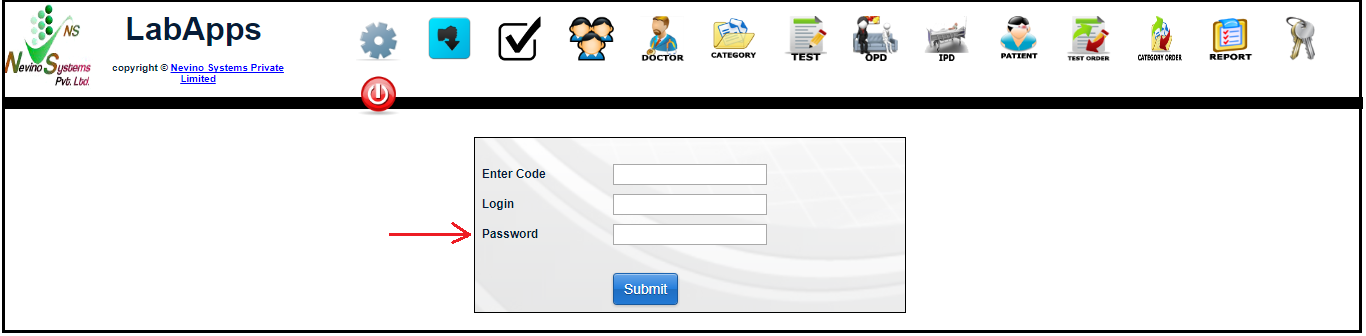
    Step 4. Now we will add the password as indicated in the image below.
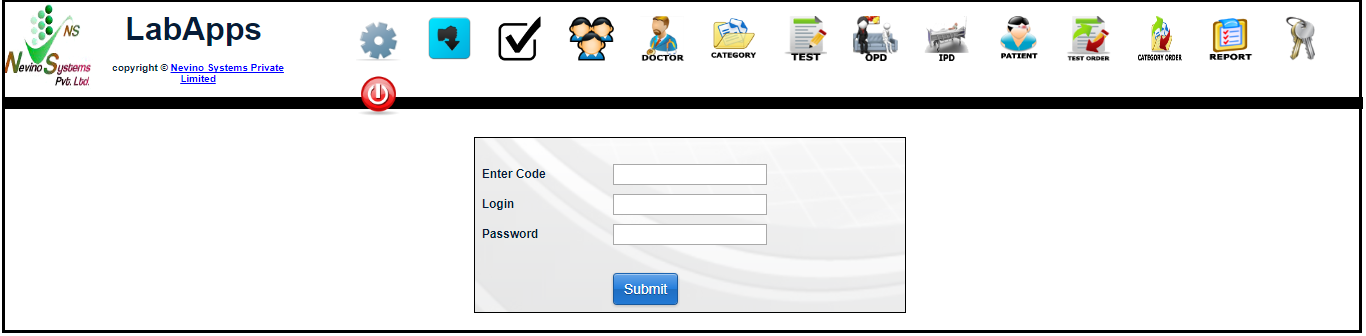
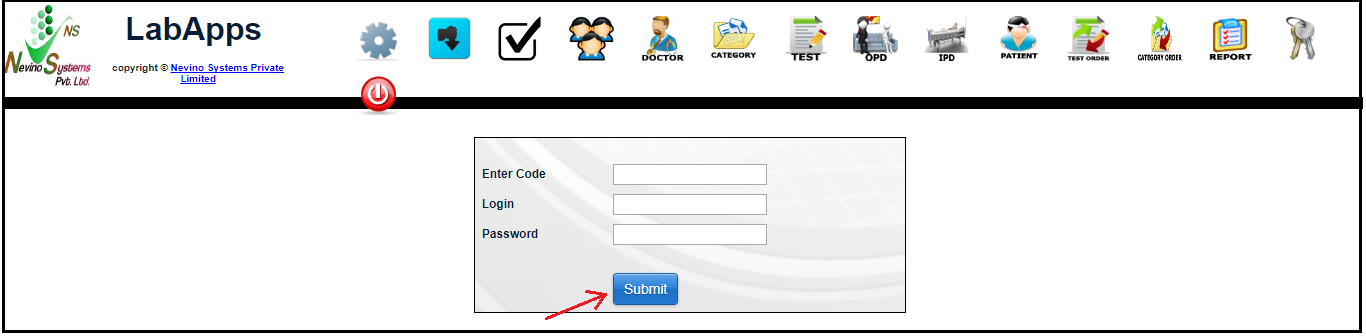
    Step 5. Next step is to click on ‘Submit’ button and you will be login to the NevinoLab Software.

    Click Here To Buy Nevino Lab Software

  • Bulk SMS Service provider in  Ambala Cantt-9466135659

    Bulk SMS Service provider in Ambala Cantt-9466135659

    Nevino Systems Private Limited is the Bulk SMS Service provider in Ambala Cantt and can easily be contacted at 9466135659. Promotional activities in today’s world rely on technology to reach maximum customers around the country and SMS is one of the fastest means of communication to share the information about your product. Many Business firms use sms to do their product marketing inside the city and other cities. To complete these business goals Nevino Systems Private Limited is providing the Bulk SMS Service.The easy bulk SMS solutions helps you send messages to multiple users with the extremely user-friendly interface.

    bulk-sms-service-provider-in-ambala-cantt-2.png

    Bulk SMS Features

    • SMS delivery to thousands of numbers in a Single click.
    • Functionality of Grouping.
    • 100% delivery on DND numbers.
    • Single and Bulk text messaging.
    • Message will be sent with Sender ID.
    • Sender ID will be like randomly selected six alphabets.
    • Address book import from Excel Files.
    • Developer API (You can integrate SMS solution with your software and can be automated)
    • No hidden cost.
    • Validity according to the plan.

    Please contact us at info@nevinosystems.net or at 9466135659 for requirements of above 1,00,000 SMS’s and Extended Validity options.

    Bulk SMS Terms & Conditions:

    • Unused Credits will expire at the end of validity period.
    • Above rate are subjected to change as per TRAI or our Company rules.
    • Delivery time may vary between 1 minute to 3 hours.
    • Above cost is inclusive of Interconnect Usage Charge (IUC).
    • Payment will be 100% in advance.
    • GST @ 18% is mandatory on all packages.
    • DND / NDNC Filter applicable for Marketing/Promotional sms.
    • Real time DND filter without deduction of sms credits.
    • After receiving the full payment, SMS will be credited.
    • Set up Charges are only one time and non-refundable.

    Bulk SMS Sales Enquires:-
    Nevino Systems Private Limited
    Email : info@nevinosystems.net
    Contact Details: +919466135659,+919034007056