Day: December 9, 2017

  • How to edit Designation in Nevino HR Software

    Whenever there is need of making change in designation name in organization by following the below steps you can change designation name. Below steps will guide you how to edit designation in Nevino Hr Software.

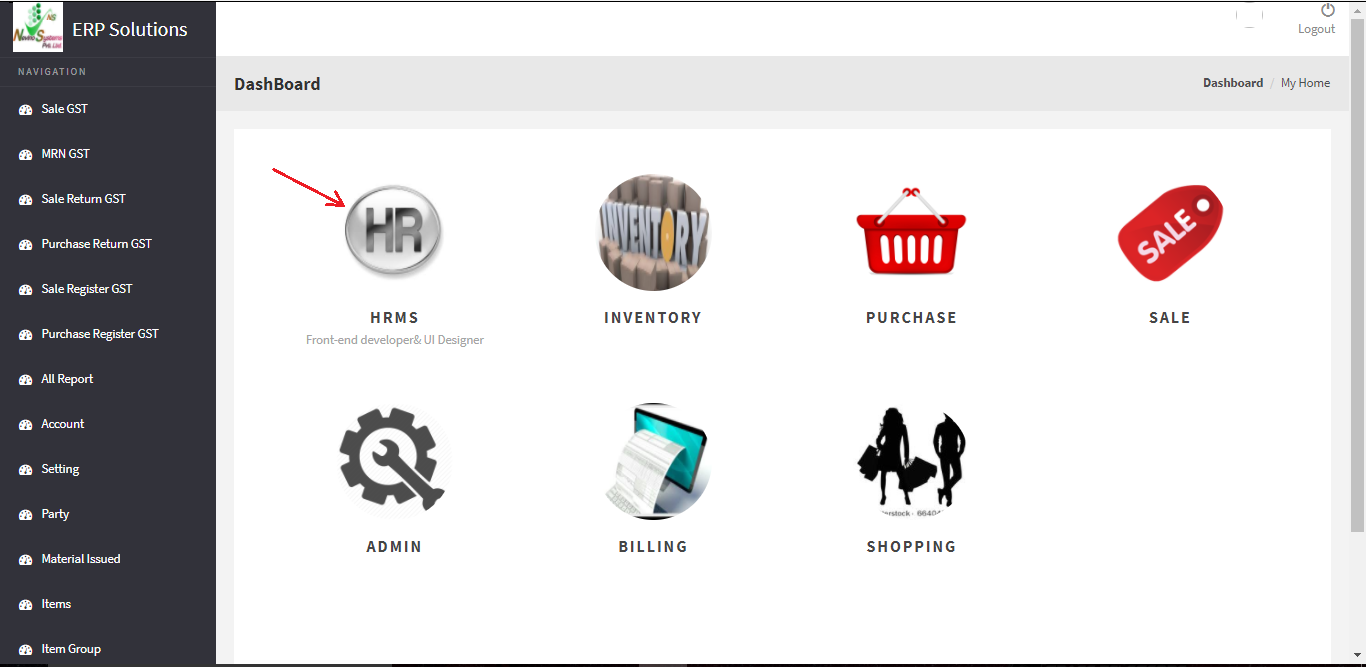
    Step 1. When you have arrived at main window of Nevino HR Software click on ‘HR’ icon as shown below.
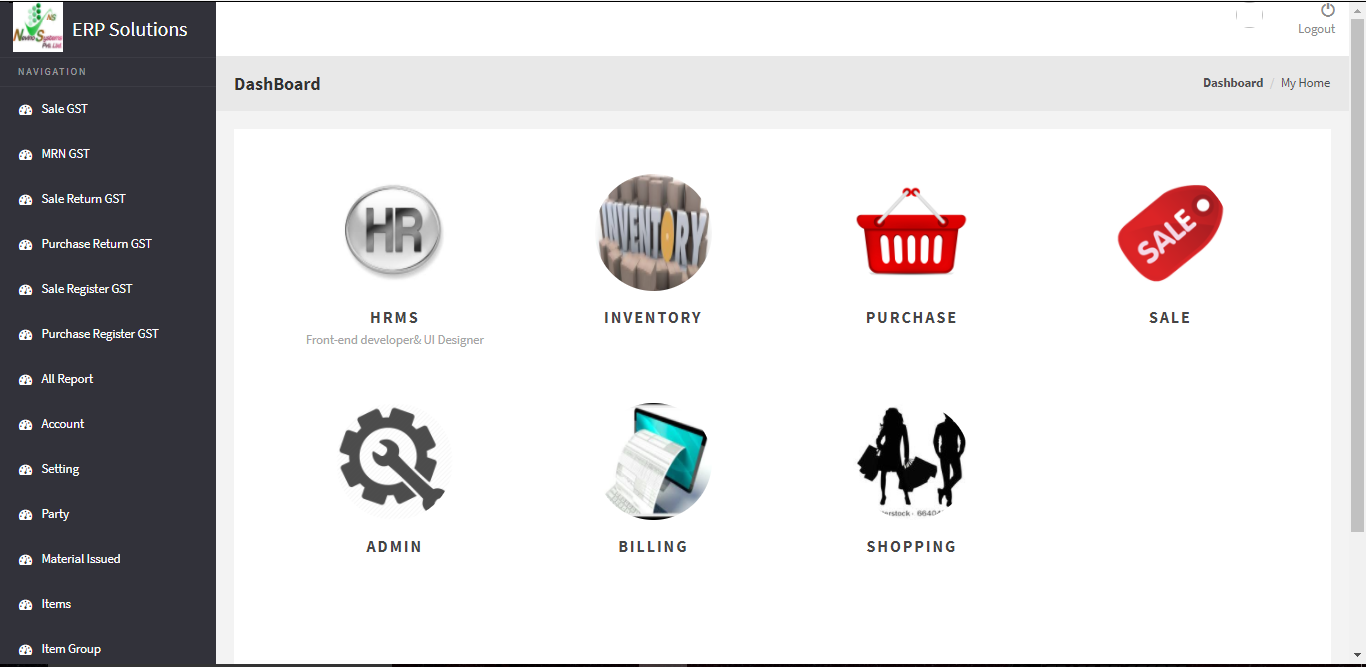
    main hr window

    Step 2. When window as below appears click on ‘Designation’ as shown in screenshot.
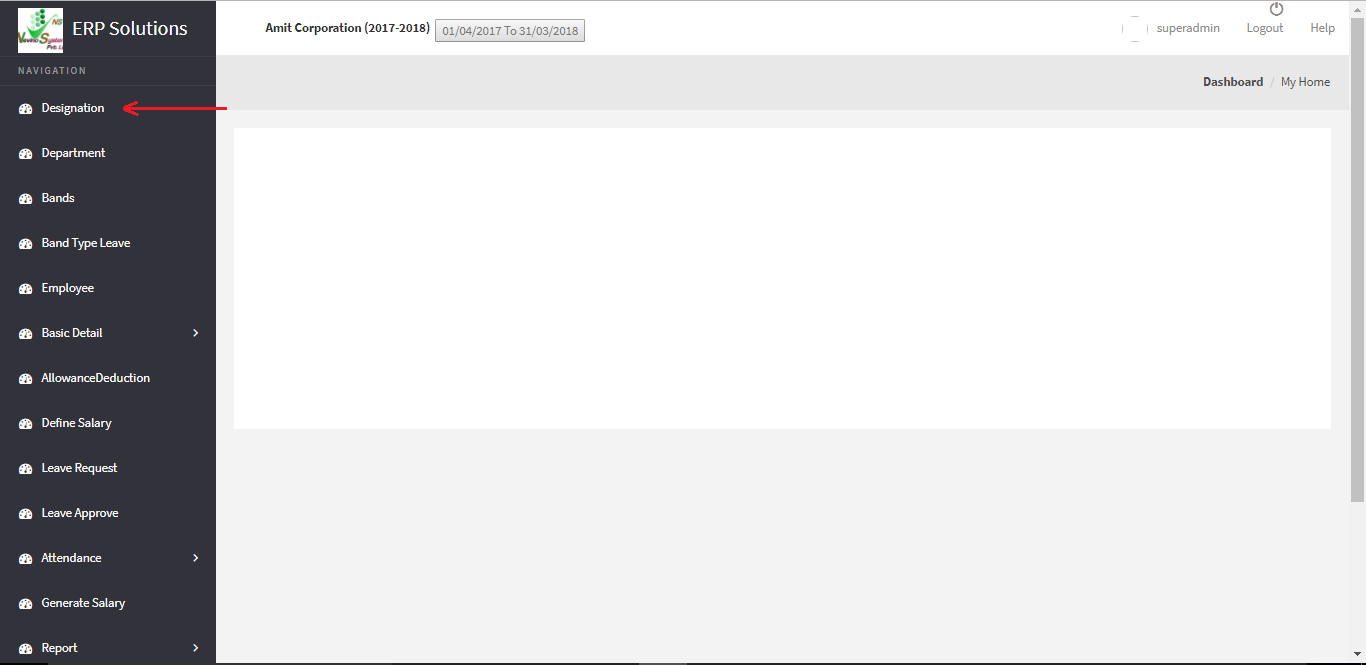
    hr designation option

    Step 3. When Designation window appears click on ‘Edit’ button as indicated in image below.
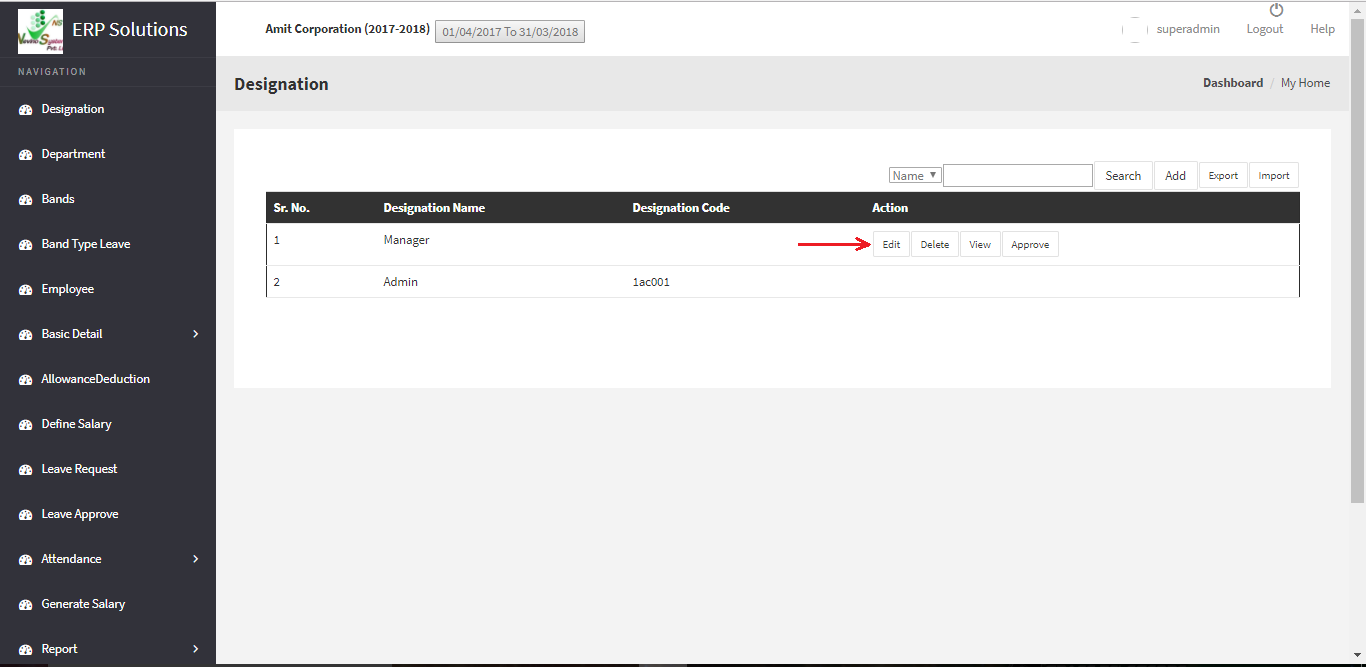
    hr designation window

    Step 4. On click of ‘Edit’ button a window as below will appear where you can see yours saved designation name, now you can click on that box and enter required designation name.
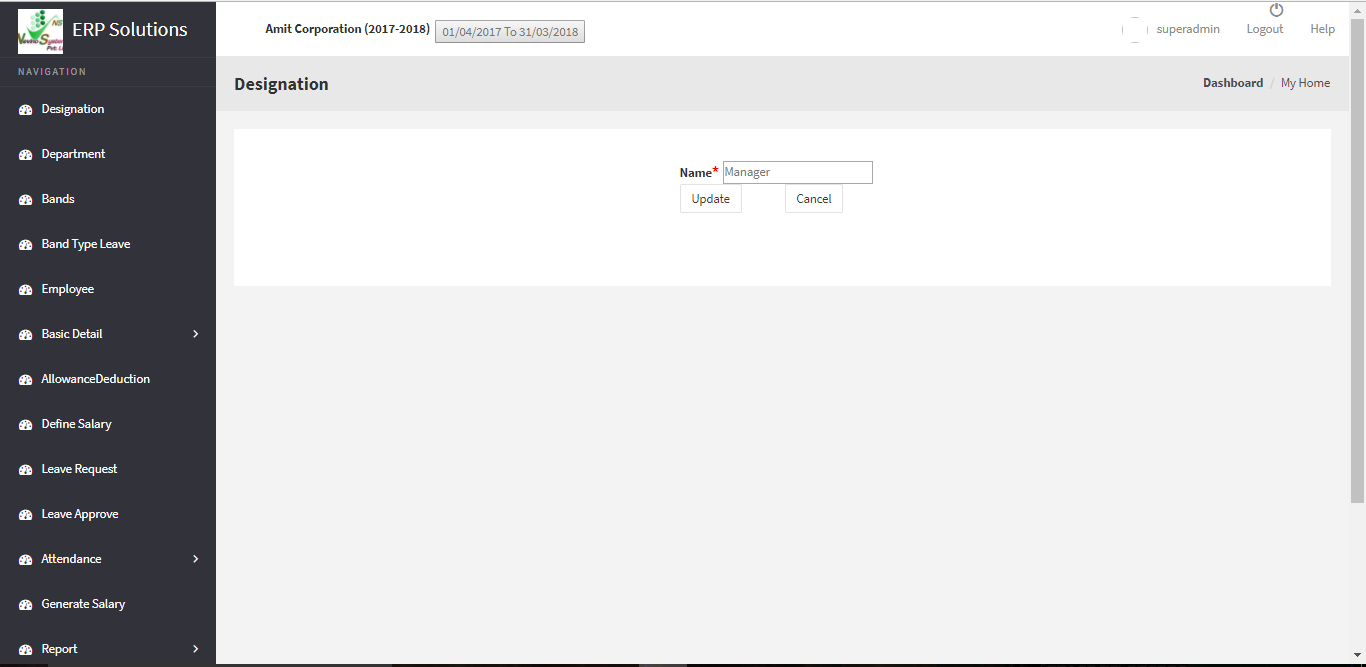
    hr designation main window

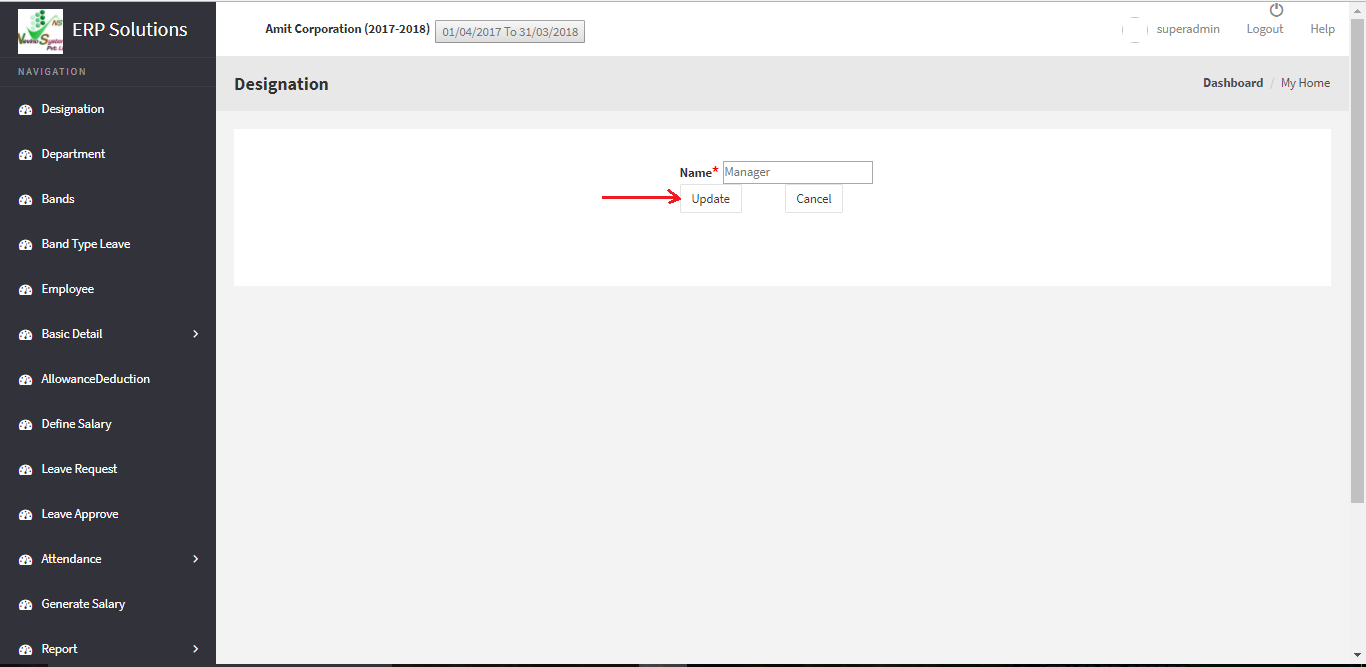
    Step 5. When you have entered the required designation click on ‘Update’ button as shown in image below. On click of ‘Update’ button designation name will be saved.
    deasignation hr update

  • How to create Designation in Nevino HR Software

    Designation of an employee is very important part of an organization as it relates to the employee. In this blog we will learn that how we can create designation in Nevino Hr Software.

    Step 1. When you have login to the Nevino HR Software the window as below will appear.
    main hr window

    Step 2. Click on ‘HR’ icon as indicated in below screen shot.
    hr icon

    Step 3. When the ‘HR’ icon is clicked a new window will appear as below where you must click on ‘Designation’ as indicated below.
    hr designation option

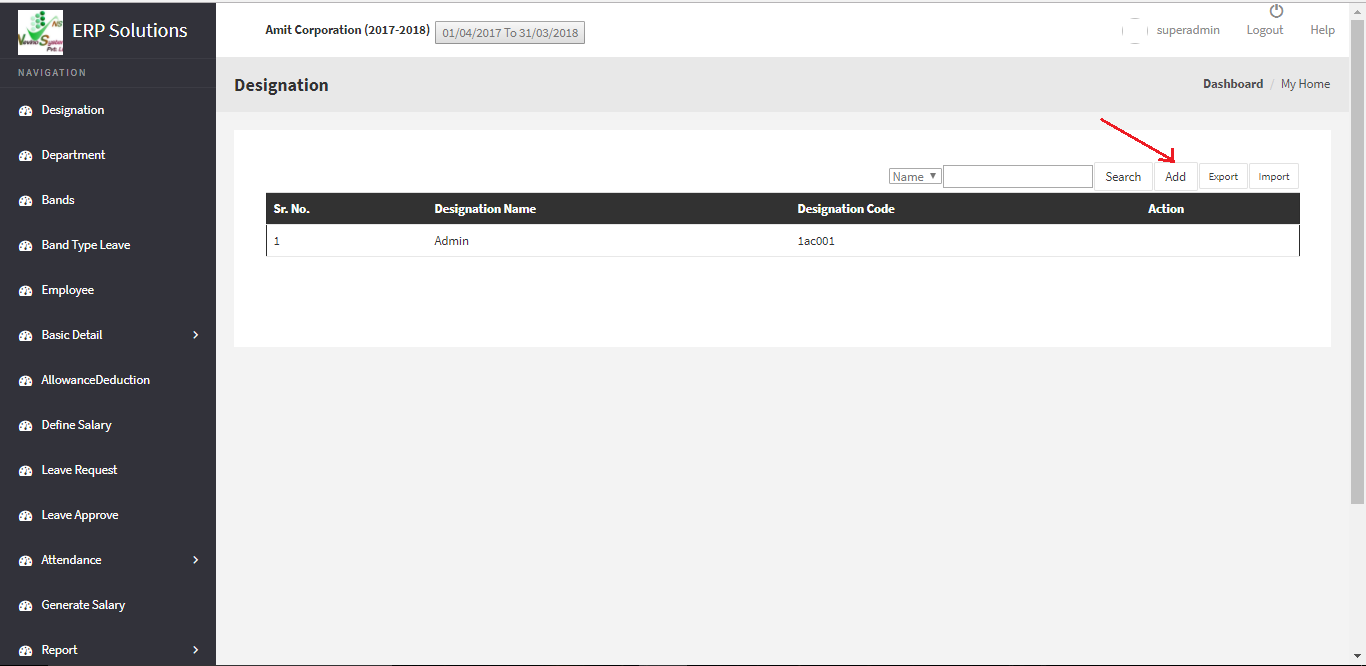
    Step 4. This is the ‘Designation’ window of Nevino HR software. Now click on ‘Add’ button as indicated in below image.
    hr add designation

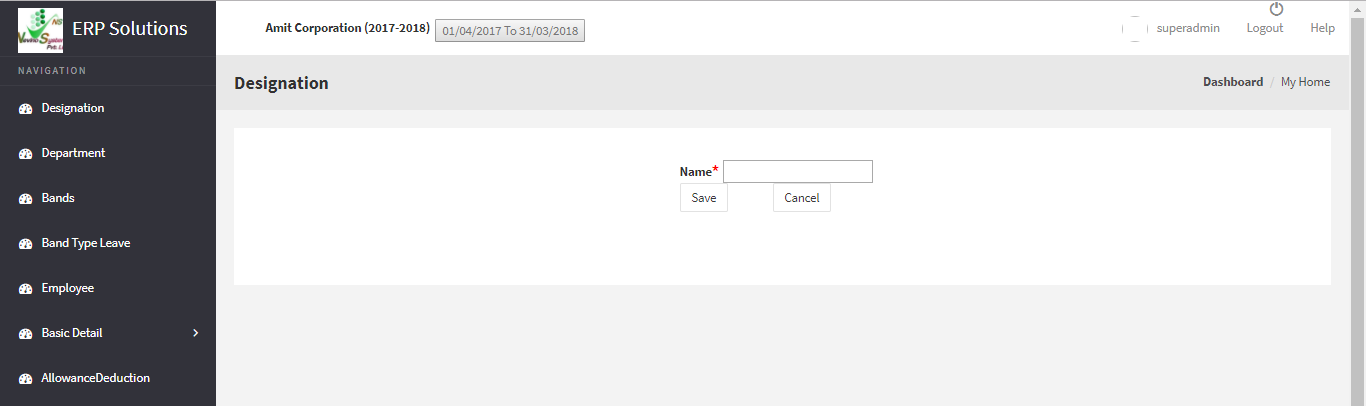
    Step 5. On click of ‘Add’ button a new window will appear as shown in below image.
    hr enter name

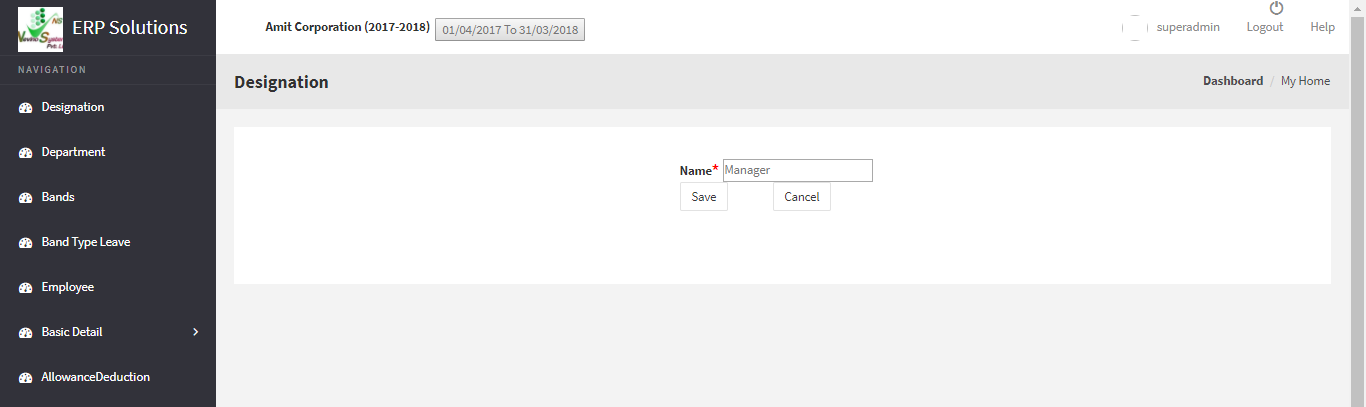
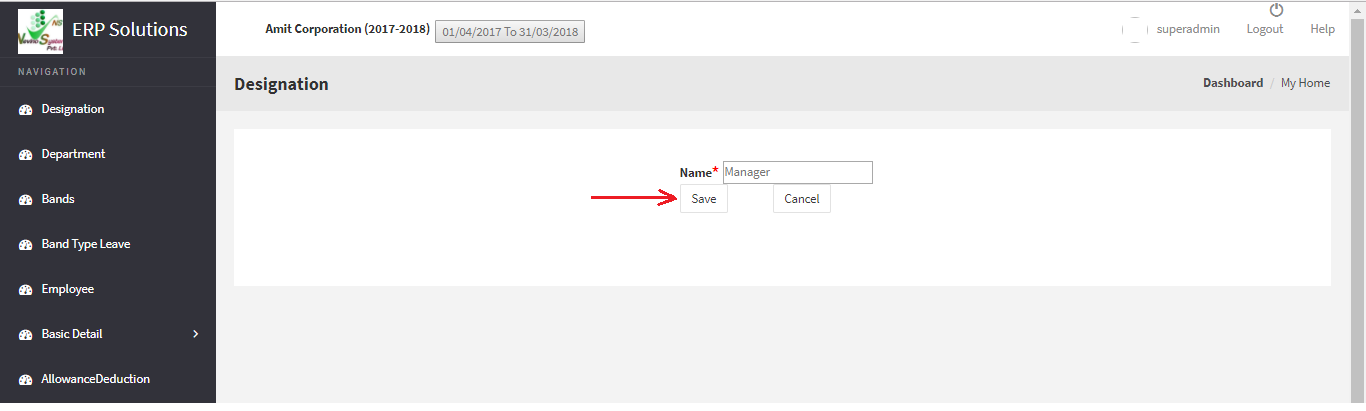
    Step 6. Enter name of any designation in the blank box provided with ‘Name’ for example we will add ‘Manager’ as designation name as per below image.
    hr name entered

    Step 7. When you have entered the designation click on ‘Save’ button as indicated below.
    hr designation save button

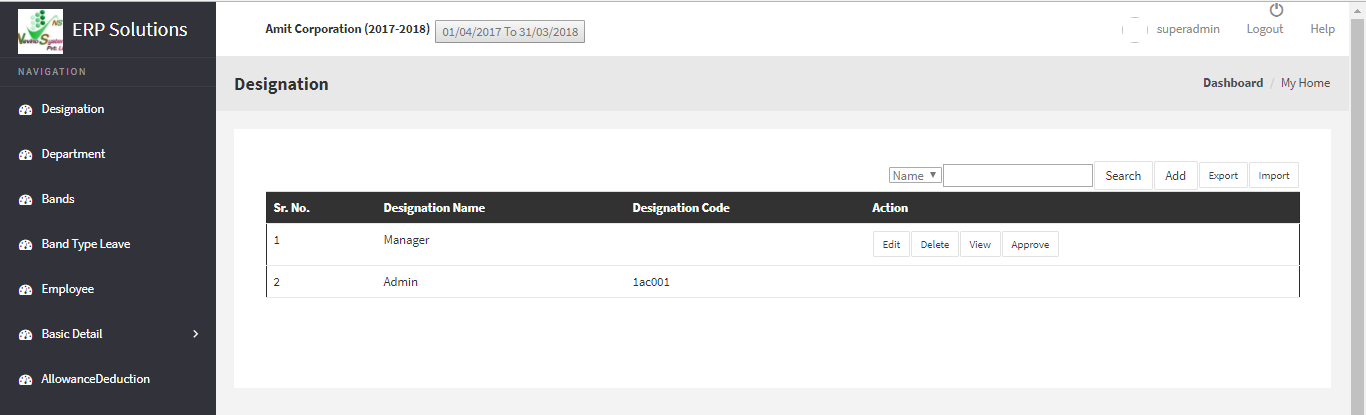
    Step 8. When ‘Save’ button is clicked designation will be saved and that designation name will appear on ‘Designation’ window as shown below. In this way you can add ‘Designation’ into the Nevino HR Software.
    hr designation created

  • How to Login in Nevino HR Software

    From this blog we will start learning about the Nevino HR Software. First we will understand that how we can login to Nevino HR Software. So please follow below mentioned steps to login.

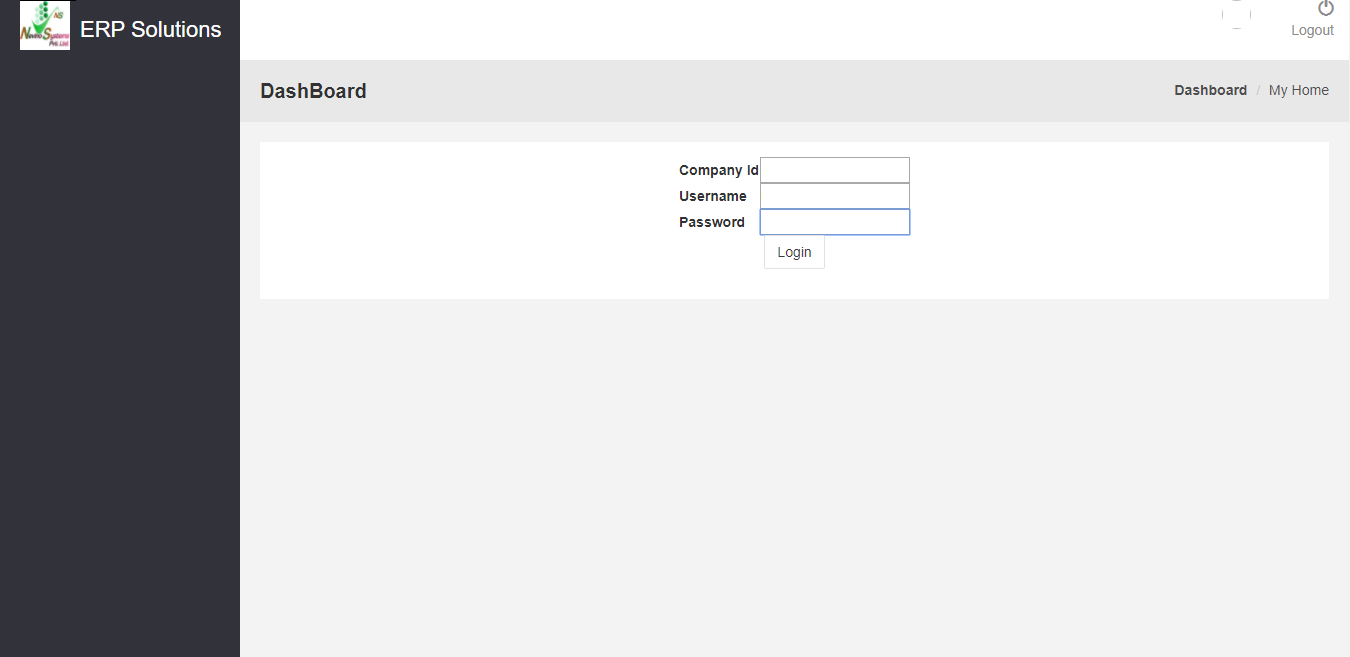
    Step 1. When Nevino HR Software is installed by our technical team on your computer system you will find a window as below on your computer screen.
    hr login window

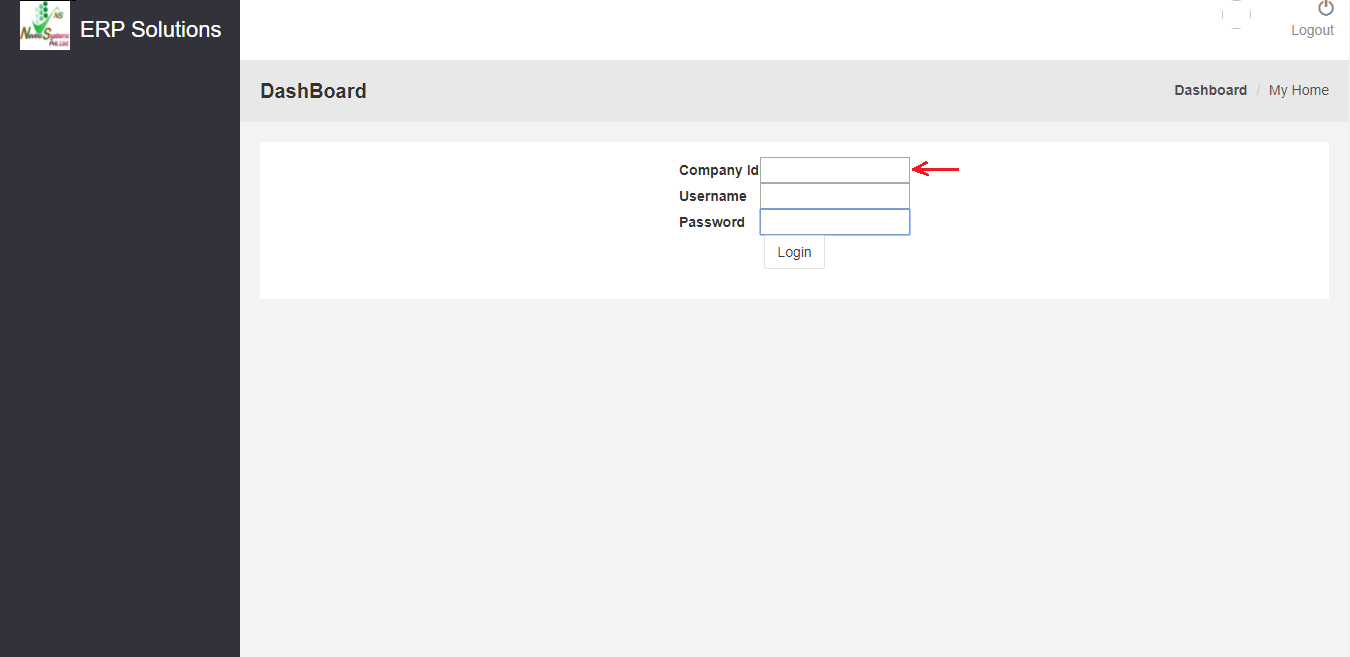
    Step 2. In the first box enter the ‘Company ID’ as indicated in the window below.
    hr enter company id

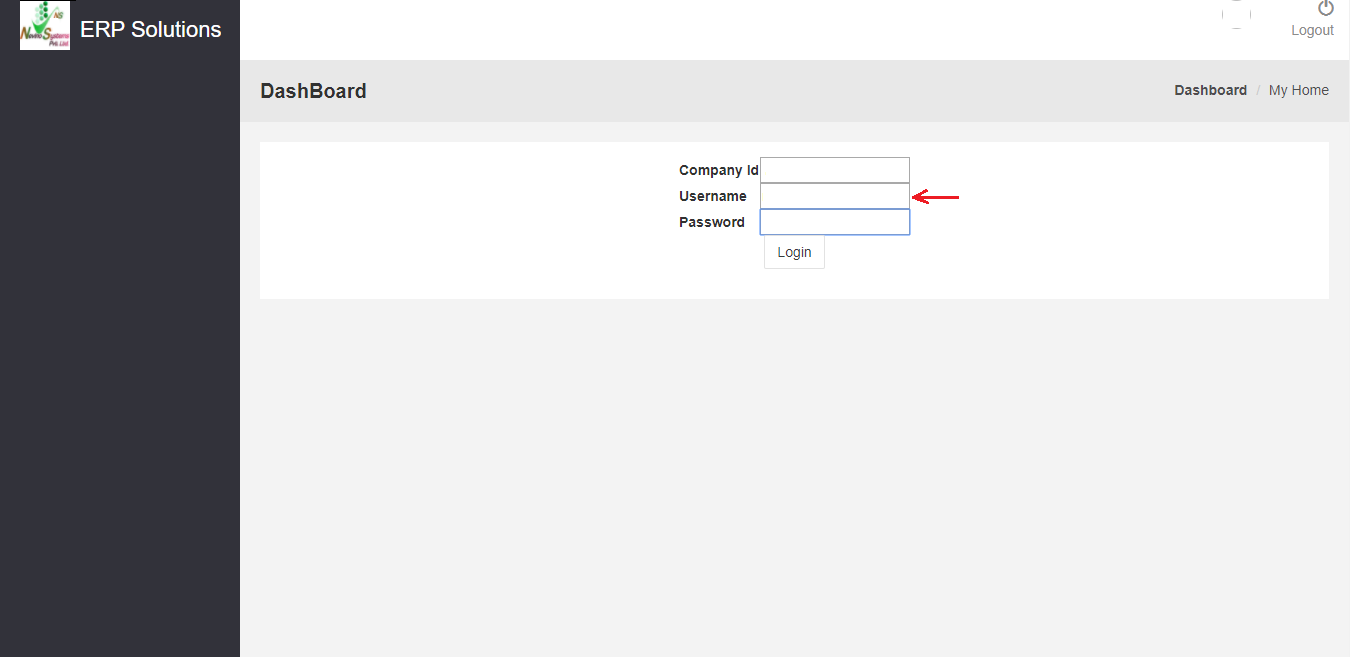
    Step 3. In the second box enter the username provided by our technical team as indicated in image below.
    hr enter username

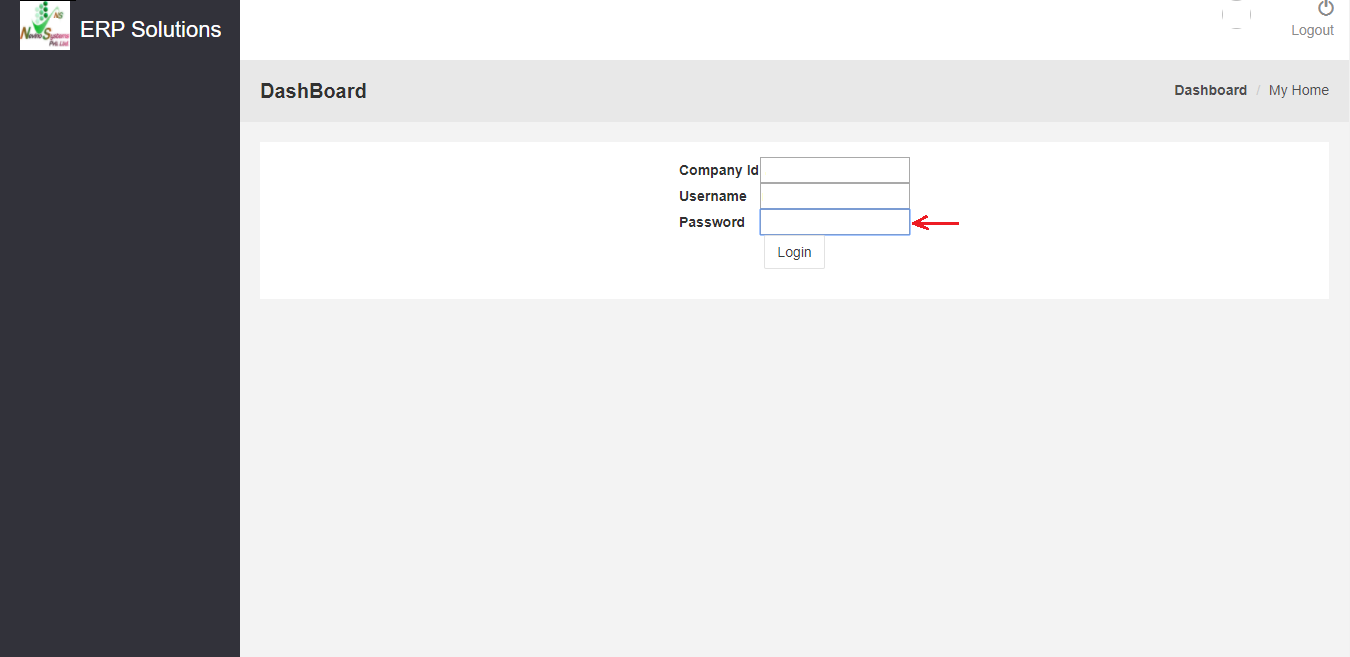
    Step 4. In the third box enter the password as indicated in the image below.
    hr enter password

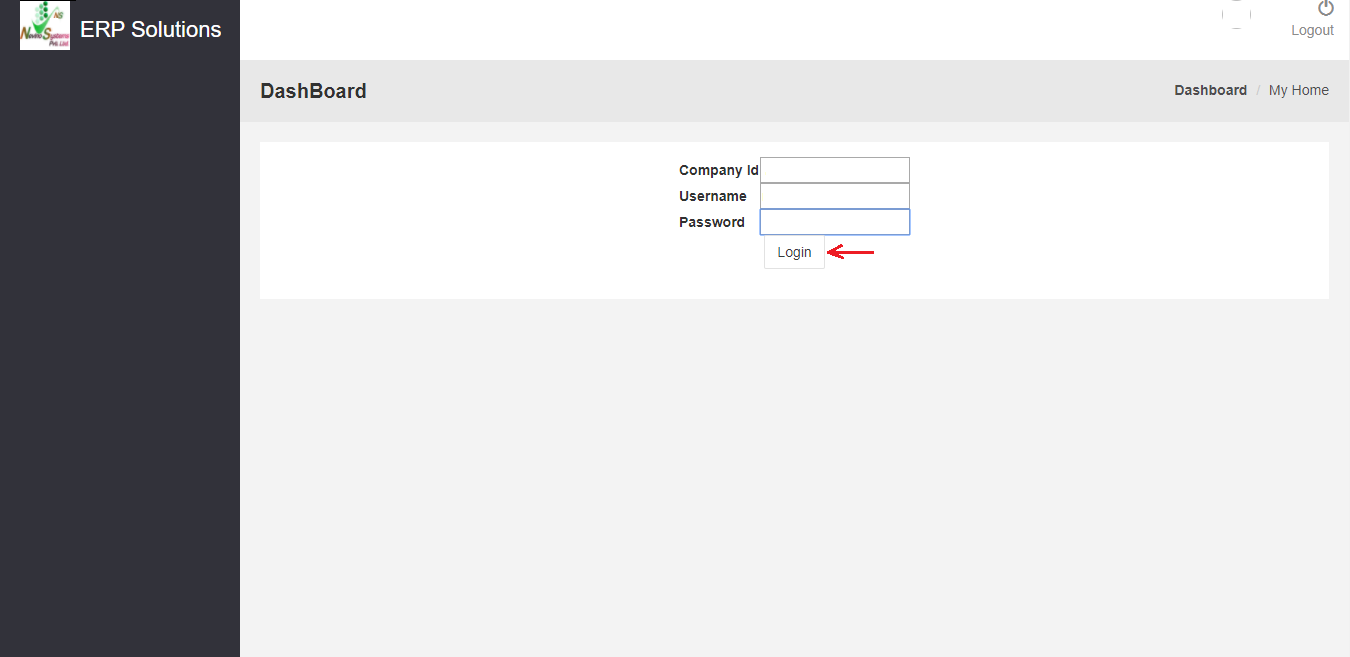
    Step 5. Now click on ‘Login’ button and this will complete the login process as per image below.
    hr click login button

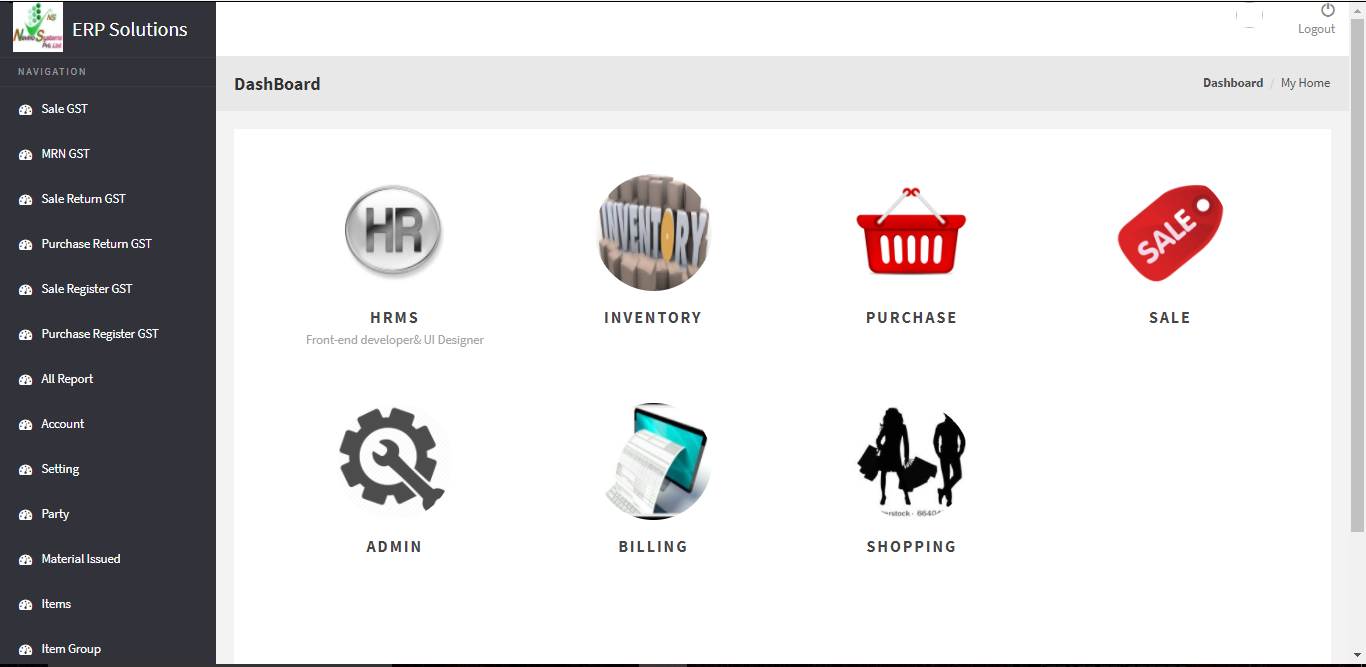
    Step 6. After this you will be login to Nevino HR Software and main window of this software will appear as below screen shot.
    hr main window